Author: carl

  • How to Calibrate Your TV in 30 Minutes Without Hiring a Professional

    How to Calibrate Your TV in 30 Minutes Without Hiring a Professional

    Your TV probably looks worse than it should right out of the box. Manufacturers ship displays with settings cranked up to grab attention on bright showroom floors, not to deliver accurate colors in your living room. The good news? You can fix this yourself in about half an hour.

    Key Takeaway

    TV calibration adjusts brightness, contrast, color, and sharpness to match industry standards. You can dramatically improve picture quality using free test patterns and your TV’s built-in settings. The process takes 30 minutes and requires no special equipment beyond your remote control. Professional calibration costs hundreds, but DIY methods deliver 80% of the results for free.

    Why Your TV Needs Calibration

    Most televisions arrive with picture modes like “Vivid” or “Dynamic” enabled by default. These modes boost brightness and oversaturate colors to compete with fluorescent store lighting.

    At home, these settings cause eye strain during long viewing sessions. They also crush detail in dark scenes and make skin tones look unnatural.

    Calibration brings your display closer to what directors and cinematographers intended. You’ll see more detail in shadows, more accurate colors, and a more comfortable viewing experience.

    What You’ll Need Before Starting

    How to Calibrate Your TV in 30 Minutes Without Hiring a Professional - Illustration 1

    The calibration process requires minimal equipment:

    • Your TV remote control
    • A streaming device or Blu-ray player
    • Access to free calibration patterns online
    • A dark or dimly lit room
    • About 30 minutes of uninterrupted time

    You don’t need colorimeters, calibration discs, or expensive software. Those tools help professionals achieve perfect accuracy, but you can get excellent results without them.

    Preparing Your Viewing Environment

    Turn off overhead lights and close blinds or curtains. Your TV should be the primary light source in the room.

    Let your television warm up for at least 15 minutes before making adjustments. Picture characteristics change slightly as the panel reaches operating temperature.

    Sit at your normal viewing distance. Settings that look good from two feet away might appear different from your couch.

    Understanding Picture Mode Settings

    How to Calibrate Your TV in 30 Minutes Without Hiring a Professional - Illustration 2

    Every TV includes preset picture modes. Here’s what they actually do:

    Picture Mode Purpose Best For
    Vivid/Dynamic Maximum brightness and saturation Retail displays only
    Standard Balanced but still oversaturated Daytime viewing in bright rooms
    Movie/Cinema Closest to industry standards Calibration starting point
    Game Reduced input lag Gaming sessions
    Sports Enhanced motion and brightness Live sports broadcasts

    Start with Movie or Cinema mode. These presets use color temperatures and gamma curves closer to professional standards.

    Some manufacturers call this mode “Filmmaker Mode” or “THX.” Use whichever option prioritizes accuracy over punch.

    Step-by-Step Calibration Process

    Follow these adjustments in order. Each setting builds on the previous one.

    1. Disable Motion Smoothing and Enhancements

    Navigate to your TV’s advanced picture settings. Look for features with names like:

    • Motion smoothing
    • TruMotion
    • MotionFlow
    • Auto Motion Plus
    • Clear Motion

    Turn all of these off. They create the “soap opera effect” that makes movies look like daytime television.

    Also disable:

    • Dynamic contrast
    • Black tone
    • Flesh tone enhancement
    • Edge enhancement
    • Noise reduction (unless watching low-quality sources)

    These processing features introduce artifacts and reduce picture accuracy.

    2. Adjust Backlight or OLED Light

    This setting controls your screen’s overall brightness output. It doesn’t affect color or contrast, just how much light the panel produces.

    Set backlight based on your room lighting:

    • Dark room: 20-30% (reduces eye strain)
    • Mixed lighting: 40-60% (balanced for most conditions)
    • Bright room: 70-85% (maintains visibility)

    Higher backlight settings consume more power but improve visibility in bright environments. Lower settings reduce eye fatigue during nighttime viewing.

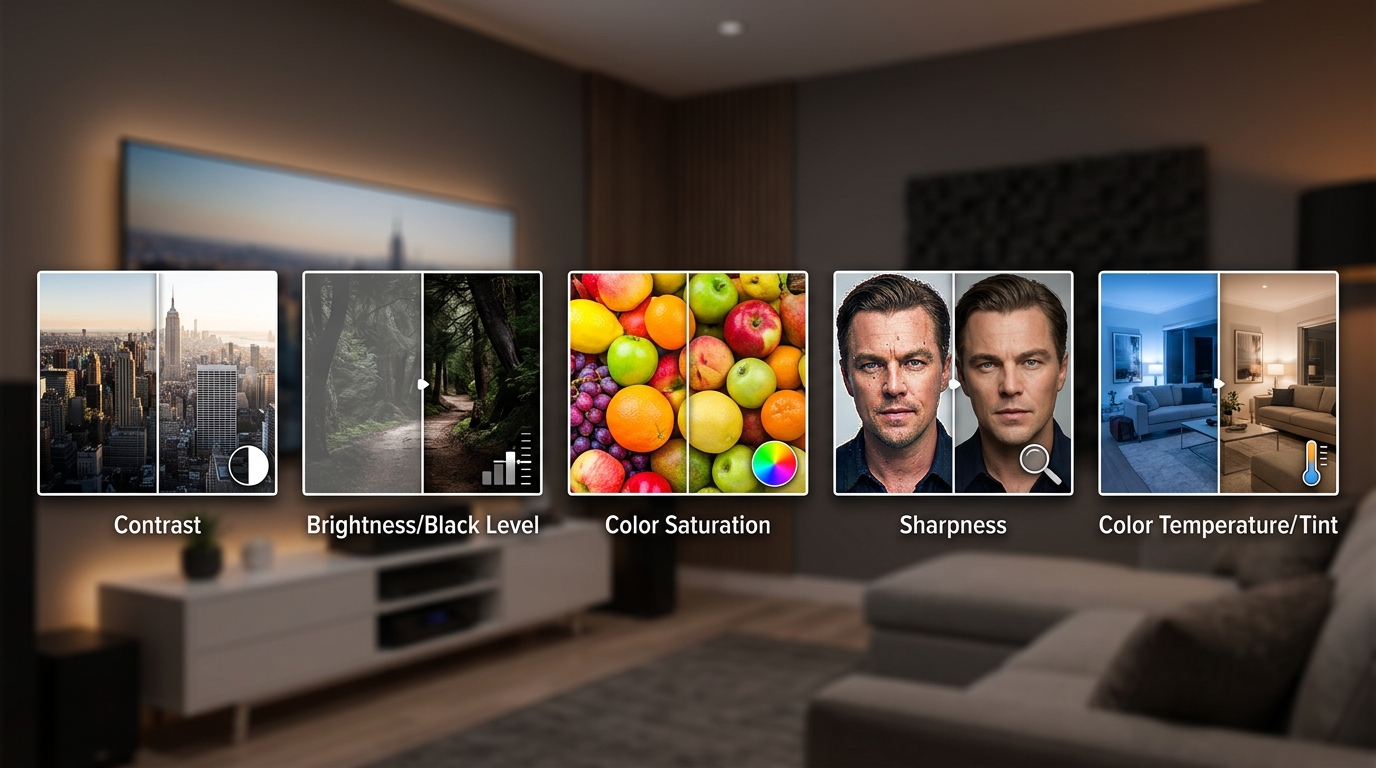
    3. Set Brightness (Black Level)

    Despite its name, this control adjusts how dark your TV displays black areas. Set it incorrectly and you’ll either crush shadow detail or make blacks look gray.

    Find a test pattern showing near-black bars numbered from 0 to 5. The Lagom LCD test patterns work well for this.

    Adjust brightness until:

    • Bar 0 (true black) disappears into the background
    • Bars 1-2 are barely visible
    • Bars 3-5 are clearly distinct from each other

    If you can’t see any difference between bars 0-3, your brightness is too low. If bar 0 looks gray, it’s too high.

    4. Adjust Contrast (White Level)

    This setting determines how bright white areas appear. Set it too high and bright details merge together. Too low and the image looks flat.

    Use a test pattern showing white bars numbered from 250 to 255. The same Lagom patterns include this.

    Increase contrast until:

    • Bars 250-253 are clearly separate
    • Bar 254 is barely distinguishable from 255
    • Bar 255 (peak white) is bright but not glowing

    Your eyes should distinguish between bright objects like clouds and pure white elements like text on screen.

    5. Calibrate Color and Tint

    Color (saturation) controls how vivid colors appear. Tint (hue) adjusts the red-green balance.

    Most people should leave color at 45-55% and tint at the center position (0 or 50, depending on your TV).

    Look at familiar content with known color references. Skin tones provide the best gauge. Faces should look natural, not orange or pink.

    “The most common mistake people make is oversaturating color. If everyone looks like they just returned from a tropical vacation, dial it back 5-10 points.” – Display calibration professionals use this rule of thumb when training new technicians.

    6. Set Sharpness

    Sharpness doesn’t actually add detail. It applies edge enhancement that creates artificial halos around objects.

    Lower sharpness to 0-10% for most content. You want clean edges without visible outlines or ringing artifacts.

    Test with small text or fine patterns. Letters should have crisp edges without white halos. Tree branches against sky shouldn’t have glowing outlines.

    7. Adjust Color Temperature

    Color temperature affects the overall warmth or coolness of the image. Most TVs offer presets like Cool, Normal, and Warm.

    Choose Warm or Warm2. This matches the D65 standard used in professional video production.

    Cool settings add blue tint that looks “crisp” in stores but causes eye fatigue at home. Warm settings appear slightly yellow at first but look natural after your eyes adapt.

    Give yourself 10 minutes to adjust. What seems too warm initially will look correct once your brain recalibrates.

    Testing Your Results

    After making adjustments, watch familiar content to verify improvements. Look for:

    • Visible detail in dark scenes without gray blacks
    • Bright areas that maintain detail without blooming
    • Natural skin tones across different ethnicities
    • Comfortable viewing without eye strain
    • Clean edges without artificial sharpening halos

    Compare your calibrated settings to the factory defaults by switching picture modes. The difference should be immediately obvious.

    Common Calibration Mistakes

    Mistake Why It Happens How to Fix
    Setting brightness too high Confusing brightness with backlight Use test patterns, not guesswork
    Maxing out contrast Assuming brighter is better Stop when detail disappears
    Leaving sharpness at 50% Thinking halfway is balanced Lower to 0-10% for most content
    Using Cool color temperature Preferring the blue-tinted “clarity” Switch to Warm and adapt for 10 minutes
    Keeping motion smoothing on Not knowing it exists Check advanced settings and disable

    Saving and Protecting Your Settings

    Once you’ve finished calibrating, save your settings to a custom picture mode if your TV allows it. This prevents accidental changes.

    Write down your final values for each setting. If someone changes them or a firmware update resets your TV, you can restore them without repeating the entire process.

    Some TVs apply different settings to each input. Calibrate your most-used input first, then copy those settings to others.

    When to Recalibrate

    TV panels change slightly over time. Backlight brightness decreases and color shifts occur gradually.

    Recalibrate annually to maintain optimal performance. Also recalibrate if you:

    • Move your TV to a room with different lighting
    • Notice colors looking off compared to other displays
    • Update your TV’s firmware
    • Add new light sources that change room brightness

    The process goes faster the second time since you’ll remember the steps and approximate values.

    Advanced Tweaks for Enthusiasts

    If you want to go beyond basic calibration, consider these refinements:

    Gamma adjustment controls the curve between black and white. Most content assumes gamma 2.2 or 2.4. If your TV offers this setting, start with 2.2 for mixed content or 2.4 for movie-focused viewing.

    White balance controls let you adjust red, green, and blue gain independently. Leave these alone unless you have a colorimeter to measure results. Incorrect white balance adjustments create color casts that are hard to fix by eye.

    HDR settings require separate calibration. HDR content uses different brightness and color standards. Adjust HDR backlight and tone mapping separately from SDR content.

    Picture Quality Beyond Calibration

    Calibration maximizes your current TV’s potential, but some limitations can’t be fixed through settings:

    • Panel uniformity issues (clouding, vignetting)
    • Low native contrast ratios
    • Limited color gamut coverage
    • Slow pixel response times

    If you’ve calibrated properly and still see problems, they’re likely hardware limitations rather than settings issues.

    Getting Professional Results at Home

    Professional calibrators use $2,000+ equipment to achieve perfect accuracy. They measure light output with colorimeters and adjust settings to match exact industry specifications.

    You won’t match that precision with free tools and visual adjustments. But you’ll get 80% of the way there, which is more than enough for enjoyable viewing.

    The remaining 20% requires specialized knowledge and equipment that costs more than most TVs. For casual viewing, DIY calibration delivers excellent results.

    Making Your Settings Work for Everyone

    Different viewers prefer different settings. Some people like punchier colors. Others prefer dimmer screens.

    Create multiple custom picture modes if your household has different preferences. Label them clearly: “Calibrated,” “Bright Room,” “Late Night,” etc.

    Switch between modes based on content and conditions rather than arguing about the “correct” settings.

    Your TV Now Shows What You’ve Been Missing

    Proper calibration reveals details that factory settings hide. Dark scenes become watchable. Colors look like real objects instead of cartoon versions. Your eyes relax during long viewing sessions.

    The 30 minutes you spent adjusting settings will improve every hour you spend watching. And unlike expensive upgrades, calibration costs nothing but delivers immediate, noticeable results. Grab your remote and start with picture mode selection. The improvement will surprise you.

  • How to Stop Echo and Reverb Ruining Your Home Theater Sound

    How to Stop Echo and Reverb Ruining Your Home Theater Sound

    You settle into your favorite chair, press play on your home theater system, and the dialogue sounds like it’s bouncing around inside a cave. Every word repeats itself, blurring into the next. Music loses its punch. Action scenes turn into muddy noise. The problem isn’t your speakers or receiver. It’s the room itself fighting against good sound.

    Key Takeaway

    Echo happens when sound waves bounce off hard surfaces like walls, floors, and ceilings without anything to absorb them. You can reduce echo by adding soft materials throughout your room: thick rugs, heavy curtains, upholstered furniture, bookshelves, acoustic panels, and bass traps. Most solutions cost less than professional treatment and deliver noticeable improvements in speech clarity and overall sound quality.

    Why Your Room Sounds Like a Cave

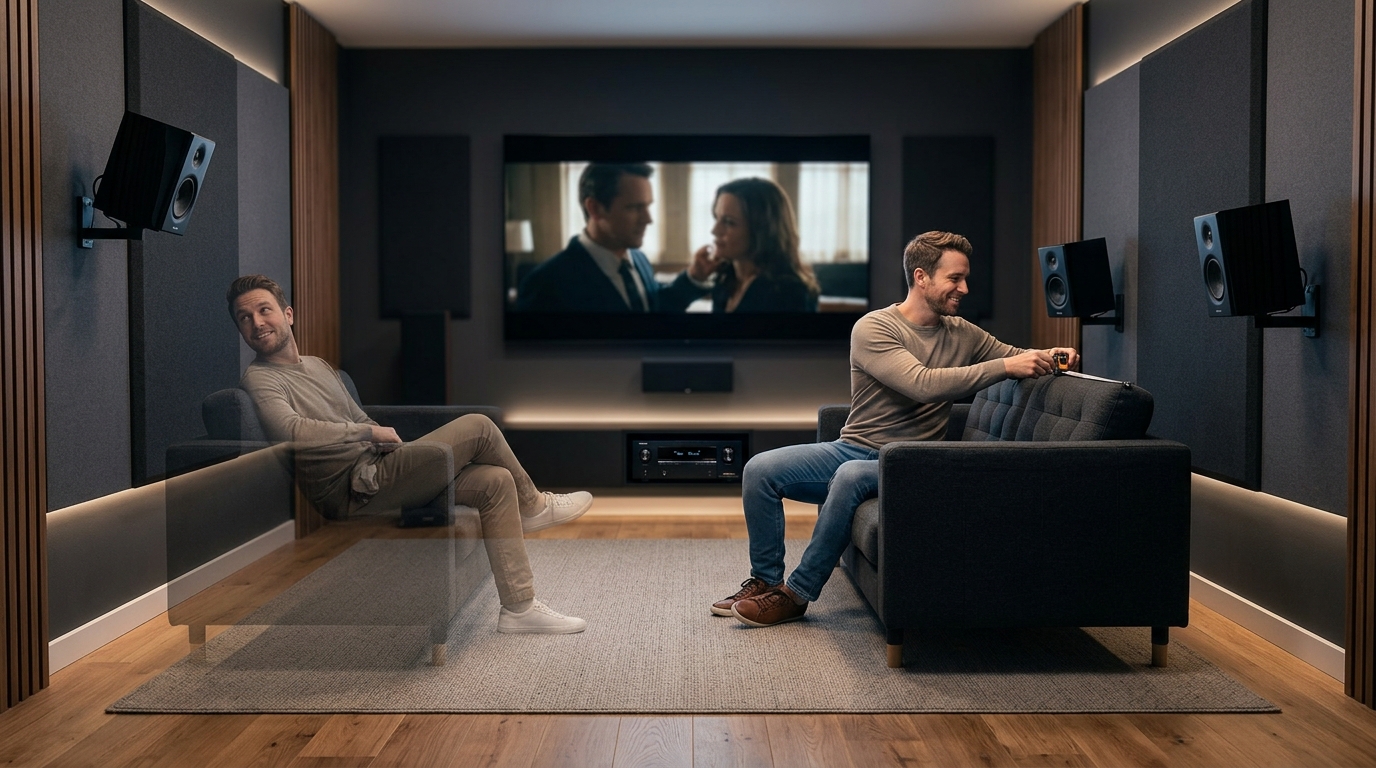
    Hard surfaces reflect sound waves instead of absorbing them. When you have bare walls, hardwood floors, large windows, and minimal furniture, sound bounces around endlessly before it fades. Each reflection arrives at your ears slightly delayed from the original sound, creating that hollow, echoey quality that ruins dialogue and music.

    The bigger the room, the longer those reflections travel. The emptier the space, the more surfaces they hit. A furnished living room with carpet and drapes sounds completely different from an empty one with the same dimensions.

    Your ears can’t separate the original sound from all those reflections when they arrive too close together. Everything blurs into reverb. Consonants in speech get lost. Bass notes boom and muddy. Stereo imaging collapses because reflected sound overwhelms the direct sound from your speakers.

    The Difference Between Echo and Reverb

    How to Stop Echo and Reverb Ruining Your Home Theater Sound - Illustration 1

    People use these terms interchangeably, but they describe different problems.

    Echo happens when a reflection arrives late enough that you hear it as a distinct repetition. Clap your hands in a large empty room and you might hear a clear “clap…clap” coming back at you. That’s echo.

    Reverb is what happens when hundreds of reflections pile up so close together that they create a wash of sound. It’s not distinct repetitions. It’s a sustained tail that hangs in the air after the original sound stops. Small rooms typically create reverb rather than true echo.

    Both problems have the same solution: absorb or scatter sound waves before they bounce back to your listening position.

    Start With What You Already Own

    Before buying acoustic panels or bass traps, look around your room. You probably own items that already help with echo reduction.

    Upholstered furniture absorbs mid and high frequencies. A thick couch does more acoustic work than you’d think. Armchairs with fabric cushions help too. Leather reflects more sound than fabric, but it’s still better than bare walls.

    Bookshelves loaded with books scatter sound in random directions instead of reflecting it straight back. The irregular surface breaks up reflections. Shelves also add mass and depth to walls, which helps with lower frequencies.

    Heavy curtains or drapes absorb sound and block reflections from windows. Glass is one of the worst offenders for creating harsh reflections. Cover your windows with thick material and you’ll hear an immediate difference.

    Area rugs and carpet pads absorb floor reflections. Hardwood and tile floors bounce sound straight up to the ceiling, where it reflects back down. A thick rug between your speakers and listening position makes dialogue clearer.

    Five Steps to Reduce Echo Without Professional Help

    How to Stop Echo and Reverb Ruining Your Home Theater Sound - Illustration 2
    1. Place a large area rug in front of your speakers. Make it thick. The padding underneath matters as much as the rug itself. This stops the first floor reflection, which is one of the most damaging to sound quality.

    2. Hang heavy curtains on any walls with windows. Go for thermal or blackout curtains. They’re thick enough to absorb sound and they serve double duty by blocking light during daytime viewing.

    3. Add soft furniture between your speakers and the side walls. A bookshelf, a cabinet, or even a tall plant in a large pot breaks up side wall reflections. Anything that stops sound from bouncing straight from the speaker to the wall and back to your ears.

    4. Put acoustic panels on the side walls at speaker height. You can buy ready made panels or make your own from rigid fiberglass insulation wrapped in fabric. Two panels on each side wall, positioned at the reflection points, make a huge difference.

    5. Add bass traps in the room corners. Low frequency sound builds up in corners and creates boomy, muddy bass. Corner bass traps absorb those low frequencies and tighten up your sound. You can buy commercial traps or build simple triangular frames filled with dense insulation.

    Where to Place Acoustic Treatment

    Not every wall needs treatment. Focus on the spots where reflections cause the most problems.

    The side walls between your speakers and listening position need attention first. Sit in your main seat and have someone move a small mirror along the side wall. When you can see your speaker reflected in the mirror, mark that spot. That’s where sound reflects directly from the speaker to your ear. Put a panel there.

    The wall behind your speakers benefits from absorption or diffusion. If the wall is close to the speakers, use absorption panels. If there’s several feet of space, consider a bookshelf or diffuser to scatter the sound.

    The ceiling reflection point matters too, especially if you have a low ceiling. Use the mirror trick on the ceiling between your speakers and listening position. Hanging a cloud panel from the ceiling at that point clears up dialogue significantly.

    The back wall behind your listening position needs treatment if it’s close. Sound from your speakers travels past you, hits that wall, and bounces back. This late reflection muddies the soundstage. A few panels or a thick tapestry helps.

    Materials That Actually Work

    Not all soft materials absorb sound equally. Thickness and density matter more than you might think.

    • Acoustic foam panels work for high frequencies but do almost nothing for bass. They’re cheap and easy to mount, but they’re not a complete solution.
    • Rigid fiberglass panels (2 to 4 inches thick) absorb a wide range of frequencies. They’re more effective than foam and not much more expensive if you build your own.
    • Rockwool or mineral wool panels handle bass better than fiberglass. They’re denser and heavier.
    • Moving blankets or thick quilts provide temporary absorption. They’re not pretty, but they work in a pinch.
    • Bass traps need depth and density. A thin panel won’t touch low frequencies. Look for traps that are at least 4 inches thick, ideally placed across corners to maximize depth.

    Common Mistakes That Waste Money

    Mistake Why It Fails Better Approach
    Covering every wall with foam Creates dead, lifeless sound; doesn’t address bass Treat reflection points only; use varied materials
    Using only thin materials High frequencies get absorbed, bass remains boomy Use 2 to 4 inch thick panels; add corner bass traps
    Ignoring the ceiling Ceiling reflections blur dialogue and imaging Treat the ceiling reflection point between speakers and seat
    Treating the wrong walls Wastes materials on walls that don’t cause problems Use mirror method to find actual reflection points
    Buying expensive gear first Acoustic problems ruin even the best speakers Fix the room before upgrading equipment

    How Much Treatment Is Enough

    You don’t want a completely dead room. Some reflections add spaciousness and liveliness to the sound. The goal is controlled reflections, not zero reflections.

    Start with minimal treatment and add more gradually. Put up a rug and curtains. Listen for a few days. Add side wall panels. Listen again. Add bass traps. Keep going until dialogue sounds clear, music has punch, and the soundstage feels wide and defined.

    Most home theater rooms need treatment on 20 to 30 percent of the wall surface. Living rooms that double as home theaters often need less because furniture and everyday items already provide absorption.

    A good rule of thumb: if you can clap your hands and hear a sharp, ringing reflection, you need more absorption. If a handclap sounds dull and flat with no sense of space, you’ve added too much treatment.

    DIY Acoustic Panels for Under $30 Each

    You can build effective acoustic panels for a fraction of retail prices. Here’s what you need:

    • Rigid fiberglass insulation (2 to 4 inches thick)
    • Wooden frames made from 1×2 or 1×4 lumber
    • Fabric to wrap the panels (breathable material like burlap or speaker cloth)
    • Spray adhesive to attach fabric
    • Hanging hardware

    Cut the wood to frame size. Assemble frames with wood glue and screws. Cut insulation to fit snugly inside. Wrap the whole thing in fabric, stretching it tight and stapling it to the back. Mount on walls with French cleats or Z-clips.

    Four panels built this way cost about the same as one commercial panel and work just as well.

    Testing Your Progress

    Your ears tell you most of what you need to know, but simple tests help confirm improvements.

    Play dialogue heavy content at normal volume. Can you understand every word without turning on subtitles? If not, you need more mid and high frequency absorption.

    Play bass heavy music or movie scenes. Does the bass sound tight and defined, or does it boom and overwhelm everything else? Boomy bass means you need corner bass traps.

    Clap your hands at different spots in the room. A sharp, ringing echo means hard reflections are still bouncing around. A short, controlled decay means your treatment is working.

    Walk around the room while playing music. Does the sound stay consistent or does it get boomy in some spots and thin in others? Uneven bass response points to room modes that need bass traps to control.

    Beyond Absorption: Diffusion and Scattering

    Absorbing every reflection creates a dead sound. Diffusion scatters reflections in different directions without completely absorbing them. This preserves a sense of space while preventing harsh echoes.

    Bookshelves act as natural diffusers. The irregular surface of book spines scatters sound randomly. You can also buy or build dedicated diffuser panels with geometric patterns that scatter specific frequencies.

    Place diffusers on the back wall behind your listening position or on the wall behind your speakers if there’s enough distance. Diffusion works best when there’s at least 3 feet between the diffuser and the listener.

    Combining absorption and diffusion creates the most natural sound. Absorb the early reflections from side walls and ceiling. Diffuse the later reflections from the back wall.

    Quick Wins That Cost Nothing

    Rearrange furniture to break up large flat surfaces. Move a bookshelf to a side wall. Angle your couch away from being parallel to the wall.

    Open closet doors if they’re in the room. The clothes inside absorb sound. A closet full of hanging clothes acts like a giant bass trap.

    Add throw pillows and blankets to your couch. Every bit of soft material helps with high frequency reflections.

    Stack books or magazines on tables and shelves. The more irregular surfaces you create, the less sound bounces around cleanly.

    Hang artwork on bare walls. Canvas paintings with thick frames add depth and break up flat surfaces. Heavy tapestries or fabric wall hangings provide even more absorption.

    When Professional Help Makes Sense

    Most home theater rooms improve dramatically with DIY treatment. But some situations benefit from professional acoustic analysis.

    If your room has severe bass problems that corner traps don’t fix, you might have strong room modes that need calculated treatment placement. An acoustician can measure the room and recommend specific solutions.

    If you’re building a dedicated theater room from scratch, getting professional advice during the design phase saves money and delivers better results than trying to fix problems after construction.

    If you’ve added treatment but still struggle with specific problems, measurements from a calibrated microphone and room correction software can pinpoint issues your ears might miss.

    Balancing Acoustics and Aesthetics

    Acoustic treatment doesn’t have to look industrial. Fabric wrapped panels come in any color. You can print custom fabric with artwork or photos and wrap panels with it.

    Acoustic panels double as wall art when covered with attractive fabric. Arrange them in patterns or group them like a gallery wall.

    Bass traps fit behind furniture or in corners where they’re barely visible. You can build them into floor to ceiling columns that look like architectural elements.

    Curtains and rugs are acoustic treatments that nobody questions. Choose styles that match your decor and they serve double duty.

    Bookshelves, plants, and decorative objects all contribute to better acoustics while looking like normal room furnishings.

    Your Room, Your Sound

    Reducing echo doesn’t require a complete room renovation or thousands of dollars in commercial products. Start with soft furnishings you already own. Add a rug, hang some curtains, fill your bookshelves. Listen to the difference.

    Then tackle the reflection points with a few acoustic panels. Build them yourself or buy them ready made. Add corner bass traps to control the low end. Test as you go and stop when the sound feels right to your ears.

    Your room will never sound like a professional recording studio, and that’s fine. You’re not trying to create a clinical listening environment. You want clear dialogue, punchy bass, and an immersive soundstage that makes movies and music enjoyable. A few strategic improvements get you there without turning your living room into a science experiment.

  • OLED vs QLED vs Mini-LED: Which TV Technology Should You Buy in 2026?

    OLED vs QLED vs Mini-LED: Which TV Technology Should You Buy in 2026?

    You’re standing in front of a wall of stunning TVs, and they all look incredible under those bright store lights. But which technology actually delivers the best picture in your living room? The answer depends on how you watch, where you watch, and what you’re willing to spend.

    Key Takeaway

    OLED offers perfect blacks and infinite contrast for dark rooms. QLED delivers superior brightness and vibrant colors for bright spaces. Mini-LED splits the difference with excellent contrast and high brightness at a lower price. Your room lighting and viewing habits determine which technology wins for your setup.

    How Each Technology Actually Works

    OLED panels use organic compounds that emit their own light. Each pixel turns on and off independently. No backlight needed.

    QLED is Samsung’s branding for quantum dot LCD panels. These use a traditional LED backlight with a quantum dot layer that enhances color accuracy and brightness. The backlight stays on, and liquid crystals block or allow light through.

    Mini-LED uses thousands of tiny LEDs as the backlight behind an LCD panel. More dimming zones mean better contrast control than standard LED TVs, but still not pixel-level like OLED.

    The fundamental difference comes down to this: OLED creates light at the pixel level. QLED and Mini-LED block and filter light from behind.

    Picture Quality Breakdown

    OLED vs QLED vs Mini-LED: Which TV Technology Should You Buy in 2026? - Illustration 1

    Black Levels and Contrast

    OLED wins here without contest. Turn off a pixel, and you get true black. Zero light emission. This creates infinite contrast ratios because you’re dividing by zero.

    QLED struggles with blacks because the backlight always glows to some degree. Even with local dimming, you’ll see blooming around bright objects on dark backgrounds. Watch a space movie and notice the halo around stars.

    Mini-LED improves on traditional QLED by using hundreds or thousands of dimming zones instead of dozens. High-end models approach OLED-like blacks, but physics still limits them. Some backlight bleed remains.

    Brightness and HDR

    QLED dominates brightness tests. Premium models hit 2,000 to 3,000 nits peak brightness. Sunlight streaming through your windows? No problem.

    Mini-LED matches QLED brightness while maintaining better contrast. You get bright highlights without sacrificing shadow detail.

    OLED tops out around 800 to 1,000 nits on most models. Newer QD-OLED panels push higher, but still can’t match QLED. For HDR content in bright rooms, this matters.

    If your TV room has large windows and you watch during the day, prioritize brightness over contrast. A dim TV with perfect blacks still looks washed out in sunlight.

    Color Performance

    QLED and Mini-LED with quantum dots produce the widest color gamut. They cover nearly 100% of the DCI-P3 color space that HDR content uses.

    OLED delivers excellent color accuracy but slightly narrower volume because of brightness limitations. Colors look natural and film-like.

    The difference shows most in bright, saturated scenes. Animated films, nature documentaries, and sports broadcasts favor quantum dot technology.

    Real-World Viewing Scenarios

    Your room determines which technology performs best.

    Dark room theater setup: OLED wins. Those perfect blacks create incredible depth and immersion. Movies look exactly as the director intended.

    Bright living room: QLED or Mini-LED. You need that extra brightness to overcome reflections and ambient light. OLED looks gray and washed out.

    Mixed lighting: Mini-LED offers the best compromise. Good blacks when lights are off, enough brightness when they’re on.

    Gaming: OLED provides instant response times and supports 120Hz at 4K. Risk of burn-in exists if you play the same game for thousands of hours. Mini-LED avoids burn-in while delivering excellent gaming performance.

    Lifespan and Burn-In Concerns

    OLED vs QLED vs Mini-LED: Which TV Technology Should You Buy in 2026? - Illustration 2

    OLED panels degrade over time. The organic compounds dim with use. Expect 50,000 to 100,000 hours before noticeable degradation.

    Burn-in remains a real concern. Static elements like news tickers, channel logos, or game HUDs can permanently ghost into the screen. Modern OLEDs include pixel shifting and screen savers, but heavy static content still poses risk.

    QLED and Mini-LED use inorganic materials. No burn-in risk. Lifespan typically exceeds OLED by years.

    If you watch varied content, OLED burn-in risk stays low. If you leave CNBC on for eight hours daily, choose QLED or Mini-LED.

    Price Comparison Across Sizes

    Here’s what you’ll pay for premium models in each category:

    Screen Size OLED Price QLED Price Mini-LED Price
    55-inch $1,200 – $1,800 $800 – $1,400 $700 – $1,200
    65-inch $1,600 – $2,500 $1,200 – $2,000 $1,000 – $1,600
    77-inch $2,800 – $4,500 $2,200 – $3,500 $1,800 – $2,800
    83-inch+ $5,000 – $8,000 $3,500 – $6,000 $2,500 – $4,500

    Mini-LED typically costs 20 to 30% less than comparable OLED. QLED pricing overlaps both depending on brand and features.

    Budget matters, but don’t cheap out on size. A 65-inch Mini-LED beats a 55-inch OLED for most living rooms.

    Making Your Decision in Three Steps

    Follow this process to match technology to your needs:

    1. Assess your room lighting. Take photos of your TV location at different times of day. Lots of windows and bright ambient light? QLED or Mini-LED. Dedicated theater room or basement? OLED shines.

    2. Identify your content mix. Mostly movies and prestige TV shows? OLED’s cinematic quality pays off. Sports, news, and daytime TV? QLED’s brightness and color pop matter more. Gaming with static HUDs? Mini-LED avoids burn-in.

    3. Set your budget and size target. Determine the largest screen that fits your space and budget. Compare models in that size across all three technologies. Sometimes a larger Mini-LED beats a smaller OLED for total viewing experience.

    Common Mistakes to Avoid

    People make these errors when comparing TV technologies:

    • Judging picture quality in store lighting. Best Buy’s fluorescent lights favor QLED. Your dimly lit living room tells a different story.

    • Ignoring viewing distance. Sitting eight feet from a 55-inch TV wastes money on premium technology. You can’t see the difference. Size up or save money.

    • Obsessing over specs instead of content. A TV that measures perfectly but shows mostly compressed streaming content delivers mediocre results. Match the TV to what you actually watch.

    • Forgetting about sound. All flat panels sound terrible. Budget for a soundbar or speakers regardless of display technology.

    Feature Parity Across Technologies

    Modern TVs share most smart features regardless of panel type:

    • 4K resolution standard across all three
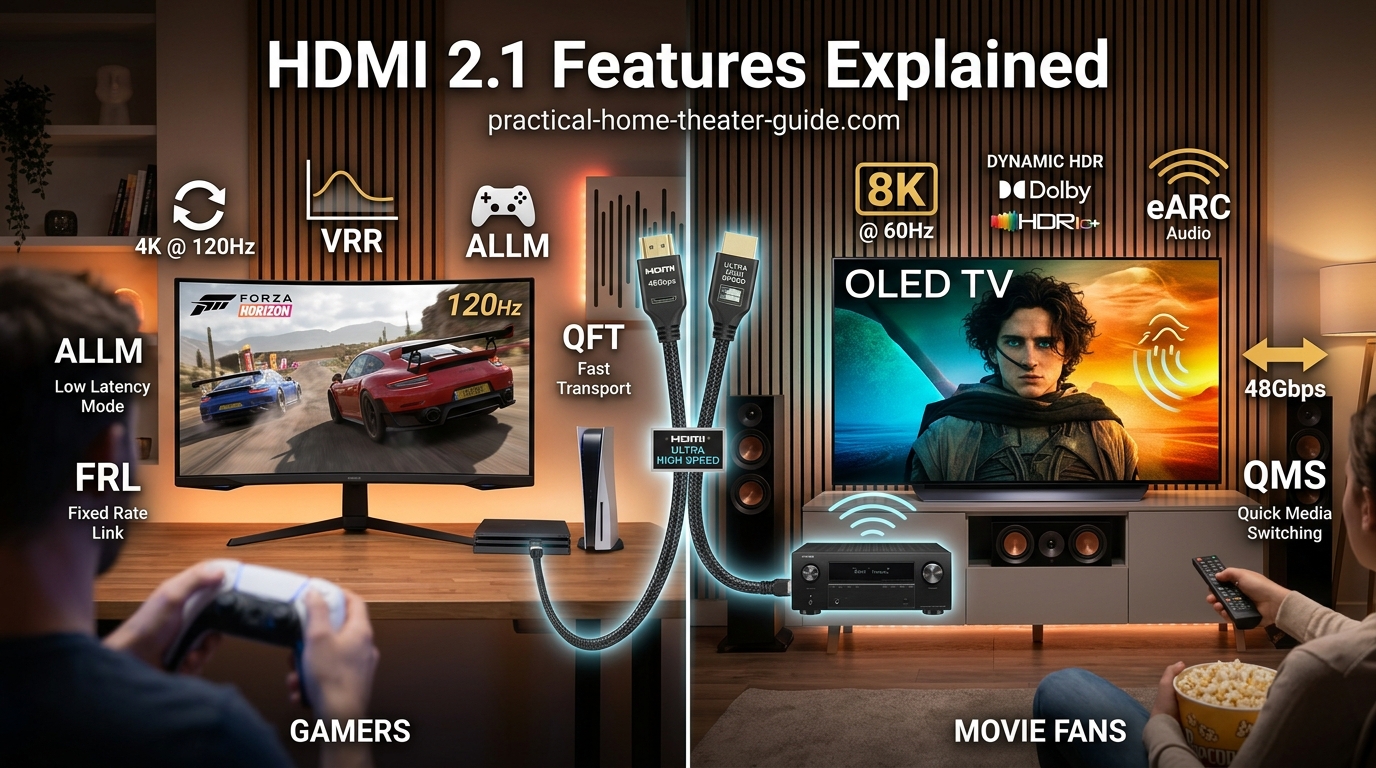
    • HDMI 2.1 for gaming on premium models
    • Variable refresh rate and auto low latency mode
    • Dolby Vision and HDR10 support
    • Built-in streaming apps
    • Voice control integration

    Panel technology affects picture quality, not features. Don’t let marketing confuse you.

    What About QD-OLED?

    Samsung and Sony now offer QD-OLED panels combining quantum dots with OLED’s self-emissive pixels. You get OLED’s perfect blacks plus wider color and higher brightness.

    These panels cost more than standard OLED. They still face burn-in risk. Consider them if you want the absolute best picture quality and have the budget.

    For most buyers, the premium doesn’t justify the cost. Standard OLED or high-end Mini-LED delivers 95% of the experience.

    Brand Differences Within Each Technology

    Not all OLEDs perform identically. LG makes most OLED panels, but Sony and LG process the image differently. Sony typically delivers better motion handling and upscaling.

    Samsung dominates QLED with its proprietary quantum dot filters. TCL and Hisense offer budget QLED options with fewer dimming zones and lower brightness.

    Mini-LED varies wildly by zone count. Premium models pack 1,000+ zones. Budget versions use 200 or fewer. More zones mean better contrast control.

    Research specific models, not just technology categories.

    Future-Proofing Your Purchase

    TV technology evolves slowly. A quality set lasts seven to ten years.

    OLED continues improving brightness and reducing burn-in risk. QLED pushes higher brightness and more dimming zones. Mini-LED zone counts keep climbing.

    MicroLED promises OLED-like performance without burn-in, but costs remain astronomical. Don’t wait for it.

    Buy the best TV for your current needs and room. Technology will improve, but your purchase will remain excellent for years.

    Matching Technology to Room and Habits

    Here’s the simple decision tree:

    • Dedicated home theater, controlled lighting, movie focused: OLED
    • Bright living room, daytime viewing, sports and news: QLED
    • Mixed use, variable lighting, gaming and movies: Mini-LED
    • Unlimited budget, want the best: QD-OLED

    Your viewing environment matters more than spec sheets. A mismatched TV disappoints regardless of technology.

    The Right Display for Your Space

    No universal best choice exists. OLED, QLED, and Mini-LED each excel in specific situations.

    Visit a showroom and compare models in person, but remember that store lighting skews results. Read professional reviews that test in controlled environments. Check return policies so you can test at home.

    Trust your eyes in your actual viewing space. The TV that looks best in your room with your content wins, regardless of what technology powers it.

    Choose based on where and how you watch. The right match transforms your viewing experience. The wrong one leaves you wondering why everyone raves about picture quality you can’t see.

  • How to Run Speaker Wire Through Walls Without Damaging Your Home

    How to Run Speaker Wire Through Walls Without Damaging Your Home

    You’ve bought the speakers. You’ve planned the layout. Now you’re staring at your walls wondering how to connect everything without turning your living room into a construction zone.

    Running speaker wire through walls isn’t rocket science, but it does require the right approach. Do it correctly and you’ll have invisible connections that make your home theater look professionally installed. Rush through it and you might punch holes in the wrong places, damage electrical wiring, or create a fire hazard.

    Key Takeaway

    Running speaker wire through walls requires planning your route, using the right tools like fish tape and stud finders, drilling proper access holes, and following electrical codes. The process takes 2-4 hours per speaker pair but creates clean, professional-looking installations. Always check for existing wiring and plumbing before drilling, use CL2 or CL3 rated wire inside walls, and consider hiring an electrician if you’re uncertain about what’s behind your drywall.

    What You Need Before You Start

    Gather your tools first. You’ll save yourself multiple trips to the hardware store.

    Here’s what belongs in your kit:

    • Stud finder with AC wire detection
    • Drill with 3/4-inch spade bit
    • Fish tape or glow rods (at least 25 feet)
    • Flashlight or headlamp
    • Painter’s tape
    • Pencil
    • Drywall saw
    • CL2 or CL3 rated speaker wire
    • Low-voltage mounting brackets (optional but recommended)
    • Voltage tester

    The stud finder is non-negotiable. Modern ones detect both wood studs and live electrical wires. Spend the extra $30 for a decent model. It’ll prevent you from drilling into a power line.

    CL2 and CL3 rated wire is designed for in-wall use. The jacket resists fire better than standard speaker cable. Most building codes require it for anything running inside walls or ceilings.

    Planning Your Wire Route

    Walk the path your wire needs to travel. Start at your receiver and trace an imaginary line to each speaker location.

    Look for obstacles:

    • Light switches and outlets (wiring runs vertically from these)
    • HVAC vents and ductwork
    • Plumbing pipes (usually in exterior walls and bathrooms)
    • Fire blocks (horizontal 2x4s in some walls)

    The easiest routes run along exterior walls or through unfinished basements and attics. Interior walls often contain more surprises.

    Measure the distance and add 25% extra length. Wire routes rarely run perfectly straight once you account for studs and corners.

    “I always run my hand along the wall feeling for temperature differences before I drill. Cold spots often mean insulation or ductwork behind the drywall. Hot spots near floors can indicate heating pipes.” – Licensed electrician with 15 years of home theater installations

    Step-by-Step Installation Process

    1. Mark Your Entry and Exit Points

    Use painter’s tape to mark where wire enters and exits the wall. Place marks about 12 inches above baseboards for floor-level speakers or near the ceiling for elevated speakers.

    Check these spots with your stud finder. You want to drill between studs, not through them.

    Mark the stud locations with tape so you don’t forget mid-project.

    2. Cut Access Holes

    For new construction or major renovations, you can cut larger holes and patch later. For minimal damage, drill 3/4-inch holes.

    Position your drill bit perpendicular to the wall. Drill slowly. Stop immediately if you feel unexpected resistance.

    The hole at your starting point (usually near your AV receiver) should be large enough to feed wire through easily. The hole at your endpoint needs to accommodate your connector or allow the wire to exit.

    3. Fish the Wire

    This is where patience pays off. Push your fish tape into the entry hole and work it toward the exit hole.

    If you hit a fire block (you’ll feel solid resistance about halfway up), you have two options:

    1. Cut a small access hole at the block location, drill through it, and patch the hole later
    2. Reroute your wire along a different path

    Attach your speaker wire to the fish tape using electrical tape. Wrap it tight so it doesn’t snag on insulation or rough wood.

    Pull slowly and steadily. Jerking the tape can disconnect your wire or damage the fish tape.

    4. Leave Service Loops

    Pull 12-18 inches of extra wire at each end. This slack lets you reposition speakers or repair connections later without rerunning the entire wire.

    Coil the excess neatly behind your speaker or equipment rack. Secure it with velcro straps, never staples or nails that could pierce the insulation.

    Common Mistakes and How to Avoid Them

    Mistake Why It Happens Better Approach
    Drilling into electrical wiring Skipping the stud finder scan Always scan twice with AC detection on
    Using standard speaker wire in walls Trying to save $20 on cable Buy CL2/CL3 rated wire from the start
    Stapling wire to studs Thinking it needs support Let wire rest naturally or use proper brackets
    Forgetting wire gauge Not calculating distance Use 16-gauge for runs under 50 feet, 14-gauge for longer
    Patching holes before testing Assuming everything works Test all connections before closing walls

    The stapling mistake is particularly common. Metal staples can pierce wire insulation over time, especially if the wire shifts from temperature changes. If you need to secure wire to framing, use plastic cable staples designed for low-voltage applications.

    Working With Different Wall Types

    Drywall is the easiest material for running wire. It cuts cleanly and patches simply.

    Plaster walls require more care. They’re harder and more brittle. Use a carbide bit and drill at lower speeds. Consider cutting a small square access hole with an oscillating tool rather than drilling blind.

    Brick or concrete exterior walls need a different strategy. Run wire through the attic or basement instead of trying to penetrate masonry. If you must go through brick, rent a hammer drill and use appropriate masonry bits.

    Mobile homes often have thinner walls with less space between interior and exterior surfaces. Fish tape can punch through the exterior siding if you’re not careful. Work slowly and use less force.

    Code Requirements You Should Know

    Most jurisdictions follow the National Electrical Code for low-voltage wiring. Key points:

    • Speaker wire must be rated for in-wall use (CL2, CL3, or CM)
    • Wire cannot share the same stud cavity as high-voltage electrical unless separated by a barrier
    • Penetrations through fire-rated walls need fire-stopping caulk
    • Some areas require permits for any work that involves drilling through wall plates

    Call your local building department before starting. A five-minute phone call can save you from having to redo work during a home sale inspection.

    Renters should always get written permission before running wire through walls. Consider surface-mounted cable raceways as an alternative. They’re removable and don’t require drilling.

    Tools That Make the Job Easier

    A basic fish tape costs $15 and works fine for simple runs. Glow rods cost $40-60 but handle corners and longer distances better. They’re rigid enough to push through insulation but flexible enough to navigate around obstacles.

    Magnetic wire pulling systems use magnets to guide wire through walls without access holes. They cost $100+ but shine in finished spaces where you can’t easily cut access holes.

    Inspection cameras on flexible cables let you see inside walls before drilling. Harbor Freight sells adequate models for $30. Professional versions with better resolution and longer cables run $200+.

    A right-angle drill attachment helps when working in tight spaces near corners or ceilings. Standard drills often don’t fit.

    Testing Before You Finish

    Connect your speakers and receiver before patching any holes. Play test tones through each channel.

    Listen for:

    • Crackling or static (indicates a bad connection or damaged wire)
    • Weak output (wrong gauge wire or poor termination)
    • No sound at all (reversed polarity or disconnected wire)

    Check polarity with a 9-volt battery. Touch the battery terminals to the wire ends briefly. The speaker cone should move outward. If it moves inward, your polarity is reversed.

    Label both ends of each wire run. Use a label maker or write on masking tape. Future you will appreciate knowing which wire goes where.

    Patching and Finishing

    Small holes from fishing wire need minimal repair. Push the drywall plug back in, apply a thin layer of spackle, let it dry, and sand smooth.

    Larger access holes require drywall patches. Cut a square around the hole, install backing support, screw in a patch piece, tape the seams, apply joint compound in three layers, sand between coats, prime, and paint.

    Low-voltage mounting brackets (also called old-work boxes) provide a finished look at speaker connections. They cost $2-3 each and install in minutes. Cut a hole sized for the bracket, insert it, and tighten the mounting ears.

    Paint over patches with a small roller rather than a brush. Rollers match the texture of existing walls better.

    Making Your Installation Look Professional

    Run wires parallel to studs and perpendicular to floor joists. This creates clean, predictable paths that future homeowners can trace if needed.

    Keep speaker wire at least 6 inches away from electrical wiring when possible. Closer proximity can introduce hum in your audio, especially with unshielded cable.

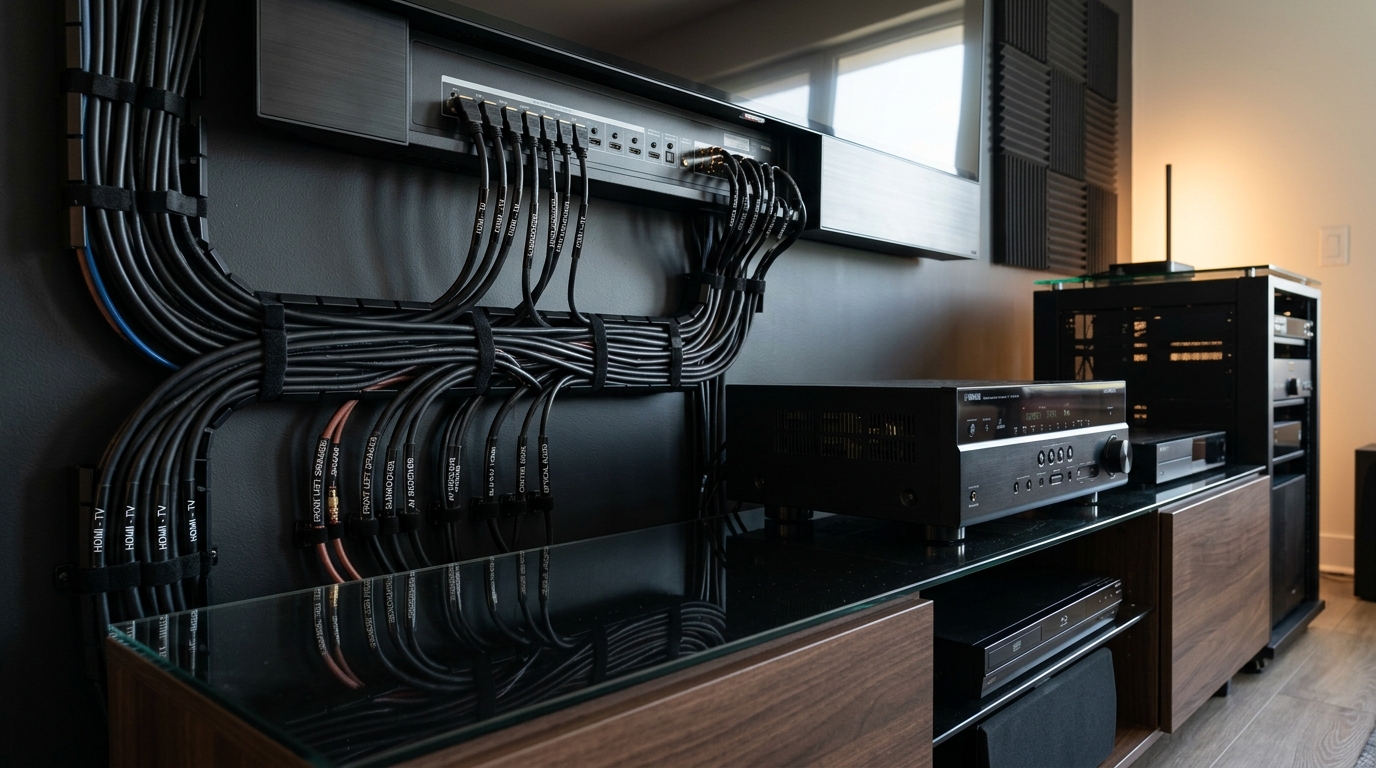
    Use wire management clips behind equipment racks. Velcro cable ties cost pennies and keep everything organized.

    Consider running extra wires while walls are open. Adding a second run to each location costs little extra effort now but provides options for future upgrades.

    Document your wire paths with photos before closing walls. Measure distances from corners and mark stud locations. Store these photos with your home maintenance records.

    When to Call a Professional

    Hire an electrician if you:

    • Find unexpected wiring while fishing cable
    • Need to run wire through fire-rated walls between floors
    • Live in a historic home with unknown wall construction
    • Feel uncomfortable working with tools
    • Discover your walls contain asbestos insulation (common in homes built before 1980)

    Professional installation costs $75-150 per speaker location in most markets. That includes labor, wire, and wall repair. It’s reasonable money for peace of mind if you’re uncertain about any part of the process.

    Some home insurance policies require licensed professionals for work that involves drilling through wall plates or floor joists. Check your policy before starting.

    Getting Clean Results in Your Space

    Running speaker wire through walls transforms a messy installation into something that looks built-in. The process takes patience more than skill.

    Start with one speaker. Master the technique on a simple run before tackling complex routes across multiple rooms. Take photos as you work. You’ll reference them for the next speaker and appreciate having a record of what’s inside your walls.

    Your home theater will look better, your speakers will stay exactly where you want them, and you won’t trip over cables crossing your floor. That’s worth an afternoon of careful work.

  • How Many Channels Do You Actually Need in a Home Theater Receiver?

    You’re staring at receiver specs and the numbers keep climbing: 5.1, 7.2, 9.2, 11.4. Each step up adds hundreds to the price tag, and you’re left wondering if you actually need all those channels or if manufacturers are just padding their profit margins.

    Key Takeaway

    Most home theater setups work best with 5 to 7 channels. A 5.1 system handles small to medium rooms perfectly, while 7.1 adds immersive surround for larger spaces. Higher channel counts like 9.2 or 11.4 only make sense if you plan to add height speakers for Atmos or run multiple zones. Match your channel count to your room size and realistic upgrade plans, not marketing hype.

    Understanding what receiver channels actually mean

    A receiver channel powers one speaker. The first number tells you how many speakers the receiver can drive, and the second number tells you how many subwoofers it supports.

    A 5.1 receiver powers five speakers and one subwoofer. A 7.2 receiver powers seven speakers and two subwoofers. Simple enough.

    But here’s where it gets tricky. Some receivers advertise 7.2 channels but only amplify five at once. They expect you to add an external amplifier for the extra two. Always check whether the receiver has built-in amplification for every channel it lists.

    The speaker arrangement matters more than the raw number. Those five or seven speakers go in specific locations to create surround sound. Front left, center, front right, surround left, and surround right make up a 5.1 system. Add two more surrounds behind you and you’ve got 7.1.

    Matching channels to your room size

    How Many Channels Do You Actually Need in a Home Theater Receiver? - Illustration 1

    Room dimensions dictate how many channels make sense.

    Small rooms under 150 square feet work perfectly with 5.1. You sit close enough to the surround speakers that adding more creates clutter without improving the experience. The sound wraps around you just fine with five speakers placed correctly.

    Medium rooms between 150 and 300 square feet benefit from 7.1. The extra rear surrounds fill the gap that appears when you sit farther from the side surrounds. You get smoother panning effects when helicopters fly overhead or cars race past.

    Large rooms over 300 square feet can justify 9 or more channels, but only if you’re serious about home theater. Most people find 7.1 plenty even in bigger spaces. The jump to 9 channels usually means adding height speakers for Dolby Atmos, not just more surrounds.

    Your seating arrangement matters too. Multiple rows of seating benefit from extra surround speakers. A single couch against the back wall doesn’t.

    The real difference between 5.1 and 7.1 setups

    I’ve tested both configurations in the same room, and the difference is real but not massive.

    With 5.1, the surround speakers sit to your sides, slightly behind you. Sound moves from front to back convincingly. Explosions boom, dialogue stays centered, and ambient effects fill the room. You feel immersed in the action.

    With 7.1, the side surrounds move forward a bit, and two new rear surrounds appear behind you. Now sound can travel in a complete circle. Panning effects get smoother. Ambient sounds like rain or crowd noise feel more natural because they come from more directions.

    The improvement is most noticeable in large rooms where you sit far from the walls. In small rooms, 7.1 can actually sound worse because speakers end up too close together or in awkward positions.

    Here’s a practical test: if your couch sits more than 10 feet from your side walls, consider 7.1. If it’s closer, stick with 5.1.

    When height channels actually matter

    How Many Channels Do You Actually Need in a Home Theater Receiver? - Illustration 2

    Height channels mount on or in your ceiling to create overhead sound effects. Dolby Atmos and DTS:X formats use these channels to make helicopters fly over your head or rain fall from above.

    A 5.1.2 system adds two height speakers to a standard 5.1 setup. The .2 at the end refers to height channels, not subwoofers. A 7.1.4 system has seven ear-level speakers, one subwoofer, and four height speakers.

    Height speakers transform the experience, but only with the right content. Atmos mixes exist for most new movies and many streaming shows. Older content won’t use those speakers at all.

    Budget for height channels only after you’ve nailed your ear-level setup. A great 5.1 system beats a mediocre 5.1.2 system every time. Height effects impress visitors, but solid surround sound carries the experience.

    If you do add height speakers, four work better than two. Two height speakers in front create a small bubble of overhead sound. Four speakers create a full dome. The jump from 0 to 2 height channels matters more than the jump from 2 to 4, though.

    Channel configurations that make sense for different budgets

    Budget Level Recommended Config What You Get What You Skip
    Under $500 5.1 Full surround sound, one subwoofer Rear surrounds, height channels
    $500 to $1000 7.1 or 5.1.2 Better surround or basic height Can’t do both well
    $1000 to $2000 7.1.2 or 7.1.4 Full surround plus overhead Multiple subwoofers
    Over $2000 7.2.4 or 9.2.4 Everything, dual subs Nothing major

    Start with 5.1 unless you have a specific reason to go bigger. You can always add speakers later if your receiver supports more channels than you’re using.

    Receivers often include more channels than you need right away. A 7.2 receiver running a 5.1 setup gives you room to grow. That’s smart. Buying an 11.4 receiver for a 5.1 setup is overkill unless you have concrete plans to expand.

    Processing channels versus amplified channels

    This distinction trips up more buyers than anything else.

    A receiver might process 11 channels but only amplify 7. That means it can decode an 11-channel audio track and send signals to 11 speakers, but it only has built-in amps for 7 of them. You need an external amplifier for the other 4.

    Check the spec sheet carefully. Look for “channels of amplification” or “amplified channels,” not just “channels.” Marketing materials love to advertise the higher processing number.

    External amps add cost and complexity. They also improve sound quality because they take the load off the receiver. But for most people, they’re an unnecessary complication.

    If you want 7 speakers, buy a receiver that amplifies 7 channels. Don’t buy one that processes 9 but only amplifies 5 unless you’re ready to add an external amp immediately.

    The multi-zone trap

    Many receivers advertise extra channels for multi-zone audio. You can play different music in your living room and patio simultaneously.

    Sounds great until you realize those zones steal channels from your home theater. A 7.2 receiver with two-zone capability might only drive 5.1 in your theater when you’re using the second zone.

    Most people set up multi-zone once, use it twice, and forget about it. Don’t pay extra for this feature unless you have a specific plan for it.

    If you do want whole-home audio, dedicated multi-zone systems work better than receiver-based solutions. They’re designed for it, and they don’t compromise your theater setup.

    Future-proofing without overspending

    Buy one step above what you need today, not three steps.

    If you’re happy with 5.1 now, a 7.2 receiver gives you room to add two more speakers later. That’s reasonable. Buying an 11.4 receiver “just in case” wastes money on amplifiers you’ll never use.

    Audio formats change, but speaker configurations stay relatively stable. We’ve had 5.1 since the 1990s and 7.1 since the 2000s. Atmos added height channels in 2012, and nothing major has changed since.

    The next big thing will probably involve wireless speakers or object-based audio improvements, not more channels. Don’t future-proof for a scenario that might never arrive.

    Focus your budget on speaker quality and room acoustics before adding channels. A 5.1 system with great speakers in a treated room beats a 9.2.4 system with mediocre speakers in a bare room. More channels can’t fix bad sound.

    Common mistakes when choosing channel count

    People buy too many channels far more often than too few.

    The biggest mistake is matching channel count to the highest number you see in a movie’s audio track. Yes, some Atmos mixes support up to 24 channels. No, you don’t need 24 speakers. The format scales down beautifully to whatever you have.

    Another mistake is assuming more channels always sound better. They don’t. Seven speakers placed poorly sound worse than five speakers placed correctly. Channel count is just one variable in a complex equation.

    Room shape matters more than most people think. A rectangular room suits surround sound perfectly. An open-concept space with the kitchen flowing into the living room? That’s tough for any channel configuration. You might be better off with a high-quality soundbar than a compromised surround system.

    Don’t forget about the subwoofer number either. That second digit matters. Two subwoofers smooth out bass response far better than one, especially in larger rooms. If you’re choosing between 7.1 and 5.2, the 5.2 might sound better overall.

    Setting up what you actually need

    Here’s a practical approach to choosing your channel count:

    1. Measure your room and note where you can realistically place speakers
    2. Decide whether you want height channels based on your content viewing habits
    3. Choose the smallest channel count that fits your room and preferences
    4. Verify the receiver amplifies all those channels internally
    5. Leave one or two channels of headroom for future expansion

    Start with the speakers you’ll install in the first month. Don’t plan around hypothetical upgrades that might never happen. If you’re not sure whether you want rear surrounds, start with 5.1. Adding them later is easier than you think.

    Wire your room for more speakers than you’ll use initially. Running speaker wire during a remodel costs almost nothing. Adding it later means tearing into walls. Wire for 7.1.4 even if you’re starting with 5.1. The wire sits there harmlessly until you need it.

    Getting the most from fewer channels

    You don’t need 11 channels to get great sound. You need the right channels in the right places.

    Speaker placement matters more than count. A center channel at ear height, angled toward your seat, does more for dialogue clarity than adding four height speakers. Surround speakers at the correct angle create better immersion than adding rear surrounds in the wrong spot.

    Calibration transforms mediocre systems into great ones. Run your receiver’s automatic setup multiple times and average the results. Tweak the distances and levels manually if something sounds off. A well-calibrated 5.1 system beats a poorly calibrated 7.2.4 system.

    Room treatment costs less than extra channels and improves sound more. A few acoustic panels on your walls and ceiling tame reflections that muddy dialogue and blur effects. Bass traps in the corners smooth out the low end better than a second subwoofer.

    • Focus on speaker quality before quantity
    • Place surrounds at ear height, not on the ceiling
    • Angle speakers toward your main seating position
    • Calibrate your system with multiple measurements
    • Add room treatment before adding channels

    Picking the right number for your situation

    Most people land on 5.1 or 7.1 after considering their room, budget, and upgrade plans.

    Choose 5.1 if your room is small, your budget is tight, or you’re new to home theater. It’s the sweet spot for price, performance, and simplicity. Every receiver supports it, every movie includes a 5.1 mix, and speaker placement is straightforward.

    Choose 7.1 if you have a larger room, a bigger budget, and you’re committed to home theater. The extra surrounds improve immersion noticeably, and most modern receivers handle 7 channels easily.

    Choose 5.1.2 or 5.1.4 if height effects excite you more than rear surrounds. You get the Atmos experience without filling your room with ear-level speakers. This works great in rooms where rear surrounds would end up in awkward positions.

    Choose 7.2.4 or higher only if you’re building a dedicated theater room, you have the budget for it, and you’ve already maxed out speaker quality and room treatment. This is enthusiast territory, not mainstream home theater.

    Making your decision stick

    The right channel count depends on your room, your budget, and your honest assessment of future upgrades.

    Start with what you’ll use in the first year. If that’s 5.1, great. Buy a 7.2 receiver if you want upgrade flexibility, but install 5.1 speakers first. Test that setup for a few months. You might find it’s perfect as-is.

    Don’t let receiver specs intimidate you. Manufacturers want you to think you need the maximum everything. You don’t. Focus on the experience you want, not the numbers on the box.

    Your ears tell you what’s working. If you sit down to watch a movie and forget about your speaker setup because you’re absorbed in the story, you’ve got enough channels. If you’re constantly aware of where sounds are coming from or where they’re not, something needs adjustment, but it’s probably placement or calibration, not channel count.

  • Do You Really Need a Subwoofer for Your Home Theater Setup?

    You’re building your first home theater and staring at a long list of components. Receiver, speakers, cables, maybe a screen. Then someone mentions a subwoofer, and suddenly you’re wondering if you really need another box taking up floor space and draining your wallet.

    Key Takeaway

    A subwoofer handles frequencies below 80Hz that most speakers can’t reproduce properly. For movie soundtracks and modern music, you’ll miss explosions, rumbles, and bass notes without one. Budget systems benefit most because small speakers struggle with low frequencies. You can start without a subwoofer and add one later, but it’s the single most noticeable upgrade for home theater impact.

    What a subwoofer actually does

    Most tower and bookshelf speakers stop producing clean sound around 50Hz to 80Hz. That’s where a subwoofer takes over.

    Bass frequencies below 80Hz carry the weight of movie soundtracks. Thunder, explosions, engine rumbles, and musical low notes all live in this range. Your main speakers physically can’t move enough air to create these sounds at the volume levels you need.

    A dedicated subwoofer uses a larger driver, usually 10 to 12 inches, in a cabinet designed specifically for low frequency reproduction. It handles everything your other speakers can’t.

    The crossover point matters here. Most receivers let you set where your speakers hand off to the subwoofer. If your bookshelf speakers only go down to 60Hz, you set the crossover at 80Hz. The subwoofer handles everything below that point.

    Why most speakers need help with bass

    Do You Really Need a Subwoofer for Your Home Theater Setup? - Illustration 1

    Speaker size directly limits bass output. Physics doesn’t care about marketing claims.

    A 5 inch driver in a bookshelf speaker simply cannot move the volume of air needed to produce 30Hz bass at reasonable volume levels. The cone would need to move several inches back and forth, which creates distortion and mechanical failure.

    Larger tower speakers do better, but they still struggle below 40Hz. Even expensive floor standing models hand off to a subwoofer for the deepest frequencies.

    Small satellite speakers in budget systems have almost no bass capability. They’re designed to work with a subwoofer from day one.

    Here’s what different speaker types typically handle:

    Speaker Type Usable Bass Extension Needs Subwoofer?
    Small satellites 120Hz and up Absolutely
    Bookshelf speakers 60Hz to 80Hz Highly recommended
    Tower speakers 40Hz to 50Hz Recommended
    Large towers 30Hz to 40Hz Optional

    How movies use low frequency effects

    Modern movie soundtracks include a dedicated LFE channel. That’s the “.1” in 5.1 or 7.1 surround sound.

    The LFE channel carries only low frequency information. Explosions, earthquakes, spaceship engines, dinosaur footsteps. Sound designers put these effects on a separate channel because they know you have a subwoofer to reproduce them.

    Without a subwoofer, your receiver has to redirect this information to your main speakers. They’ll attempt to play it, but the result sounds thin and weak. You’re missing a huge part of the soundtrack.

    Action movies suffer the most. A car chase without proper bass feels flat. Gunshots lose their impact. Explosions become sad little pops.

    Even dialogue heavy films use bass. Background music, ambient room tone, and environmental sounds all extend into subwoofer territory.

    Budget systems benefit most from subwoofers

    Do You Really Need a Subwoofer for Your Home Theater Setup? - Illustration 2

    If you’re spending $300 on a complete speaker package, those speakers have minimal bass output. Adding even a basic subwoofer transforms the experience more than any other upgrade.

    A $200 subwoofer paired with $100 bookshelf speakers will outperform $300 bookshelf speakers alone. The subwoofer handles frequencies the small speakers can’t touch.

    This creates an interesting budget strategy. You can buy smaller, less expensive main speakers and put more money into a good subwoofer. Small speakers actually benefit from this approach because they perform better when they’re not struggling to produce bass.

    Start with the best subwoofer your budget allows, then fill in the rest of your system. Bass extension is expensive to engineer into speakers, but a dedicated subwoofer delivers it efficiently. You’ll get more impact per dollar.

    When you might skip the subwoofer

    Large tower speakers in small rooms can work without a subwoofer. If you have quality floor standing speakers that extend down to 35Hz, and your room is under 200 square feet, you might get acceptable bass.

    Classical music listeners sometimes prefer systems without subwoofers. Acoustic recordings don’t demand the deep bass extension that movies require. A good pair of towers can handle orchestral music without help.

    Apartment dwellers face a different calculation. Subwoofers transmit through walls and floors more readily than higher frequencies. If you have noise sensitive neighbors, you might choose to skip bass rather than deal with complaints.

    Very small rooms, under 100 square feet, sometimes work better without subwoofers. The bass can overload the space and create boomy, uncontrolled sound.

    Setting up without a subwoofer initially

    You can build your system in stages. Start with good main speakers and add a subwoofer later.

    Here’s how to set up a system without a subwoofer:

    1. Set all speakers to “Large” in your receiver settings
    2. Disable the subwoofer output completely
    3. Position your main speakers away from walls to reduce bass boominess
    4. Use your receiver’s tone controls sparingly to balance the sound
    5. Accept that you’re missing content below your speakers’ limits

    This approach works for getting started. You’ll hear dialogue clearly and enjoy music. Movies will sound thin, but watchable.

    When you add a subwoofer later, you’ll need to reconfigure everything. Change your speakers to “Small,” set appropriate crossover points, and position the subwoofer for best response in your room.

    What you lose without proper bass

    Missing frequencies below 60Hz affects more than explosions. Here’s what disappears from your soundtrack:

    • Thunder and weather effects
    • Large vehicle engines and movement
    • Building collapses and structural impacts
    • Dinosaur and monster vocalizations
    • Earthquake and disaster sounds
    • Deep musical notes from organs, synthesizers, and bass guitars
    • Ambient environmental rumble
    • Physical impact sounds

    These elements add realism and emotional impact. A scene set during a thunderstorm feels different when you hear and feel the thunder. An approaching spaceship has more presence with deep engine rumble.

    Music loses foundation. Electronic music, hip hop, and modern pop all rely on deep bass. Rock music loses the chest thump of kick drums and bass guitars.

    Even nature documentaries use low frequency sound. Whale calls, elephant vocalizations, and volcanic eruptions all extend below typical speaker range.

    Subwoofer alternatives that don’t work well

    Some people try bass shakers or tactile transducers attached to furniture. These vibrate your couch to simulate bass.

    They create vibration, not sound. You feel something, but you don’t hear proper bass frequencies. The experience is disconnected and artificial.

    Soundbars with built in subwoofers rarely perform well. The small drivers and limited cabinet volume can’t produce real deep bass. They add some thump around 60Hz to 80Hz, but nothing below that.

    Ported speakers attempt to extend bass response using cabinet tuning. They work to a point, but physics still limits what a small driver can accomplish. You get a bit more bass, but not true subwoofer extension.

    Software bass enhancement processes existing frequencies to create the illusion of deeper bass. Your brain fills in missing information. This works better than nothing, but it’s not the same as actually reproducing those frequencies.

    Room size changes the equation

    Larger rooms need more bass output. A subwoofer that works great in a 150 square foot bedroom will struggle in a 400 square foot living room.

    Bass energy spreads throughout your space. Bigger volumes require more power to achieve the same impact. A single 10 inch subwoofer might be perfect for a small room but inadequate for a large space.

    Multiple subwoofers solve this problem, but that’s beyond most beginner budgets. For now, understand that room size affects whether you can skip a subwoofer.

    Small rooms actually make the subwoofer decision easier. Even a modest subwoofer will fill a bedroom or small den with satisfying bass. You don’t need expensive, high powered models.

    Open floor plans present challenges. If your home theater opens into other spaces, bass energy spreads into those areas. You’ll need more output to maintain impact in the listening position.

    Starting your system the right way

    Most beginners should plan for a subwoofer from the beginning, even if they don’t buy it immediately.

    Choose smaller bookshelf speakers instead of stretching your budget for towers. Save the difference for a subwoofer purchase in a few months. The combination of good bookshelf speakers plus a subwoofer will outperform mediocre tower speakers alone.

    Position your main speakers first. Get them placed correctly for imaging and soundstage. Leave space for a subwoofer, typically in a front corner or along the front wall.

    Run your system without the subwoofer for a while. Listen to movies and music. Notice what’s missing. This helps you appreciate the upgrade when you add bass later.

    When you’re ready to add the subwoofer, expect to spend at least $200 for something worthwhile. Cheaper models often create more problems than they solve, with boomy, uncontrolled bass that makes everything worse.

    Making the decision for your situation

    Consider these factors:

    • Room size and layout
    • Primary content type (movies vs music)
    • Speaker quality and size
    • Budget constraints
    • Living situation and noise concerns
    • Future upgrade plans

    For most home theater setups, especially those focused on movies and modern music, a subwoofer isn’t optional. It’s a core component that completes your system.

    The good news is that you can start without one and add it later. Your receiver already has the output. Your speakers will work fine set to “Small.” The upgrade path is straightforward.

    But if you’re buying everything at once, allocate budget for a subwoofer. Cut costs elsewhere if needed. Smaller speakers with a good subwoofer will deliver better results than larger speakers struggling to produce bass they can’t handle.

    Getting the bass your system deserves

    A subwoofer transforms home theater from background entertainment to immersive experience. You’ll feel explosions, hear musical foundation, and experience soundtracks the way directors intended.

    Start with what your budget allows. Even a modest subwoofer beats no subwoofer for movie watching. As your system grows, you can upgrade to better models or add a second subwoofer for even bass response.

    The difference is immediate and dramatic. The first time you watch an action movie with proper bass, you’ll understand why this component matters so much.

  • How to Position Your Center Channel Speaker for Crystal Clear Dialogue

    You’re watching a movie, leaning forward, straining to catch what the actors are saying while explosions rattle your walls perfectly. That’s the frustration of poor center channel placement. Your speaker handles 60-70% of a film’s dialogue, and even a few inches in the wrong direction can turn crystal-clear conversations into muffled noise.

    Key Takeaway

    Proper center channel speaker placement requires positioning the speaker at ear level, angling it toward your main listening position, and keeping it within six inches of your screen’s vertical center. Distance from the wall, cabinet obstructions, and matching the height of your left and right speakers all dramatically affect dialogue clarity. Small adjustments of 2-3 inches can transform muddy speech into perfectly intelligible conversation.

    Why Your Center Channel Location Matters More Than You Think

    The center channel isn’t just another speaker in your setup. It anchors every conversation, narration, and vocal performance in your content. When actors move across the screen, their voices stay locked to the center, creating a stable soundstage that keeps you immersed.

    Poor placement creates a disconnect between what you see and what you hear. Voices seem to float above or below the action. Dialogue gets lost in the mix, forcing you to ride the volume remote all night.

    Your room’s acoustics multiply these problems. A center channel sitting inside a TV cabinet bounces sound off surfaces before it reaches your ears. That causes phase cancellation, where sound waves interfere with each other and cancel out specific frequencies. The result? Thin, hollow voices that lack presence and clarity.

    The Ideal Height for Center Channel Speakers

    How to Position Your Center Channel Speaker for Crystal Clear Dialogue - Illustration 1

    Your center channel should sit at ear level when you’re in your main viewing position. For most people, that’s 36-42 inches off the ground.

    Measure from the floor to the tweeter, not the bottom of the speaker cabinet. The tweeter produces the high frequencies that carry consonants and vocal detail. Point that directly at your ears.

    If your TV sits on a low stand, you have three options:

    1. Place the speaker on top of the TV, angled down toward your seating
    2. Mount the TV higher on the wall and position the speaker on the stand below it
    3. Use an angled stand or foam wedge to tilt the speaker upward from a low position

    Wall-mounted TVs create their own challenge. The speaker often ends up below the screen, sometimes 12-18 inches below ear level. That’s acceptable if you angle it upward by 10-15 degrees. Most center channels have threaded inserts on the bottom for mounting hardware that allows this adjustment.

    Avoid placing the speaker more than 24 inches above or below ear level. Beyond that distance, angling alone can’t compensate for the vertical offset. You’ll hear a noticeable tonal shift as the speaker’s off-axis response changes.

    Distance from the Screen and Front Wall

    Your center channel should align with your left and right speakers on the horizontal plane. If your main speakers sit three feet from the front wall, your center should match that depth.

    This creates a coherent front soundstage where panning effects move smoothly across all three speakers. When a car drives left to right on screen, the sound should travel seamlessly without jumping or changing character.

    Reality often prevents perfect alignment. Your TV might sit closer to the wall than your tower speakers. That’s fine if the difference stays under 12 inches. Beyond that, you’ll notice a disconnect in the soundstage, especially during scenes with lots of movement and dialogue.

    Keep the speaker at least 6-8 inches from the wall behind it. Boundary reinforcement, the acoustic boost that happens near walls, can make bass frequencies muddy and overwhelm the midrange where voices live. Some speakers are designed for near-wall placement and account for this effect, but most sound clearer with breathing room.

    Angling Your Center Channel Correctly

    How to Position Your Center Channel Speaker for Crystal Clear Dialogue - Illustration 2

    Point the speaker directly at your primary listening position. If you sit 10 feet from the screen, angle the speaker so its tweeter aims at that spot.

    Use a laser level or even your phone’s flashlight to verify the angle. Shine the light from the tweeter position and see where it hits at your seat height. Adjust until it lands on the headrest of your main viewing chair.

    For rooms with multiple seating positions, aim for the center of your seating area. A speaker pointed at the middle of a three-seat couch will serve everyone reasonably well, even if it’s not perfect for the side seats.

    Some center channels have wide horizontal dispersion, meaning they spread sound broadly left and right. These are more forgiving with angling. Others have narrow dispersion and require precise aiming. Check your speaker’s specifications for its dispersion pattern, usually listed as coverage angle in degrees.

    “The difference between a center channel aimed at your chest versus your ears is the difference between hearing dialogue and understanding it. Aim for the ears, always.” – Home theater calibration expert

    Cabinet and Furniture Obstacles

    TV cabinets are dialogue killers. The enclosed space creates reflections that smear the sound before it reaches you. The front lip of the cabinet acts as a diffraction barrier, bending high frequencies in unpredictable ways.

    If you must place your speaker in a cabinet, follow these rules:

    • Position it at the very front edge, not recessed
    • Remove cabinet doors or keep them fully open during viewing
    • Add acoustic foam to the cabinet’s back and side walls to absorb reflections
    • Ensure at least 3 inches of clearance above the speaker

    Better option? Get the speaker out of the cabinet entirely. Use a speaker stand that positions it just in front of the TV stand. The improvement in clarity is immediate and dramatic.

    Glass shelves under the speaker cause another problem. They reflect sound upward, creating comb filtering where the direct and reflected sounds combine with phase differences. Place a thick rubber mat or foam pad under the speaker to dampen these reflections.

    Matching Height with Your Left and Right Speakers

    Your three front speakers should form a consistent height plane. If your left and right speakers have tweeters at 40 inches, your center channel’s tweeter should match.

    This ensures timbral consistency as sounds pan across the front stage. When a helicopter flies from left to right, it should maintain the same tonal character throughout its path. Height mismatches create audible shifts in frequency response that break the illusion.

    Tower speakers often place their tweeters higher than a center channel can practically sit. You have two approaches:

    1. Angle the towers down slightly to aim their tweeters at ear level
    2. Accept a small height difference (under 6 inches) and use your receiver’s calibration to compensate

    Modern AV receivers include room correction software that can partially fix tonal mismatches caused by height differences. Run the calibration after positioning your speakers for the best results.

    Common Placement Mistakes and How to Fix Them

    Mistake Why It Hurts Dialogue Solution
    Speaker inside closed cabinet Reflections muddy the sound, high frequencies get absorbed Move to front edge or remove doors
    Sitting directly on TV stand without isolation Vibrations transfer to furniture, creating resonance Add foam pads or rubber feet
    Angled toward ceiling or floor Off-axis response reduces clarity Aim tweeter at ear level
    More than 12 inches off horizontal plane from L/R speakers Timbral mismatch during panning Adjust height or angle to minimize difference
    Pressed against back wall Boundary gain boosts bass, masks midrange Pull forward 6-8 inches minimum
    Placed on its side (vertical speaker horizontal) Tweeter no longer at center, dispersion pattern rotates 90 degrees Use proper center channel or rotate back to vertical

    The last mistake deserves extra attention. Never lay a bookshelf speaker on its side to use as a center channel. The tweeter position and crossover design assume vertical orientation. Rotating the speaker rotates its dispersion pattern, creating uneven coverage across your seating area.

    Testing Your Placement with Real Content

    After positioning your speaker, test it with dialogue-heavy content. Choose scenes you know well, where you can focus on vocal clarity rather than plot.

    Listen for these qualities:

    • Voices should sound natural, not nasal or hollow
    • Consonants (S, T, K sounds) should be crisp and clear
    • Dialogue should stay anchored to the screen, not floating above or below
    • Volume should feel consistent, not requiring constant adjustment
    • Voices should be intelligible at moderate volumes, not just when loud

    News broadcasts and interview shows work well for testing. The talking-head format puts dialogue front and center with minimal music or effects to mask problems.

    Play the same content before and after making placement changes. The difference should be obvious. If you don’t hear improvement, you’re either in a good spot already or you need to address other issues like room acoustics or speaker quality.

    Fine-Tuning with Your AV Receiver Settings

    Physical placement comes first, but your receiver’s settings provide the final polish. After positioning your speaker, run your receiver’s automatic room correction system. Systems like Audyssey, Dirac, or YPAO measure your room and adjust speaker levels, distances, and EQ.

    Pay attention to the distance settings the system calculates. If your center channel distance is more than 2 feet different from your left and right speakers, you have an alignment issue that needs physical correction first.

    Check the speaker level settings. If the system sets your center channel significantly lower or higher than your other speakers (more than 3-4 dB difference), investigate why. It might indicate an obstruction, poor angling, or a speaker that’s not well-suited to your room.

    Some receivers let you boost the center channel level after calibration. A 1-2 dB boost can help dialogue cut through during complex action scenes, but don’t exceed 3 dB. More than that suggests a placement problem, not a level problem.

    When to Consider Acoustic Treatment

    If you’ve optimized placement and still struggle with dialogue clarity, your room might need acoustic treatment. Hard surfaces near the center channel create early reflections that blur speech intelligibility.

    The most impactful treatment locations:

    1. First reflection point on the ceiling between the speaker and listening position
    2. Side walls adjacent to the TV stand
    3. Hard surfaces directly behind the center channel

    Start with a 2×4 foot acoustic panel on the ceiling above your TV. This absorbs the strong ceiling reflection that occurs with most center channel placements. The improvement in dialogue clarity often surprises people.

    Glass coffee tables between your speakers and seating also cause problems. Cover them with a thick tablecloth during viewing or replace them with wood alternatives.

    Getting the Most from Your Current Setup

    You don’t need expensive speakers to achieve clear dialogue. Proper placement extracts maximum performance from whatever center channel you own.

    Start with these three adjustments today:

    1. Measure your speaker’s tweeter height and compare it to your ear height when seated
    2. Verify the speaker points directly at your main seat, not at the ceiling or floor
    3. Pull the speaker forward if it sits inside a cabinet or against a wall

    Make one change at a time and listen for 15-20 minutes before adjusting further. Your ears need time to adapt to the new sound signature. What seems too bright initially often settles into crisp, clear dialogue after a brief adjustment period.

    Take photos of your current setup before making changes. If an adjustment makes things worse, you can return to your starting point and try a different approach.

    Your Dialogue Deserves Better

    Center channel speaker placement isn’t complicated, but it is precise. A few inches in height, a slight change in angle, or pulling the speaker forward from a cabinet can transform your viewing experience. You’ll stop straining to hear conversations and start enjoying the performances that make great content memorable. Measure twice, adjust once, and let your ears confirm what the numbers suggest. Clear dialogue is waiting.

  • How to Calculate Projector Throw Distance for Your Room Size

    How to Calculate Projector Throw Distance for Your Room Size

    You’re standing in your living room with a new projector in hand, staring at a blank wall. Where exactly should you mount this thing? Too close and the image won’t fill your screen. Too far and you’ll run out of space. This is where a projector throw distance calculator becomes your best friend.

    Key Takeaway

    A projector throw distance calculator helps you determine the exact distance between your projector and screen based on throw ratio and desired image size. By understanding throw ratios, measuring your space accurately, and using simple formulas or online tools, you can position your projector perfectly without guesswork. This ensures sharp focus, proper image size, and optimal viewing experience every time.

    Understanding throw ratio basics

    Every projector has a throw ratio. This number tells you how far the projector needs to be from the screen to create a specific image width.

    The formula is simple: throw distance divided by image width equals throw ratio.

    If a projector sits 10 feet from the wall and projects a 5-foot-wide image, the throw ratio is 2.0. That means for every foot of image width, you need two feet of distance.

    Most projectors list their throw ratio in the specifications. You might see something like 1.5:1 or a range like 1.2 to 1.5:1 if the projector has a zoom lens.

    Short throw projectors have ratios below 1.0. Ultra-short throw models go even lower, sometimes 0.3 or less. These sit very close to the screen.

    Standard throw projectors typically range from 1.5 to 2.0. Long throw models go above 2.0 and work best in large spaces like auditoriums.

    How to calculate throw distance manually

    How to Calculate Projector Throw Distance for Your Room Size - Illustration 1

    You can calculate throw distance without any fancy tools. Just grab your projector’s throw ratio and decide how wide you want your image.

    Here’s the basic formula:

    Throw Distance = Image Width × Throw Ratio

    Let’s say you want a 100-inch diagonal screen. Most screens use a 16:9 aspect ratio, which means a 100-inch diagonal gives you an image width of about 87 inches (7.25 feet).

    If your projector has a throw ratio of 1.5:1, multiply 7.25 by 1.5. You get 10.875 feet, or about 10 feet 10 inches.

    That’s how far your projector lens needs to be from the screen.

    For projectors with zoom lenses, you’ll see a range. A ratio of 1.2 to 1.5:1 means you can place the projector anywhere between 8.7 feet and 10.875 feet for that same 87-inch-wide image.

    Working backward from your room size

    Sometimes you don’t get to choose where the projector goes. Your room layout decides for you.

    Maybe you have a shelf 12 feet from your wall. Or ceiling joists that limit your mounting options. You need to work backward to find what screen size fits.

    Use this reversed formula:

    Image Width = Throw Distance ÷ Throw Ratio

    If your projector must sit 12 feet away and has a 1.5:1 throw ratio, divide 12 by 1.5. You get 8 feet of image width.

    An 8-foot-wide image with 16:9 aspect ratio gives you roughly a 110-inch diagonal screen. Perfect for movie nights.

    This backward calculation saves you from buying a screen that won’t work with your space.

    Using online throw distance calculators

    How to Calculate Projector Throw Distance for Your Room Size - Illustration 2

    Manual math works fine, but online calculators speed things up and reduce errors.

    Most projector manufacturers offer calculators on their websites. Epson, BenQ, Sony, and others have tools specific to their models.

    These calculators know the exact throw ratios for each projector. You just enter your desired screen size or available distance, and they do the rest.

    Generic calculators work too. Sites like ProjectorCentral have databases covering thousands of projector models. Type in your model number, enter your screen size, and get instant results.

    The advantage? These tools often include offset calculations, which we’ll cover next.

    Accounting for vertical and horizontal offset

    Throw distance isn’t the only measurement that matters. Projectors also shift the image up, down, or sideways from the lens.

    This shift is called offset, usually expressed as a percentage of image height.

    A projector with 10% vertical offset placed at the same height as the screen bottom will project an image that starts 10% of its height above the lens.

    For a 60-inch-tall image, that’s 6 inches of upward shift.

    This matters when mounting. If you ceiling-mount a projector, you need to account for how far below the lens the image appears.

    Some projectors offer lens shift, letting you adjust this offset without moving the whole unit. Others have fixed offset, meaning you must position the projector precisely.

    Horizontal offset works the same way but affects left-right positioning. Useful if your projector can’t sit directly centered on the screen.

    Common projector types and their typical ratios

    Different projector categories have different throw characteristics. Knowing which type you have helps narrow down your calculations.

    Projector Type Typical Throw Ratio Best For Mounting Distance (100″ Screen)
    Ultra-short throw 0.2 to 0.4:1 Small rooms, wall mounting 1 to 3 feet
    Short throw 0.4 to 1.0:1 Medium rooms, limited space 3 to 7 feet
    Standard throw 1.2 to 2.0:1 Most home theaters 10 to 17 feet
    Long throw 2.0 to 4.0:1 Large venues, auditoriums 17 to 34 feet

    Ultra-short throw projectors sit inches from the screen. Perfect for living rooms where you can’t run cables across the ceiling.

    Short throw models give you flexibility. They work in bedrooms, offices, and smaller home theaters without dominating the room.

    Standard throw projectors are the most common. They balance image quality, price, and installation ease.

    Long throw units belong in churches, conference centers, and screening rooms where distance isn’t an issue.

    Step-by-step setup process

    Ready to position your projector? Follow these steps for accurate placement.

    1. Measure your screen width in inches or feet. For diagonal measurements, convert to width using aspect ratio charts.

    2. Find your projector’s throw ratio in the manual or manufacturer website. Write down both minimum and maximum if it has zoom.

    3. Calculate throw distance using the formula or online calculator. Add a few inches of wiggle room for fine-tuning.

    4. Mark the mounting location on your ceiling or shelf. Use a laser level to ensure it’s centered on the screen.

    5. Check vertical offset specifications. Measure from the lens position to where the image will appear.

    6. Install the mount or place the projector. Don’t fully tighten bolts yet.

    7. Power on and project a test image. Adjust position until the image fills your screen edge to edge.

    8. Use keystone correction sparingly. Physical positioning always beats digital correction for image quality.

    9. Tighten all mounting hardware once positioned correctly.

    10. Run cables and secure them to prevent sagging or pulling on the projector.

    This methodical approach prevents the frustration of drilling new holes or buying extension mounts.

    Dealing with zoom lenses and lens shift

    Zoom lenses give you installation flexibility. Instead of one fixed throw ratio, you get a range.

    A 1.3 to 2.1:1 zoom means you can adjust the image size without moving the projector. Handy if your initial calculations were slightly off.

    But zoom affects brightness. Maximum zoom (telephoto end) often reduces light output by 10 to 20 percent compared to minimum zoom (wide end).

    For the brightest image, position your projector at the minimum throw distance and use the wide end of the zoom.

    Lens shift is different. It moves the lens element inside the projector to reposition the image without moving the entire unit.

    Vertical lens shift lets you raise or lower the image. Horizontal shift moves it left or right.

    This is incredibly useful for ceiling mounts. You can mount the projector where the joists are, then shift the lens to center the image on your screen.

    Not all projectors have lens shift. Budget models usually skip this feature. Check specifications before buying if installation flexibility matters to you.

    Troubleshooting common placement problems

    Even with careful calculations, issues pop up. Here’s how to fix the most common ones.

    Image too small: Your projector is too close. Move it back or use the telephoto end of your zoom lens.

    Image too large: Projector is too far. Move it closer or zoom in.

    Image tilted or trapezoidal: Projector isn’t level or perpendicular to the screen. Adjust the mount angle. Use keystone correction only as a last resort.

    Blurry edges: Focus ring needs adjustment, or the projector sits at an angle. Ensure the lens faces the screen straight on.

    Image cut off at top or bottom: Vertical offset is wrong. Adjust projector height or use lens shift if available.

    Can’t reach minimum throw distance: You need a shorter throw projector or a smaller screen.

    Room too shallow: Consider an ultra-short throw model or mount the projector above seating and angle it down.

    Professional installers always measure twice and mount once. Take time to verify your calculations before drilling holes. A few extra minutes of planning saves hours of patching drywall.

    Screen size recommendations by room dimensions

    Your room size limits your screen options. Too big and viewers in front rows strain their necks. Too small and people in back can’t see details.

    Here are practical guidelines:

    • 10 x 12 foot room: 80 to 100 inch screen works well. Seats 4 to 6 people comfortably.

    • 12 x 16 foot room: 100 to 120 inch screen. Good for 6 to 8 viewers.

    • 15 x 20 foot room: 120 to 150 inch screen. Accommodates 8 to 12 people.

    • 20 x 25 foot room: 150 to 200 inch screen. Theater-style seating for 12 or more.

    The Society of Motion Picture and Television Engineers recommends the screen should fill 30 to 40 degrees of your field of view from the primary seating position.

    Closer to 40 degrees creates an immersive cinema experience. Closer to 30 degrees works better for mixed-use spaces where you also watch TV or play games.

    Measure the distance from your main seating row to the screen. Multiply that distance by 0.6 to get a good starting screen width.

    If you sit 10 feet from the screen, aim for a 6-foot-wide image, which translates to roughly a 110-inch diagonal.

    Ceiling height and mounting considerations

    Ceiling height affects projector placement more than people realize.

    Standard 8-foot ceilings work fine for most setups. Mount the projector 6 to 12 inches from the ceiling, depending on offset.

    Higher ceilings give you more options. You can mount the projector farther back and angle it down slightly.

    But watch out for ceiling fans. Projectors and fan blades don’t mix. Make sure at least 2 feet of clearance exists between the projector and any moving parts.

    Vaulted or sloped ceilings create challenges. You might need an adjustable ceiling mount that extends and tilts to get the projector level with the screen.

    For basement theaters with exposed joists, mount directly to joists using lag bolts. Drywall anchors aren’t strong enough for projectors weighing 10 to 30 pounds.

    Always account for heat. Projectors exhaust hot air. Don’t mount them in enclosed spaces or directly against a ceiling. Leave at least 6 inches of clearance around ventilation ports.

    Portable and temporary setups

    Not everyone wants a permanent installation. Portable projectors need throw distance calculations too.

    For backyard movie nights, measure from where you’ll place the projector (table, tripod, ground) to your screen or white sheet.

    Outdoor screens often come in standard sizes: 120, 150, or 200 inches diagonal. Use those dimensions with your throw ratio to find placement.

    Wind affects outdoor setups. Secure your projector and screen. A gust that moves your screen even slightly will misalign your carefully calculated setup.

    Office presentations follow similar rules. Conference room projectors usually mount permanently, but if you’re bringing your own, measure the room beforehand.

    Know the distance from the presentation table to the screen. Calculate what image size you can achieve from that position.

    For camping or travel, ultra-short throw projectors shine. You can project a 100-inch image from just 2 feet away, making setup anywhere possible.

    Making the numbers work for you

    Projector throw distance calculators remove guesswork from installation. You don’t need to be a mathematician or professional installer.

    Start with your room dimensions. Measure wall-to-wall where you plan to install. Note any obstacles like columns, doorways, or furniture.

    Decide on screen size based on seating distance and room use. Bigger isn’t always better if it strains eyes or overwhelms the space.

    Find your projector’s throw ratio. Use the formulas provided or plug numbers into an online calculator. Double-check your math.

    Account for offset and lens shift. These features give you installation flexibility but require additional measurements.

    Mark your mounting position. Test before permanent installation. Project onto the wall and verify size and alignment.

    Adjust as needed. Zoom lenses and lens shift let you fine-tune without relocating the entire projector.

    Once everything aligns, secure your mount and enjoy perfectly sized images every time you power on.

    The time you spend measuring and calculating pays off in years of comfortable viewing without neck strain, squinting, or wasted wall space.

  • OLED vs QLED vs Mini-LED: Which TV Technology Should You Buy in 2026?

    OLED vs QLED vs Mini-LED: Which TV Technology Should You Buy in 2026?

    You’re standing in front of a wall of stunning TVs, and they all look incredible under those bright store lights. But which technology actually delivers the best picture in your living room? The answer depends on how you watch, where you watch, and what you’re willing to spend.

    Key Takeaway

    OLED offers perfect blacks and infinite contrast for dark rooms. QLED delivers superior brightness and vibrant colors for bright spaces. Mini-LED splits the difference with excellent contrast and high brightness at a lower price. Your room lighting and viewing habits determine which technology wins for your setup.

    How Each Technology Actually Works

    OLED panels use organic compounds that emit their own light. Each pixel turns on and off independently. No backlight needed.

    QLED is Samsung’s branding for quantum dot LCD panels. These use a traditional LED backlight with a quantum dot layer that enhances color accuracy and brightness. The backlight stays on, and liquid crystals block or allow light through.

    Mini-LED uses thousands of tiny LEDs as the backlight behind an LCD panel. More dimming zones mean better contrast control than standard LED TVs, but still not pixel-level like OLED.

    The fundamental difference comes down to this: OLED creates light at the pixel level. QLED and Mini-LED block and filter light from behind.

    Picture Quality Breakdown

    OLED vs QLED vs Mini-LED: Which TV Technology Should You Buy in 2026? - Illustration 1

    Black Levels and Contrast

    OLED wins here without contest. Turn off a pixel, and you get true black. Zero light emission. This creates infinite contrast ratios because you’re dividing by zero.

    QLED struggles with blacks because the backlight always glows to some degree. Even with local dimming, you’ll see blooming around bright objects on dark backgrounds. Watch a space movie and notice the halo around stars.

    Mini-LED improves on traditional QLED by using hundreds or thousands of dimming zones instead of dozens. High-end models approach OLED-like blacks, but physics still limits them. Some backlight bleed remains.

    Brightness and HDR

    QLED dominates brightness tests. Premium models hit 2,000 to 3,000 nits peak brightness. Sunlight streaming through your windows? No problem.

    Mini-LED matches QLED brightness while maintaining better contrast. You get bright highlights without sacrificing shadow detail.

    OLED tops out around 800 to 1,000 nits on most models. Newer QD-OLED panels push higher, but still can’t match QLED. For HDR content in bright rooms, this matters.

    If your TV room has large windows and you watch during the day, prioritize brightness over contrast. A dim TV with perfect blacks still looks washed out in sunlight.

    Color Performance

    QLED and Mini-LED with quantum dots produce the widest color gamut. They cover nearly 100% of the DCI-P3 color space that HDR content uses.

    OLED delivers excellent color accuracy but slightly narrower volume because of brightness limitations. Colors look natural and film-like.

    The difference shows most in bright, saturated scenes. Animated films, nature documentaries, and sports broadcasts favor quantum dot technology.

    Real-World Viewing Scenarios

    Your room determines which technology performs best.

    Dark room theater setup: OLED wins. Those perfect blacks create incredible depth and immersion. Movies look exactly as the director intended.

    Bright living room: QLED or Mini-LED. You need that extra brightness to overcome reflections and ambient light. OLED looks gray and washed out.

    Mixed lighting: Mini-LED offers the best compromise. Good blacks when lights are off, enough brightness when they’re on.

    Gaming: OLED provides instant response times and supports 120Hz at 4K. Risk of burn-in exists if you play the same game for thousands of hours. Mini-LED avoids burn-in while delivering excellent gaming performance.

    Lifespan and Burn-In Concerns

    OLED vs QLED vs Mini-LED: Which TV Technology Should You Buy in 2026? - Illustration 2

    OLED panels degrade over time. The organic compounds dim with use. Expect 50,000 to 100,000 hours before noticeable degradation.

    Burn-in remains a real concern. Static elements like news tickers, channel logos, or game HUDs can permanently ghost into the screen. Modern OLEDs include pixel shifting and screen savers, but heavy static content still poses risk.

    QLED and Mini-LED use inorganic materials. No burn-in risk. Lifespan typically exceeds OLED by years.

    If you watch varied content, OLED burn-in risk stays low. If you leave CNBC on for eight hours daily, choose QLED or Mini-LED.

    Price Comparison Across Sizes

    Here’s what you’ll pay for premium models in each category:

    Screen Size OLED Price QLED Price Mini-LED Price
    55-inch $1,200 – $1,800 $800 – $1,400 $700 – $1,200
    65-inch $1,600 – $2,500 $1,200 – $2,000 $1,000 – $1,600
    77-inch $2,800 – $4,500 $2,200 – $3,500 $1,800 – $2,800
    83-inch+ $5,000 – $8,000 $3,500 – $6,000 $2,500 – $4,500

    Mini-LED typically costs 20 to 30% less than comparable OLED. QLED pricing overlaps both depending on brand and features.

    Budget matters, but don’t cheap out on size. A 65-inch Mini-LED beats a 55-inch OLED for most living rooms.

    Making Your Decision in Three Steps

    Follow this process to match technology to your needs:

    1. Assess your room lighting. Take photos of your TV location at different times of day. Lots of windows and bright ambient light? QLED or Mini-LED. Dedicated theater room or basement? OLED shines.

    2. Identify your content mix. Mostly movies and prestige TV shows? OLED’s cinematic quality pays off. Sports, news, and daytime TV? QLED’s brightness and color pop matter more. Gaming with static HUDs? Mini-LED avoids burn-in.

    3. Set your budget and size target. Determine the largest screen that fits your space and budget. Compare models in that size across all three technologies. Sometimes a larger Mini-LED beats a smaller OLED for total viewing experience.

    Common Mistakes to Avoid

    People make these errors when comparing TV technologies:

    • Judging picture quality in store lighting. Best Buy’s fluorescent lights favor QLED. Your dimly lit living room tells a different story.

    • Ignoring viewing distance. Sitting eight feet from a 55-inch TV wastes money on premium technology. You can’t see the difference. Size up or save money.

    • Obsessing over specs instead of content. A TV that measures perfectly but shows mostly compressed streaming content delivers mediocre results. Match the TV to what you actually watch.

    • Forgetting about sound. All flat panels sound terrible. Budget for a soundbar or speakers regardless of display technology.

    Feature Parity Across Technologies

    Modern TVs share most smart features regardless of panel type:

    • 4K resolution standard across all three
    • HDMI 2.1 for gaming on premium models
    • Variable refresh rate and auto low latency mode
    • Dolby Vision and HDR10 support
    • Built-in streaming apps
    • Voice control integration

    Panel technology affects picture quality, not features. Don’t let marketing confuse you.

    What About QD-OLED?

    Samsung and Sony now offer QD-OLED panels combining quantum dots with OLED’s self-emissive pixels. You get OLED’s perfect blacks plus wider color and higher brightness.

    These panels cost more than standard OLED. They still face burn-in risk. Consider them if you want the absolute best picture quality and have the budget.

    For most buyers, the premium doesn’t justify the cost. Standard OLED or high-end Mini-LED delivers 95% of the experience.

    Brand Differences Within Each Technology

    Not all OLEDs perform identically. LG makes most OLED panels, but Sony and LG process the image differently. Sony typically delivers better motion handling and upscaling.

    Samsung dominates QLED with its proprietary quantum dot filters. TCL and Hisense offer budget QLED options with fewer dimming zones and lower brightness.

    Mini-LED varies wildly by zone count. Premium models pack 1,000+ zones. Budget versions use 200 or fewer. More zones mean better contrast control.

    Research specific models, not just technology categories.

    Future-Proofing Your Purchase

    TV technology evolves slowly. A quality set lasts seven to ten years.

    OLED continues improving brightness and reducing burn-in risk. QLED pushes higher brightness and more dimming zones. Mini-LED zone counts keep climbing.

    MicroLED promises OLED-like performance without burn-in, but costs remain astronomical. Don’t wait for it.

    Buy the best TV for your current needs and room. Technology will improve, but your purchase will remain excellent for years.

    Matching Technology to Room and Habits

    Here’s the simple decision tree:

    • Dedicated home theater, controlled lighting, movie focused: OLED
    • Bright living room, daytime viewing, sports and news: QLED
    • Mixed use, variable lighting, gaming and movies: Mini-LED
    • Unlimited budget, want the best: QD-OLED

    Your viewing environment matters more than spec sheets. A mismatched TV disappoints regardless of technology.

    The Right Display for Your Space

    No universal best choice exists. OLED, QLED, and Mini-LED each excel in specific situations.

    Visit a showroom and compare models in person, but remember that store lighting skews results. Read professional reviews that test in controlled environments. Check return policies so you can test at home.

    Trust your eyes in your actual viewing space. The TV that looks best in your room with your content wins, regardless of what technology powers it.

    Choose based on where and how you watch. The right match transforms your viewing experience. The wrong one leaves you wondering why everyone raves about picture quality you can’t see.

  • How to Choose the Right TV Size for Your Room Distance

    How to Choose the Right TV Size for Your Room Distance

    You just measured your living room wall and now you’re staring at a sea of TV sizes online, wondering if 65 inches is too big or if 55 inches will leave you squinting at subtitles. Getting the screen size wrong means either neck strain from sitting too close or missing details because you’re too far away.

    Key Takeaway

    The ideal TV size depends on your viewing distance. For 4K TVs, divide your seating distance in inches by 1.5 to get the recommended screen size. A person sitting 8 feet away should consider a 65-inch screen, while 10 feet works best with 75 to 80 inches. Room layout, resolution, and personal preference also play important roles in your final decision.

    Understanding the Viewing Distance Formula

    The relationship between screen size and viewing distance changed dramatically when 4K became standard. Older rules told you to sit far back to avoid seeing pixels. Modern 4K displays pack so many pixels that you can sit much closer without any quality loss.

    Here’s the math that actually works. Take your viewing distance in inches and divide by 1.5. That gives you the minimum comfortable screen size.

    Sitting 96 inches away (8 feet)? That’s 96 ÷ 1.5 = 64 inches. A 65-inch TV fits perfectly.

    At 120 inches (10 feet), you get 120 ÷ 1.5 = 80 inches. A 75 or 77-inch screen works well here.

    This formula assumes you want an immersive experience where the screen fills your field of view without requiring head movement. Some people prefer a less immersive setup. That’s fine. Just know this gives you the starting point.

    Screen Size Chart by Distance

    How to Choose the Right TV Size for Your Room Distance - Illustration 1

    Here’s a reference table that matches common viewing distances to appropriate TV sizes:

    Viewing Distance Minimum Size (4K) Ideal Range Maximum Comfortable
    5 feet 40 inches 43-50 inches 55 inches
    6 feet 48 inches 50-55 inches 60 inches
    7 feet 55 inches 55-65 inches 70 inches
    8 feet 64 inches 65-70 inches 75 inches
    9 feet 72 inches 75-77 inches 85 inches
    10 feet 80 inches 75-85 inches 90 inches
    12 feet 96 inches 85-98 inches 100+ inches

    These numbers assume 4K resolution. If you’re looking at a 1080p TV (which you shouldn’t be in 2024), add about 30% to these distances.

    Measuring Your Room Properly

    Getting accurate measurements prevents expensive mistakes. Here’s how to measure correctly:

    1. Find your main seating position where you’ll watch most content.
    2. Measure from that spot to the wall where the TV will mount or sit.
    3. Account for any TV stand depth or wall mount offset (usually 2 to 4 inches).
    4. Subtract that offset from your total distance.
    5. Write down the final number in both feet and inches.

    Don’t measure from random spots around the room. Use the actual couch or chair position where you plant yourself for movie night.

    If you have multiple seating areas at different distances, optimize for the primary viewing spot. Secondary seats will still get a decent experience even if they’re not at the perfect distance.

    Room Layout Factors That Matter

    How to Choose the Right TV Size for Your Room Distance - Illustration 2

    Your room’s physical setup affects which TV size works best. Wall width limits how big you can go. A 75-inch TV measures about 66 inches wide. Add another 6 to 12 inches for a stand or clearance on each side.

    Ceiling height plays a role too. Mounting a massive screen in a room with 7-foot ceilings creates an overwhelming, unbalanced look. Higher ceilings handle larger screens better.

    Window placement affects viewing during daytime. Glare from windows behind or beside the screen makes any size harder to watch. Consider room lighting before committing to a size.

    Furniture arrangement matters more than people think. An open floor plan where you might rearrange seating calls for a more conservative size. A dedicated media room with fixed seating lets you maximize screen size.

    The biggest mistake people make is buying too small, not too big. After a week with a properly sized TV, your brain adjusts and the screen feels normal. But a too-small screen will bother you every single viewing session.

    Field of View and Immersion

    Theater designers use a 40-degree field of view as the sweet spot for immersive content. This means the screen edges should occupy about 40 degrees of your horizontal vision when looking straight ahead.

    That viewing angle is what the 1.5 multiplier achieves. Sitting closer increases immersion but requires more head movement during action scenes. Sitting farther back reduces immersion but feels more relaxed for casual viewing.

    Sports fans often prefer sitting a bit farther back than the formula suggests. Following a basketball or soccer ball across the screen is easier when you don’t need to turn your head.

    Movie enthusiasts typically want maximum immersion and prefer sitting at or slightly closer than the calculated distance.

    Resolution Makes a Difference

    4K resolution changed everything about TV sizing. The pixel density is high enough that you won’t see individual pixels even sitting close. This is why modern recommendations suggest much larger screens than old guides from the 1080p era.

    With 8K TVs entering the market, you could theoretically sit even closer. But 8K content remains rare and expensive. Stick with 4K sizing recommendations for now.

    If you’re considering a 1080p TV for a secondary room, use the old 2.5 multiplier instead. That means sitting 8 feet from a 1080p screen requires only a 38-inch TV for comfortable viewing.

    Common Sizing Mistakes to Avoid

    Here are the traps people fall into:

    • Showroom misjudgment: TVs look smaller in big box stores with high ceilings and bright lights
    • Furniture first: Buying a TV stand before choosing the TV locks you into a size range
    • Ignoring upgrades: Getting a smaller TV now means replacing it sooner when you want more immersion
    • Bedroom assumptions: Bedrooms often have closer viewing distances than you think
    • Corner placement: Angled viewing from a corner requires sitting farther back for the same comfort
    Mistake Why It Happens Better Approach
    Buying too small Worried about overwhelming the room Trust the distance formula
    Ignoring wall width Focused only on screen size Measure total TV width with stand
    Forgetting viewing angle Only considering distance Check if off-center seats have clear views
    Skipping the mockup Hard to visualize sizes Tape the dimensions on the wall
    Following old rules Using outdated 1080p guidelines Use modern 4K formulas

    Testing Before You Buy

    Create a mockup before purchasing. Cut cardboard to match the outer dimensions of your target TV size. Tape it to the wall at the mounting height you plan to use.

    Sit in your normal viewing spot for 20 minutes. Does it feel too big? Too small? Can you see the entire screen without moving your head uncomfortably?

    Have someone else sit there while you stand back and look at the room balance. Does the size fit the space aesthetically?

    This simple test catches problems that measurements alone miss. A 75-inch screen might measure perfectly but feel wrong in a room with specific proportions or furniture.

    Special Situations and Adjustments

    Some rooms need custom thinking:

    Open floor plans: Go slightly smaller than the formula suggests since the lack of walls makes screens feel larger.

    Dedicated theater rooms: You can push 10 to 15% larger than standard recommendations since the dark walls and controlled lighting enhance immersion.

    Bright rooms with lots of windows: Size matters less than brightness and anti-glare features. Focus on those specs first.

    Multi-purpose rooms: If the TV room doubles as a play area or office, consider how the screen size affects other activities.

    Mounting height: Screens mounted above a fireplace or high on a wall should be slightly smaller since the viewing angle already creates distance.

    Budget and Size Trade-offs

    Bigger isn’t always better when budget enters the picture. A 65-inch TV from a quality brand with good HDR and processing often delivers a better experience than a cheap 75-inch model with poor picture quality.

    Price per inch drops as you go bigger, but only within the same product line. A 65-inch mid-range TV typically costs less per inch than a 55-inch model from the same series.

    Consider this: would you rather have a 75-inch screen with mediocre contrast and color, or a 65-inch screen with excellent picture quality? The smaller screen with better performance usually wins.

    Set your budget first, then find the largest high-quality TV that fits within it and matches your viewing distance.

    Making Your Final Decision

    You’ve measured your room, calculated the ideal size, and checked your budget. Now it’s time to choose.

    Start with the size that matches your viewing distance using the formula. If that lands between two common sizes (like needing 70 inches when stores offer 65 or 75), go with the larger option if your budget allows.

    Check the total dimensions including the bezel and stand. Make sure it physically fits your space with a few inches of clearance.

    Consider your content preferences. Mostly watching movies and gaming? Lean toward the larger size. Mostly news and casual TV? The smaller end of the range works fine.

    Think about the next five years. TVs last a long time. Will you wish you had gone bigger after living with it for a year?

    Getting the Size Right From the Start

    Choosing the right TV size for your room distance sets the foundation for years of comfortable viewing. The formula is simple: divide your seating distance in inches by 1.5 for 4K TVs. Measure carefully, test with a mockup, and trust that a properly sized screen will feel natural after a few days.

    Your room layout, budget, and viewing preferences all factor into the final decision, but distance remains the primary consideration. A TV that matches your space correctly disappears into the experience instead of constantly reminding you it’s too big or too small.