
You settle in for movie night, the opening credits roll, and suddenly the picture locks up. The audio keeps going, but the image is stuck. Or maybe everything stutters every few seconds, making action scenes unwatchable. These freezing and stuttering problems can turn a relaxing evening into a frustrating tech support session.
TV freezing usually stems from [internet speed](https://speedtest.now) issues, outdated software, overheating, or faulty HDMI connections. Most problems resolve through simple fixes like restarting your router, updating firmware, clearing cache, or checking cables. Streaming freezes differ from hardware stutters, and identifying which type you have determines the right solution. Physical damage or failing components may require professional repair or replacement.
Understanding the difference between freezing and stuttering
These terms get used interchangeably, but they describe different problems.
Freezing means the picture completely stops. The image locks on one frame for several seconds or longer. Sometimes the audio continues. Sometimes everything stops together. You might need to restart the TV or app to get things moving again.
Stuttering means the picture keeps moving but not smoothly. It looks like someone is tapping the pause button repeatedly. Motion appears jerky. Fast camera pans look choppy. Characters seem to skip forward in tiny jumps rather than moving fluidly.
Both problems ruin your viewing experience, but they often have different causes. Freezing typically points to data delivery problems. Stuttering often relates to how your TV processes and displays that data.
Internet and streaming problems that cause freezing
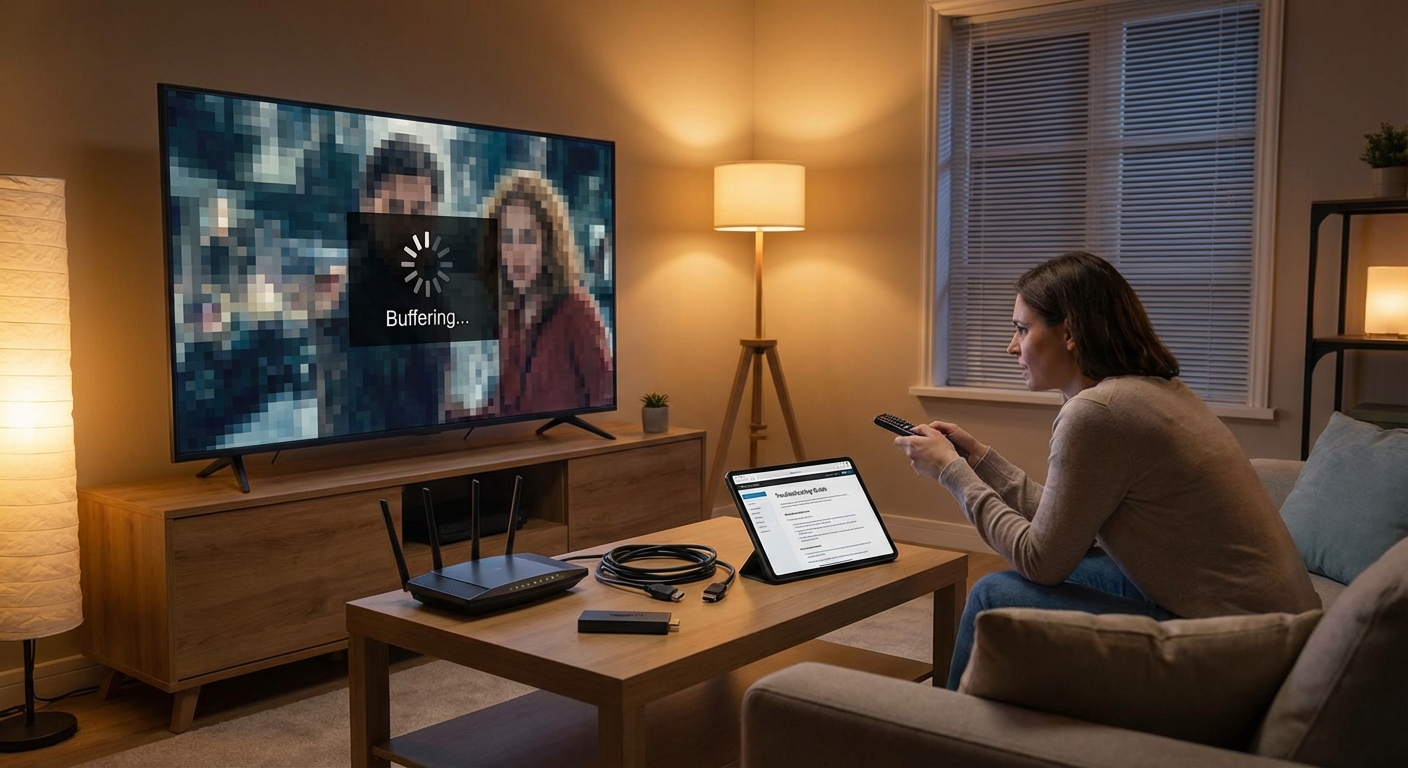
Streaming services send video data to your TV in real time. When that data flow gets interrupted, your picture freezes.
Your internet speed matters most. Netflix recommends 5 Mbps for HD streaming and 25 Mbps for 4K content. If your actual speed falls below these numbers during peak hours, you will see freezing. Other devices using your network at the same time can steal bandwidth your TV needs.
WiFi distance creates problems too. If your TV sits far from your router, or if walls and floors block the signal, the connection weakens. A weak signal means slower data transfer and more freezing episodes.
Router age and capability affect performance. Older routers struggle with modern streaming demands. They overheat, drop connections, or fail to maintain consistent speeds. Budget routers often lack the processing power to handle multiple HD streams simultaneously.
Your streaming device or smart TV app can also cause freezing. These apps store temporary data in cache memory. Over time, this cache fills up with corrupted or outdated files. The app slows down, struggles to buffer properly, and freezes during playback.
Hardware connections that trigger picture problems
Physical connections between devices create another common freezing source.
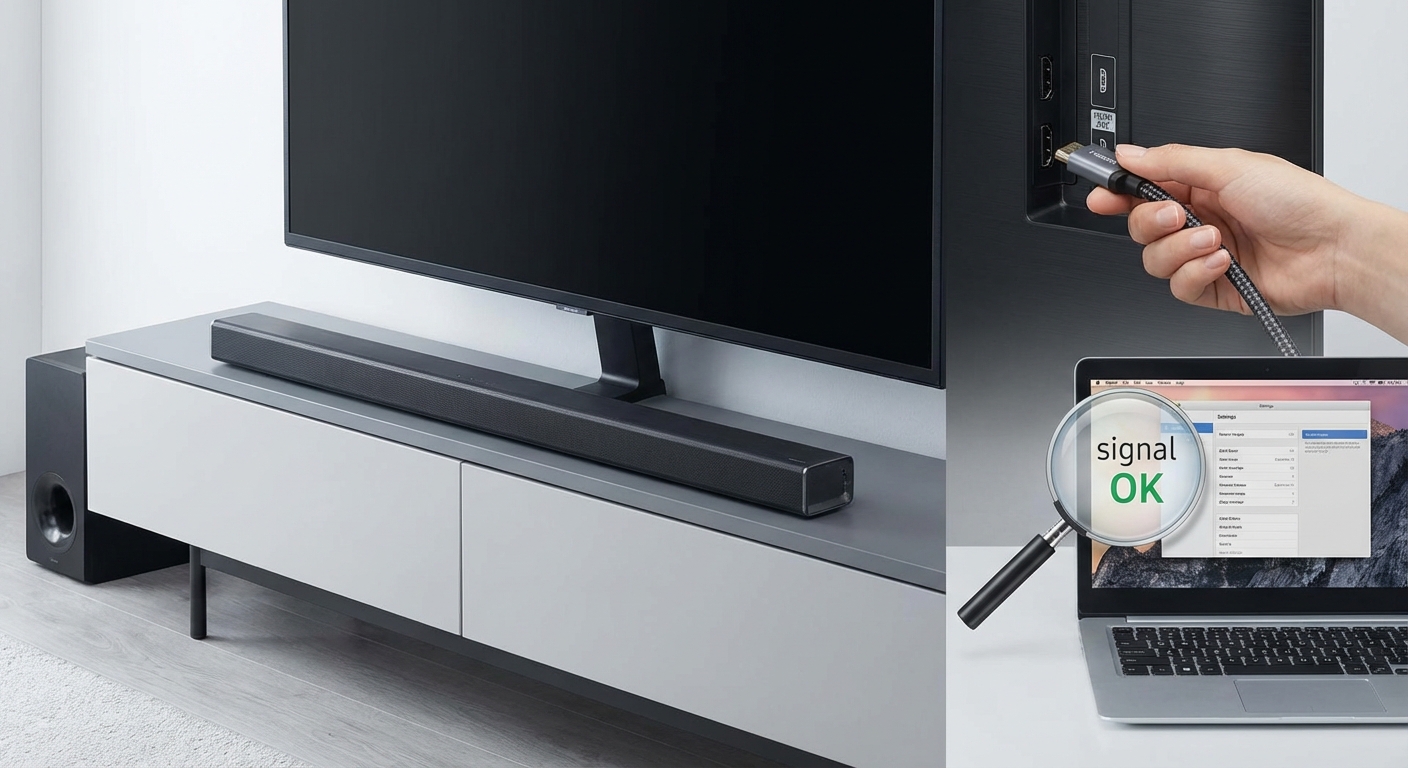
HDMI cables carry video and audio signals from streaming boxes, game consoles, or cable boxes to your TV. A loose HDMI connection causes intermittent signal loss. The picture freezes when the signal drops, then resumes when contact restores. You might see a black screen flash before the freeze.
Damaged HDMI cables create similar symptoms. The wires inside can break from repeated bending, especially near the connectors. Cheap cables sometimes fail after a few months of normal use. The signal degrades gradually until freezing becomes constant.
HDMI port problems on your TV or source device also cause freezing. Ports wear out from frequent plugging and unplugging. Internal solder connections can crack. Dust and debris accumulate inside ports and interfere with signal transfer.
Using the wrong HDMI cable for your content creates bandwidth bottlenecks. Older HDMI 1.4 cables cannot handle 4K at 60fps. The signal gets compressed or dropped entirely. Your picture freezes or shows artifacts during complex scenes.
Software and firmware issues behind freezing screens
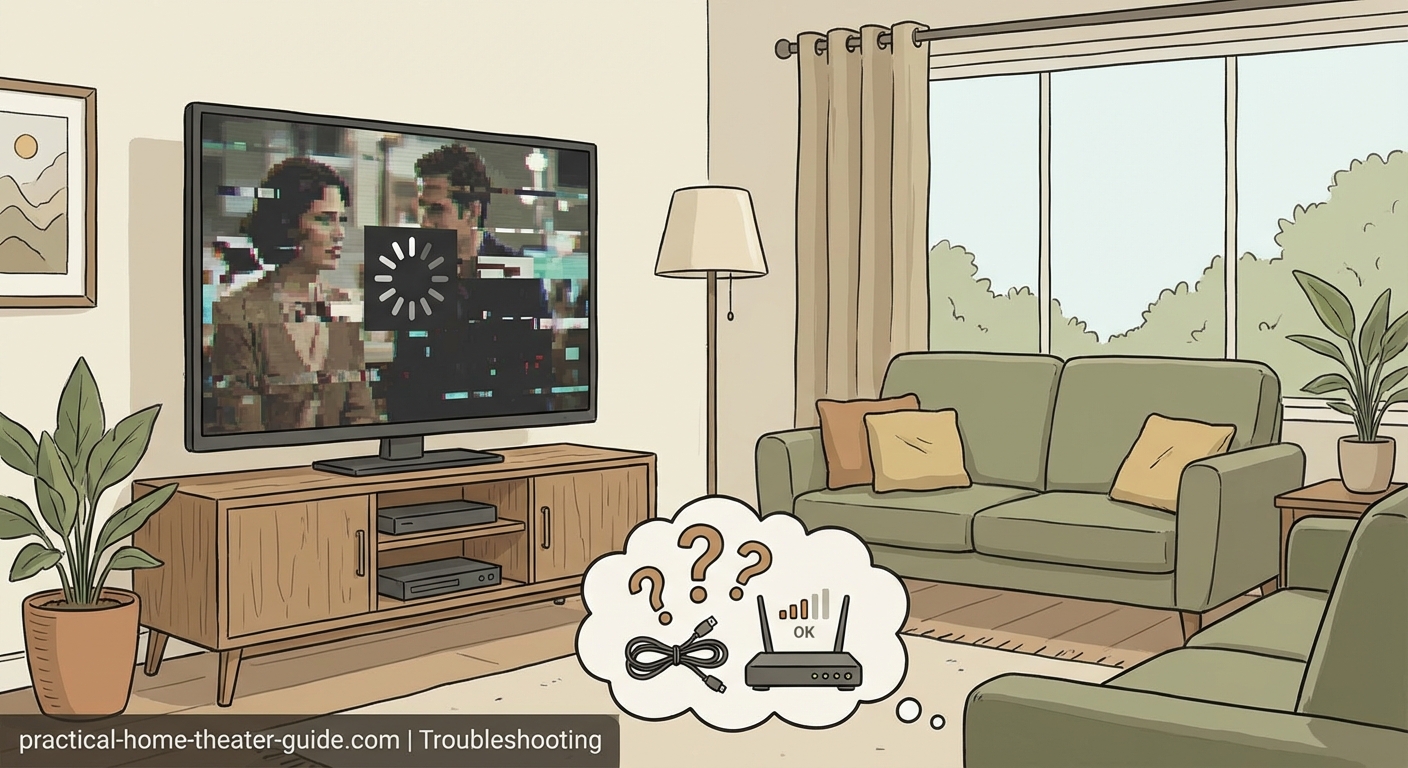
The software running your TV and connected devices needs regular updates.
TV manufacturers release firmware updates to fix bugs, improve performance, and add features. Outdated firmware can cause freezing, especially with newer streaming apps or video formats. Your TV might lack the optimizations needed to handle modern content efficiently.
Smart TV operating systems accumulate digital clutter over time. Background processes pile up. Temporary files consume storage space. The system slows down until simple tasks like changing channels or opening apps take forever. Freezing during playback becomes more frequent.
Streaming apps themselves get updated regularly. Running an old version of Netflix, Disney+, or YouTube can cause compatibility problems. The app might freeze when trying to decode newer video codecs or access updated server protocols.
Conflicting settings between your TV and source devices create handshake problems. Your cable box outputs one resolution while your TV expects another. The devices spend time negotiating, causing brief freezes. Motion smoothing features, HDR settings, and refresh rate mismatches all trigger similar issues.
Temperature and ventilation problems
Electronics generate heat during operation. Too much heat causes performance problems and component damage.
Your TV needs proper ventilation. Blocked vents trap hot air inside the case. Internal components overheat and throttle performance to prevent damage. The picture processing slows down. Frames drop. Freezing occurs during demanding scenes with lots of motion or detail.
Mounting your TV in an enclosed cabinet creates ventilation problems. The space around the TV fills with hot air that cannot escape. Even a well-designed TV will overheat in these conditions.
Dust accumulation inside your TV blocks airflow and insulates components. Dust acts like a blanket, holding heat against circuit boards. Over months and years, this buildup significantly reduces cooling efficiency.
External heat sources compound the problem. Placing your TV near a fireplace, heating vent, or sunny window raises the ambient temperature. Your TV starts from a higher baseline temperature and reaches critical levels faster.
Step by step troubleshooting process
Follow these steps in order to identify and fix your freezing problem.
-
Restart everything completely. Unplug your TV, streaming devices, and router from power. Wait 60 seconds. Plug the router back in first and let it fully boot up. Then power on your TV and other devices. This clears temporary glitches and resets network connections.
-
Test your internet speed. Use a phone or computer connected to the same WiFi network your TV uses. Run a speed test at fast.com or similar service. Compare the results to your streaming service requirements. Test during the time of day when you normally watch TV.
-
Check all physical connections. Unplug each HDMI cable and inspect both ends for damage. Look for bent pins inside the TV and device ports. Plug cables back in firmly until you feel them click. Try a different HDMI port on your TV if available.
-
Update your TV firmware. Go into your TV settings menu and look for system or software update options. Let any available updates install completely. This process can take 10 to 20 minutes. Do not turn off your TV during installation.
-
Clear app cache and data. For smart TV apps, go into settings and find the application manager. Select each streaming app and choose clear cache. Some TVs also offer a clear data option, which resets the app to factory condition. You will need to log back in afterward.
-
Test with different content sources. If streaming freezes but cable TV works fine, the problem is network related. If everything freezes regardless of source, your TV hardware may be failing. If only one app freezes, that specific app needs troubleshooting or reinstalling.
Common mistakes that make freezing worse
People often try solutions that seem logical but actually create new problems.
| Mistake | Why It Backfires | Better Approach |
|---|---|---|
| Using WiFi extenders | Adds latency and creates separate network segments that confuse devices | Run ethernet cable to TV or upgrade to mesh WiFi system |
| Maxing out picture quality settings | Forces TV processor to work harder, causing overheating and performance drops | Use standard picture modes and disable unnecessary processing features |
| Connecting through multiple adapters | Each adapter adds potential failure points and signal degradation | Use direct connections with proper cables rated for your content |
| Ignoring ventilation requirements | Accelerates component wear and triggers thermal throttling | Ensure 4 inches clearance on all sides and keep vents dust-free |
| Factory resetting as first solution | Erases all settings and requires full setup again without addressing root cause | Try targeted fixes first, save factory reset as last resort |
When hardware failure causes persistent freezing
Sometimes the problem goes beyond simple fixes. Physical components inside your TV can fail.
The main circuit board processes all incoming video signals. Capacitors on this board can bulge or leak over time. Solder joints crack from thermal expansion and contraction. These failures cause intermittent freezing that gets progressively worse.
The T-con board controls your TV panel. It converts video signals into instructions for individual pixels. A failing T-con board causes freezing, lines across the screen, or color problems. These issues appear randomly at first but become constant as the board deteriorates.
Power supply problems create system instability. Your TV might freeze, restart randomly, or fail to turn on consistently. You might hear clicking sounds from inside the case. Power supply capacitors fail frequently in TVs over five years old.
Panel damage from physical impact can cause freezing in specific screen areas. A crack in the panel disrupts signal flow to affected pixels. The TV processor detects the error and freezes while trying to compensate.
If your TV freezes immediately after a power outage or lightning storm, internal components may have suffered electrical damage. Power surges can destroy circuit boards even when the TV appears to work normally at first. The damage reveals itself through progressive freezing and instability over the following weeks.
Streaming service specific fixes
Different platforms have unique quirks that cause freezing.
Netflix freezing often relates to playback settings. Go into your Netflix account settings on a computer and check playback settings. Lower the data usage setting if you have bandwidth limitations. Disable test participation, which sometimes enrolls your account in buggy experimental features.
YouTube freezing frequently connects to codec problems. The platform uses VP9 codec for 4K content. Older TVs and devices struggle with this format. Force YouTube to use H.264 instead by adjusting settings in the app or using a different device.
Amazon Prime Video has known issues with certain TV models. The app sometimes conflicts with TV motion smoothing features. Disable motion interpolation in your TV picture settings when watching Prime Video. Also check that Prime Video app is updated to the latest version.
Disney+ freezing often happens during 4K HDR content. The service uses high bitrate streams that stress marginal internet connections. Lower the video quality in Disney+ app settings if freezing occurs frequently. The difference in picture quality is less noticeable than constant freezing.
Network optimization for better streaming
Your home network setup dramatically affects streaming reliability.
Place your router in a central location, elevated off the floor. WiFi signals spread outward and downward. A router on a shelf in a central room provides better coverage than one hidden in a corner cabinet.
Change your WiFi channel to avoid interference. Your neighbors’ networks, cordless phones, and baby monitors all compete for the same frequencies. Use a WiFi analyzer app to identify the least congested channel, then change your router settings accordingly.
Enable Quality of Service (QoS) in your router settings if available. This feature prioritizes streaming traffic over other network activities. Your TV gets consistent bandwidth even when someone else downloads files or plays online games.
Consider ethernet over powerline adapters if running ethernet cable is not practical. These devices send network data through your home electrical wiring. They provide more stable connections than WiFi without requiring new cable installation.
Upgrade your internet plan if multiple people stream simultaneously. A family of four watching different 4K streams needs at least 100 Mbps to avoid freezing. Calculate your household requirements and compare to your current plan speed.
TV settings that reduce freezing and stuttering
Your TV has numerous settings that affect playback smoothness. Some helpful adjustments include:
-
Disable motion smoothing. This feature creates artificial frames between real frames. It causes stuttering with film content shot at 24fps. Look for settings called motion interpolation, TruMotion, MotionFlow, or Auto Motion Plus.
-
Match refresh rate to content. Enable automatic refresh rate switching if your TV supports it. This allows your TV to match the frame rate of incoming content. 24fps movies play at 24Hz, eliminating judder and stutter.
-
Turn off unnecessary image processing. Features like dynamic contrast, noise reduction, and edge enhancement add processing overhead. They can cause the TV to fall behind the incoming signal, resulting in freezing or stuttering.
-
Use game mode for connected devices. This mode reduces input lag by disabling processing features. It also helps prevent freezing when using streaming sticks or game consoles. The picture looks slightly different but plays more reliably.
-
Adjust HDMI settings. Some TVs have HDMI enhanced or HDMI UHD color settings that must be enabled for each port. These settings allow full bandwidth 4K signals. Without them, the TV cannot process the data fast enough and freezes.
Recognizing when to replace versus repair
Deciding between fixing your TV and buying a new one depends on several factors.
Age matters significantly. TVs over seven years old have outdated processors and limited app support. Even if you fix the freezing, other problems will emerge soon. New TVs also offer better picture quality and efficiency.
Repair costs should not exceed 50% of replacement cost. A main board replacement might cost $300 including labor. If comparable new TVs sell for $500, replacement makes more financial sense.
Consider the original TV quality. High-end models from premium manufacturers justify more expensive repairs. Budget TVs are essentially disposable. Spending $200 to repair a $400 TV rarely makes sense.
Modern TVs offer significant improvements over models from just a few years ago. Current displays are brighter, support better HDR formats, and have faster processors. The viewing experience improvement often justifies replacement even when repair is possible.
Some repairs are simple and inexpensive. Replacing a power supply board costs $50 to $100. Cleaning dust from vents costs nothing. These fixes are worth attempting before considering replacement.
Preventing future freezing problems
Regular maintenance prevents many freezing issues from developing.
Clean your TV vents every three months. Use compressed air to blow dust out of ventilation openings. Do this outdoors or in a garage to avoid spreading dust indoors. Never spray cleaning solutions into vents.
Update firmware and apps monthly. Set reminders on your phone to check for updates. Manufacturers often release fixes for freezing and performance problems. Staying current prevents issues before they affect your viewing.
Restart your TV and streaming devices weekly. This clears accumulated memory issues and resets network connections. Schedule restarts during times when nobody is watching. Some devices offer automatic restart scheduling in settings.
Test your internet speed monthly. Network performance degrades over time due to increased neighborhood usage or ISP throttling. Document your speeds to identify trends. Contact your ISP if speeds consistently fall below your plan specifications.
Inspect cables and connections quarterly. Look for damage, corrosion, or looseness. Replace any questionable cables before they fail completely. Keep spare HDMI cables on hand for testing when problems occur.
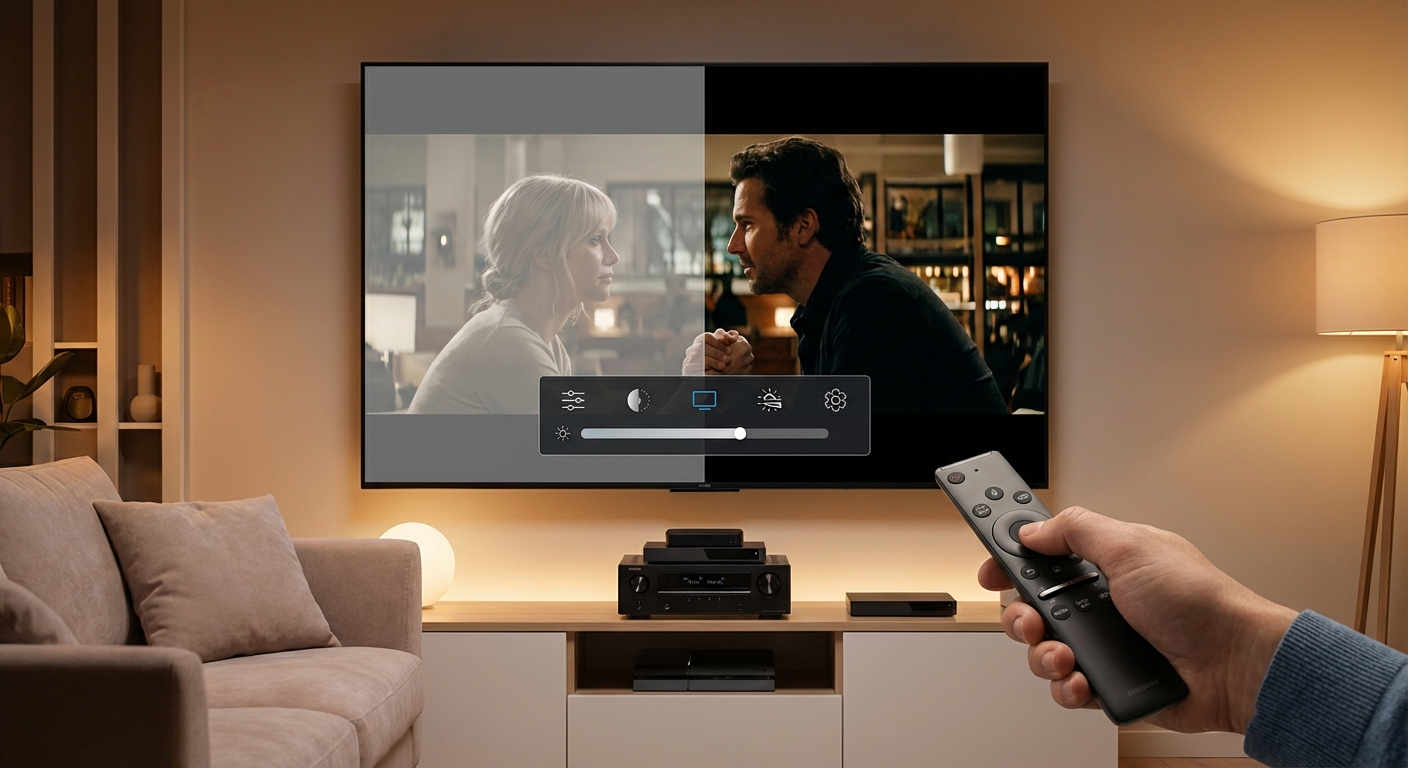
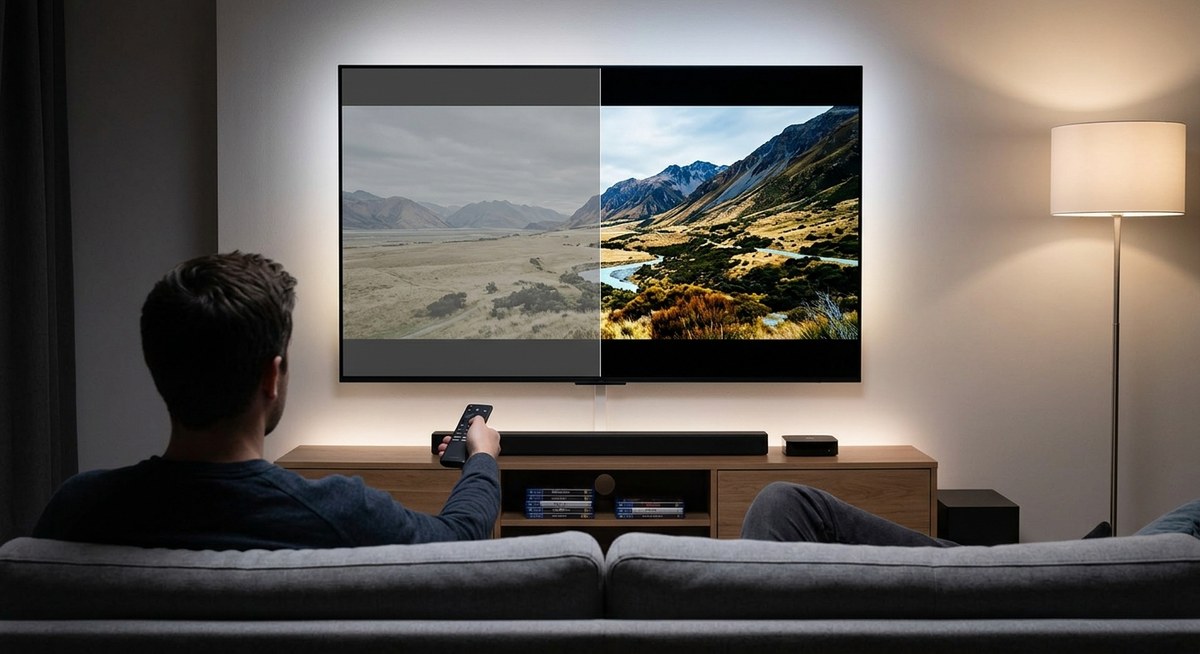
If you are setting up a new TV or making changes to your viewing setup, calibrating your TV properly ensures optimal performance and can prevent some processing-related freezing issues.
Getting back to uninterrupted viewing
Freezing and stuttering problems feel overwhelming when they first appear. But most causes have straightforward solutions that take just a few minutes to implement.
Start with the simple fixes: restart everything, check your connections, and update your software. These steps resolve the majority of freezing problems without any technical expertise or special tools.
If basic troubleshooting does not work, systematically test each component in your setup. Isolate whether the problem comes from your internet connection, your TV, or your source devices. This methodical approach prevents wasted time on solutions that do not address your specific issue.
Remember that technology requires occasional maintenance. A few minutes spent on preventive care each month saves hours of frustration during your favorite shows. Your TV will perform better and last longer with just a little attention.
Now you have the knowledge to diagnose and fix freezing problems yourself. No more interruptions during the best scenes. No more frustration during family movie night. Just smooth, reliable playback exactly as it should be.


Leave a Reply