
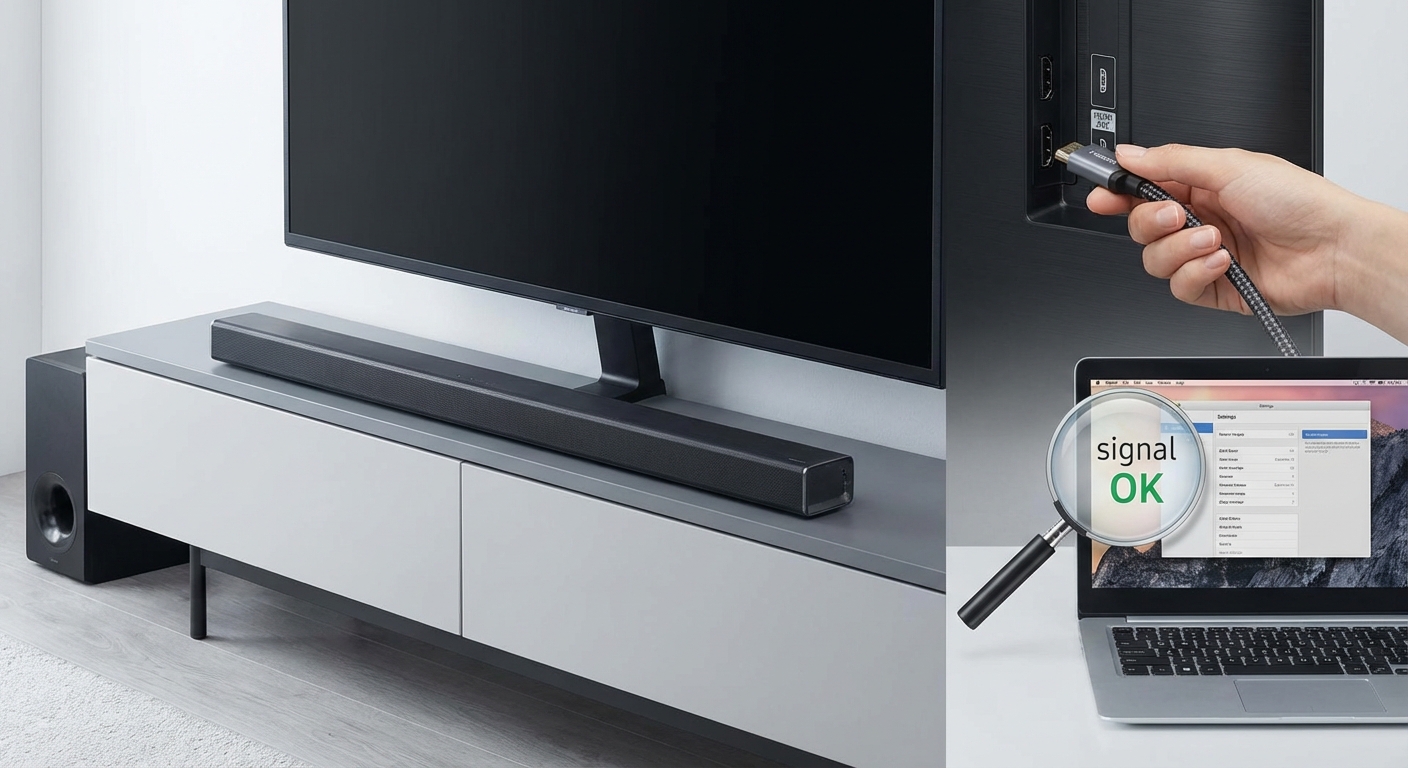
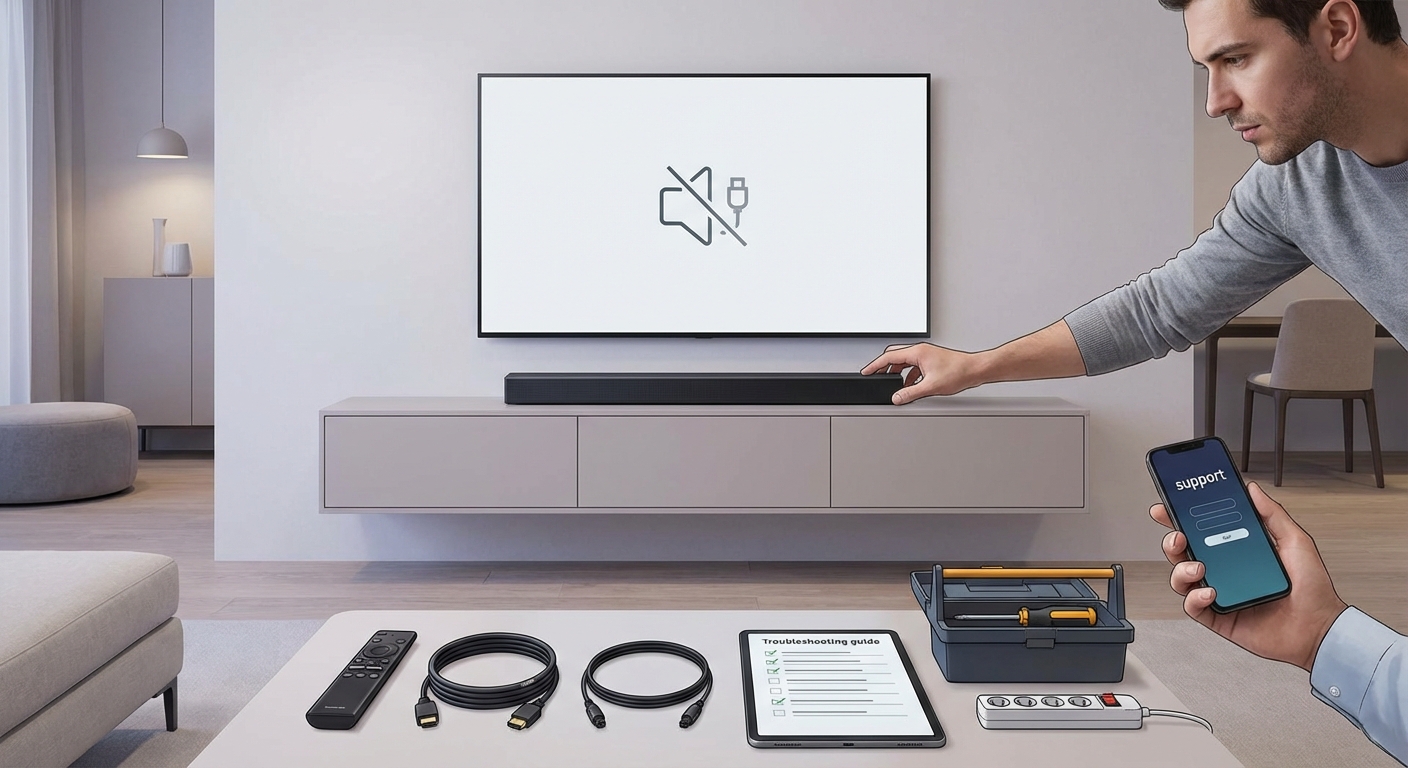
You’re watching your favorite movie, and suddenly the sound cuts out for a second. Then it happens again. And again. Your HDMI ARC connection is supposed to make things simpler, but instead it’s driving you crazy with constant audio dropouts.
HDMI ARC audio cutting out usually stems from cable quality, handshake failures, or CEC conflicts. Most issues resolve by upgrading to certified high-speed HDMI cables, disabling CEC on specific devices, updating firmware, or switching to eARC if your equipment supports it. Simple troubleshooting steps can restore stable audio without replacing your entire setup.
Why HDMI ARC Audio Drops Out
HDMI ARC was designed to simplify home theater setups by sending audio back from your TV to your soundbar or receiver through a single cable. But that convenience comes with a catch.
The technology relies on a complex handshake between devices. When that handshake fails or gets interrupted, your audio cuts out.
Several factors trigger these dropouts:
- Poor quality HDMI cables that can’t maintain signal integrity
- Firmware bugs in TVs, soundbars, or receivers
- CEC (Consumer Electronics Control) conflicts between devices
- Insufficient bandwidth for high-quality audio formats
- HDMI port damage or loose connections
- Power management features that put devices to sleep
The good news? Most of these problems have straightforward fixes that don’t require professional help or expensive replacements.
Start With Your HDMI Cable
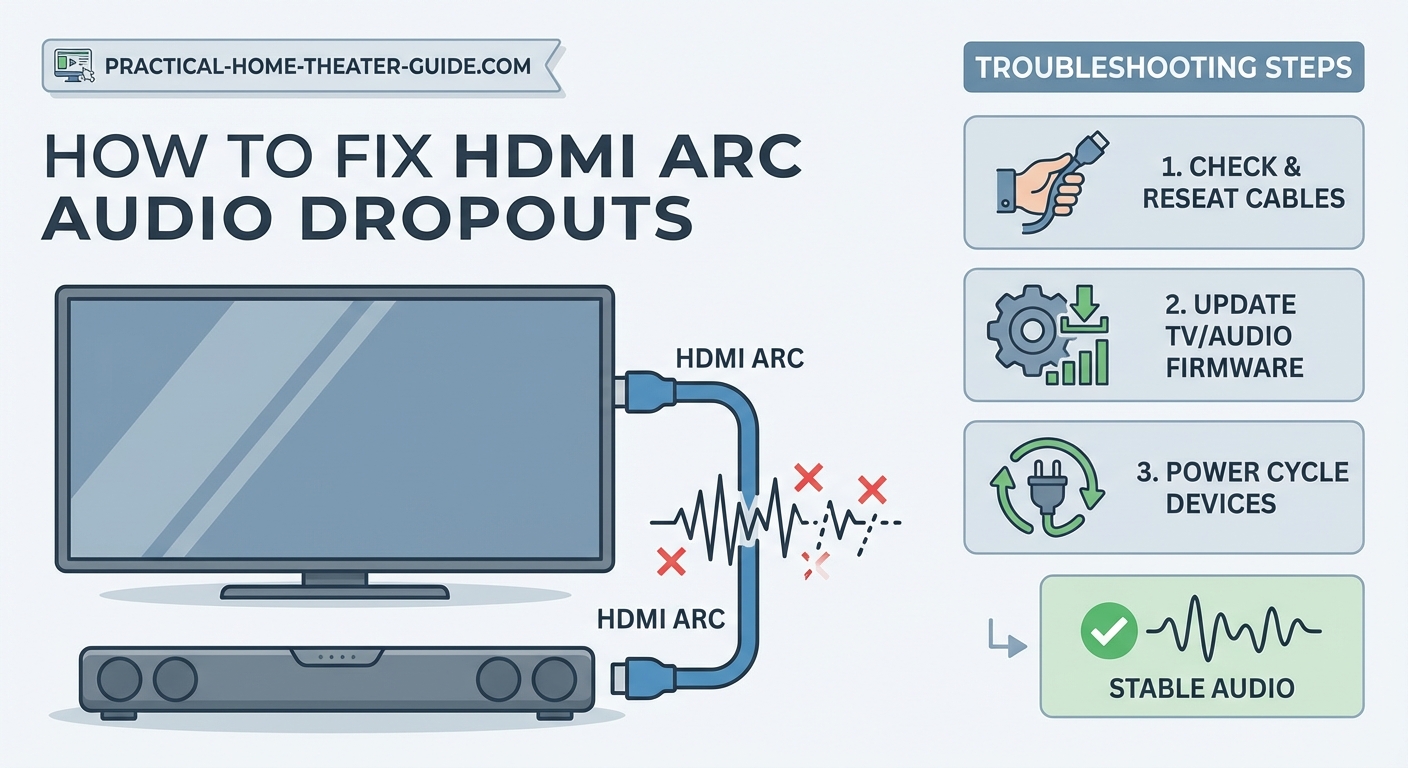
Your cable matters more than you think. Generic HDMI cables from big box stores often lack proper shielding and can’t handle ARC’s bidirectional communication reliably.
Replace your current cable with a certified high-speed HDMI cable. Look for cables labeled “High Speed with Ethernet” or “Premium Certified.” These meet stricter specifications for ARC and eARC signals.
Keep the cable length under 6 feet when possible. Longer cables introduce more signal degradation, especially with cheaper models.
Check both ends of the cable connection. Push firmly until you hear a click. Loose connections cause intermittent dropouts that seem random but actually happen when the cable shifts slightly.
Try a different HDMI port on your TV if the problem persists. Some TVs have better-quality ports than others, and the ARC port itself might have physical damage you can’t see.
Disable CEC Selectively
CEC lets your devices control each other through HDMI. Sounds great in theory. In practice, it creates conflicts that interrupt audio.
Different manufacturers call CEC by different names:
- Samsung: Anynet+
- LG: SimpLink
- Sony: Bravia Sync
- Vizio: CEC
- Panasonic: VIERA Link
Here’s the fix that works for most people:
- Leave CEC enabled on your TV
- Disable CEC on your streaming devices (Roku, Fire TV, Apple TV)
- Leave CEC enabled on your soundbar or receiver
This configuration lets your TV and audio system communicate while preventing streaming boxes from sending conflicting commands.
Access CEC settings through your device’s system or HDMI menu. The exact location varies by brand, but look under Settings > System > HDMI or Settings > General > External Device Manager.
Update Everything
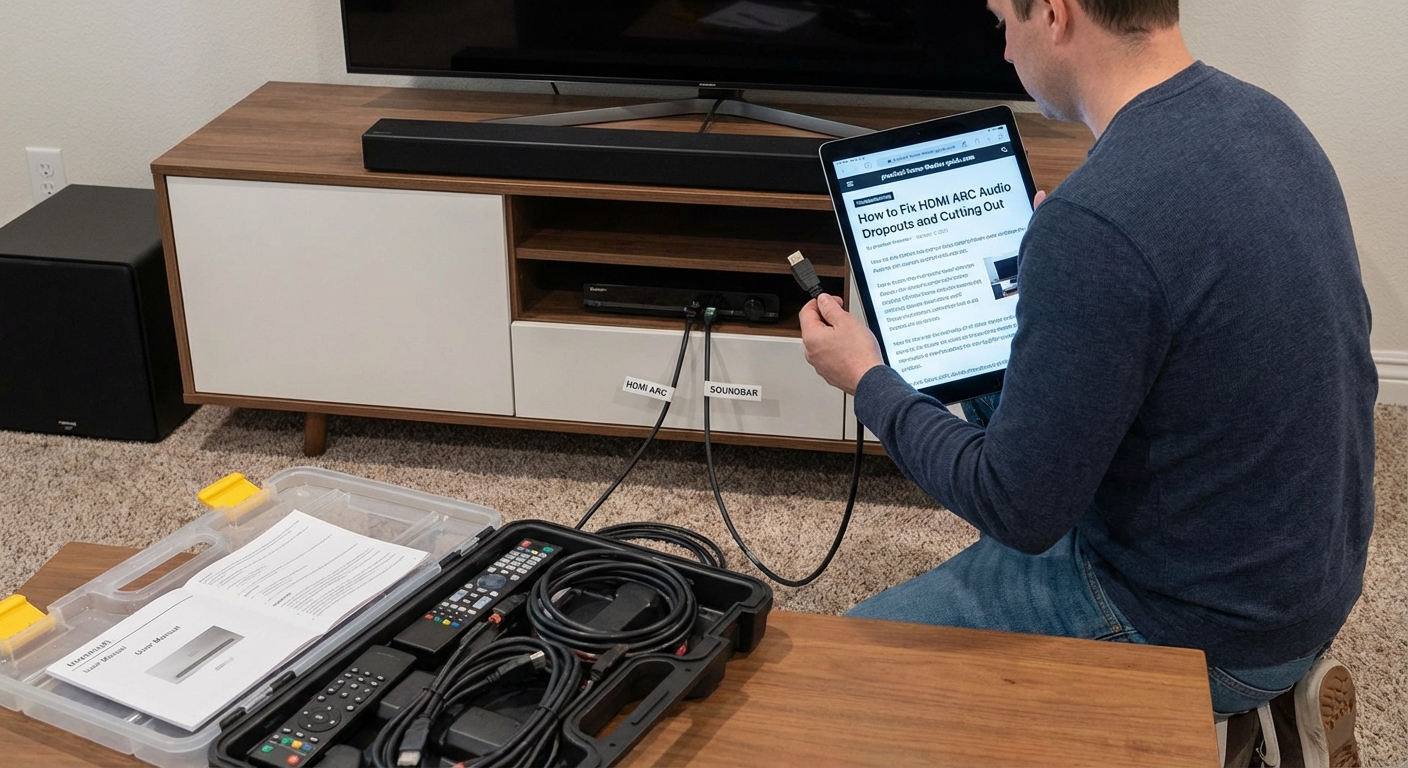
Manufacturers release firmware updates specifically to fix ARC issues. Your devices might be running buggy software right now.
Check for updates on:
- Your TV (Settings > Support > Software Update)
- Your soundbar or receiver (check the manufacturer’s website)
- Your streaming devices (Settings > System > System Update)
Don’t assume automatic updates caught everything. Many devices only check for updates weekly or monthly. Manual checks often find newer versions.
Write down your current firmware versions before updating. If an update makes things worse, you’ll know which version to roll back to.
Restart all devices after updating. A full power cycle helps new firmware initialize properly.
The Power Cycle Method That Actually Works
Most people restart devices wrong. They use the remote or menu option, which doesn’t fully reset the hardware.
Follow this sequence exactly:
- Turn off all devices using their power buttons or remotes
- Unplug every device from the wall outlet
- Wait 60 full seconds (this matters more than you think)
- Plug in your TV first and turn it on
- Wait for the TV to fully boot (about 30 seconds)
- Plug in your soundbar or receiver and turn it on
- Wait for the audio device to fully boot
- Plug in streaming devices last
This sequence lets each device establish its connection before the next one joins. It prevents the initialization conflicts that cause dropouts.
Do this process whenever you add new equipment or change settings. It resets the HDMI handshake from scratch.
Audio Format Settings Matter
Your TV might be trying to send audio formats your soundbar can’t handle. When the soundbar receives an incompatible signal, it cuts out or produces crackling sounds.
Change your TV’s audio output settings:
- Set digital audio output to PCM or Stereo instead of Auto or Bitstream
- Disable Dolby Digital Plus if you only have a basic soundbar
- Turn off pass-through mode if available
PCM works with every device and rarely causes problems. You’ll lose some surround sound quality, but you’ll gain stability.
Test different formats one at a time. Play content for at least 10 minutes with each setting to see if dropouts occur.
Some streaming apps override TV settings. Check audio options within Netflix, Disney+, or other apps separately.
When eARC Solves Everything
Enhanced Audio Return Channel (eARC) fixes most of ARC’s technical limitations. It provides more bandwidth and better device communication.
Check if your TV and soundbar support eARC. Look for “eARC” specifically in the specs, not just “ARC.” They’re different technologies.
Enable eARC in your TV settings:
- Find the HDMI ARC port settings
- Look for an eARC mode option
- Enable it and restart both devices
You’ll need an Ultra High Speed HDMI cable for eARC. Your old cable won’t work even if it’s labeled “high speed.”
eARC handles Dolby Atmos and DTS:X without compression. If you have a premium soundbar, this upgrade makes a huge difference.
Common Mistakes That Make Things Worse
| Mistake | Why It Fails | Better Approach |
|---|---|---|
| Using the wrong HDMI port | Only one port supports ARC | Use the port labeled “ARC” or “eARC” |
| Enabling CEC on all devices | Creates command conflicts | Enable only on TV and audio system |
| Leaving auto audio format on | Sends incompatible signals | Set specific format like PCM |
| Using old HDMI cables | Can’t handle ARC bandwidth | Get certified high-speed cables |
| Skipping firmware updates | Misses critical bug fixes | Check manually every month |
| Connecting through a receiver | Adds handshake complexity | Connect soundbar directly to TV |
Try Optical Audio as a Backup
If nothing else works, optical audio (TOSLINK) provides a reliable alternative. It’s not as convenient as ARC, but it never drops out.
Most TVs and soundbars have optical ports. You’ll need a separate optical cable (they’re cheap and all work the same).
Connect the optical cable from your TV’s optical output to your soundbar’s optical input. Change your soundbar’s input to Optical using its remote.
You’ll lose the ability to control volume with your TV remote. You’ll need to use the soundbar remote instead. That’s the tradeoff for stable audio.
Optical can’t carry Dolby Atmos or high-resolution audio formats. It maxes out at Dolby Digital 5.1. For most content, that’s perfectly fine.
Hardware Issues You Can’t Fix Yourself
Sometimes the problem isn’t software or settings. Physical damage requires professional repair or replacement.
Signs of hardware failure:
- Burn marks or discoloration around HDMI ports
- Bent pins inside HDMI ports (use a flashlight to check)
- Dropouts that happen at the exact same time every day (power grid issues)
- Problems that started immediately after a power surge
- Audio that works perfectly with optical but never with HDMI
Check your warranty before paying for repairs. Many manufacturers cover HDMI port failures within the first year.
If your TV is old, replacing it might cost less than repairing a failed HDMI board. Modern TVs under $500 often have better ARC implementation than premium models from five years ago.
Advanced Troubleshooting Steps
Still having problems? These less common solutions fix edge cases.
Disable HDMI-CEC on your cable box or satellite receiver. These devices often send commands that interfere with ARC even when you’re not watching them.
Change your TV’s HDMI signal range from Auto to Limited. This setting affects how devices interpret the signal and can resolve handshake issues.
Turn off your TV’s energy-saving features. Some TVs partially power down HDMI ports to save electricity, causing dropouts when they wake up.
Separate your devices onto different power strips. Ground loops between devices can introduce interference that affects ARC signals.
If you’ve tried everything and still experience dropouts, the issue might be inherent to your specific device combination. Some TVs and soundbars simply don’t communicate well together, regardless of settings. In these cases, optical audio or a direct HDMI connection through a receiver provides better results than fighting with ARC.
Testing Your Fix
After making changes, test thoroughly before assuming the problem is solved. Audio dropouts can be intermittent and might not show up immediately.
Run these tests:
- Watch content for at least 30 minutes without interruption
- Switch between different apps (Netflix, YouTube, cable box)
- Change channels or videos at least 10 times
- Adjust volume up and down repeatedly
- Turn the TV off and on three times
If you make it through all these tests without a dropout, your fix probably worked.
Keep notes about what you changed. If problems return later, you’ll know where to look first.
Getting Your Audio Back on Track
HDMI ARC audio cutting out frustrates everyone who deals with it. The technology promises simplicity but often delivers headaches instead.
Most problems trace back to three culprits: cable quality, CEC conflicts, or audio format mismatches. Start with a certified high-speed HDMI cable, disable CEC on streaming devices, and set your audio format to PCM. These three changes fix about 80% of dropout issues.
If those don’t work, update firmware, try the proper power cycle sequence, or switch to eARC if your equipment supports it. Optical audio remains a reliable backup when all else fails.
Your home theater should enhance your viewing experience, not interrupt it every few minutes. Take the time to work through these solutions systematically. Most people find their fix within the first three or four steps. You’ll be back to uninterrupted audio before you know it.


Leave a Reply