Calibration and troubleshooting
- How do I calibrate a home theater?
- How do I fix audio delay and lip sync?
- What crossover frequency should I use?
 HDMI No Signal Troubleshooting for Home Theater Source Cable Input Chain
Connect the source directly to the display first to isolate the receiver. HDMI fails at a digital cliff with no degradation before dropout, only sparkle or black screen.
HDMI No Signal Troubleshooting for Home Theater Source Cable Input Chain
Connect the source directly to the display first to isolate the receiver. HDMI fails at a digital cliff with no degradation before dropout, only sparkle or black screen.
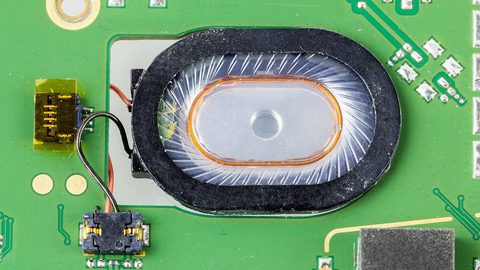 How to Fix Audio Delay and Lip Sync Error in a Home Theater System
Disable the TV's motion smoothing first; it is the most common cause of audio delay. eARC includes mandatory lip-sync correction but requires both chipsets to support it.
How to Fix Audio Delay and Lip Sync Error in a Home Theater System
Disable the TV's motion smoothing first; it is the most common cause of audio delay. eARC includes mandatory lip-sync correction but requires both chipsets to support it.
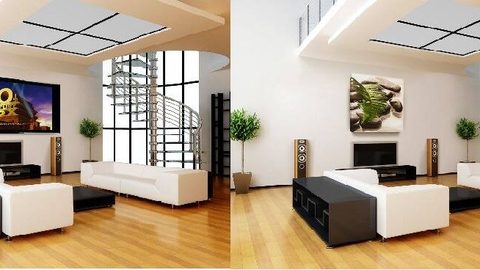 Home Theater Planning: Room Design, Layout and Light Control
The planning hub for home theater room design: route your decisions by what you are trying to build, from dedicated construction to living-room integration.
Home Theater Planning: Room Design, Layout and Light Control
The planning hub for home theater room design: route your decisions by what you are trying to build, from dedicated construction to living-room integration.
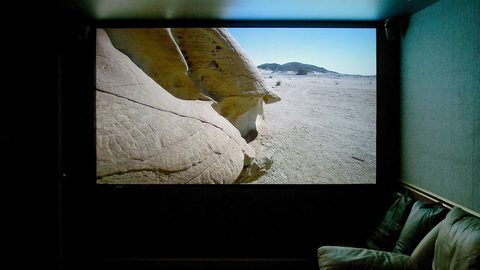 Home Theater Displays: Projectors, TVs and Screens Compared by Trade-Off
The displays hub for home theater: compare projectors, TVs, and screens by measurable trade-offs in contrast, brightness, and acoustic transparency.
Home Theater Displays: Projectors, TVs and Screens Compared by Trade-Off
The displays hub for home theater: compare projectors, TVs, and screens by measurable trade-offs in contrast, brightness, and acoustic transparency.
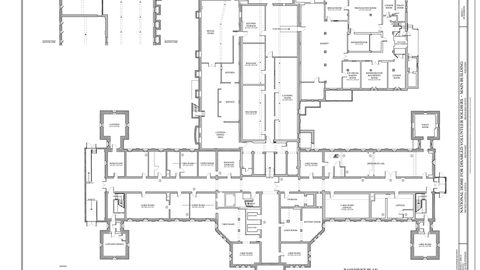 How to Plan a Home Theater: Room Measurement and Budget Workflow
A room-to-budget planning workflow for home theater: measure first, calculate room modes, then allocate budget where the room demands it.
How to Plan a Home Theater: Room Measurement and Budget Workflow
A room-to-budget planning workflow for home theater: measure first, calculate room modes, then allocate budget where the room demands it.
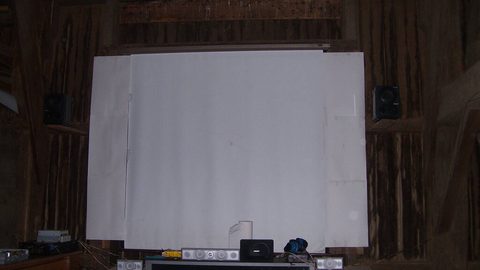 Home Theater Seating Layout: Sightlines, Speaker Geometry and Aisles
Arrange home theater seating for sightlines, ITU-R BS.775 speaker geometry, and aisle clearance, with riser calculations and bass null avoidance.
Home Theater Seating Layout: Sightlines, Speaker Geometry and Aisles
Arrange home theater seating for sightlines, ITU-R BS.775 speaker geometry, and aisle clearance, with riser calculations and bass null avoidance.
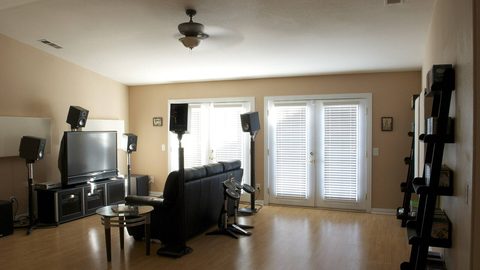 Home Theater Soundproofing: Isolation vs Acoustic Treatment Explained
Soundproof a home theater by distinguishing isolation from acoustic treatment, with structural work flagged before drywall installation.
Home Theater Soundproofing: Isolation vs Acoustic Treatment Explained
Soundproof a home theater by distinguishing isolation from acoustic treatment, with structural work flagged before drywall installation.
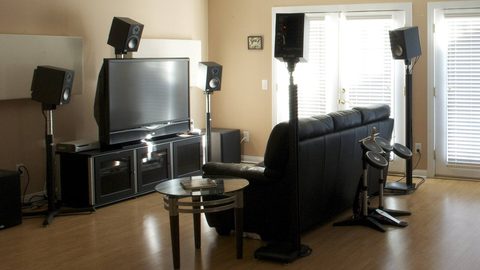 TV vs Projector for a Home Theater: Measurable Trade-Offs Explained
Projectors dominate above 100 inches and in light-controlled rooms, while TVs win in mixed-use spaces. The measurable thresholds that decide the choice.
TV vs Projector for a Home Theater: Measurable Trade-Offs Explained
Projectors dominate above 100 inches and in light-controlled rooms, while TVs win in mixed-use spaces. The measurable thresholds that decide the choice.
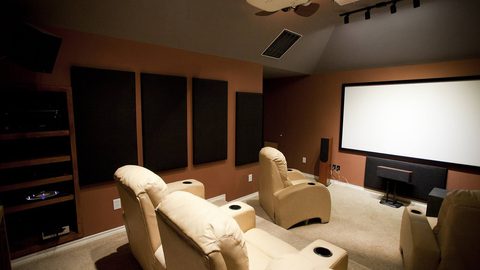 OLED vs Mini-LED vs Projector: Contrast, Brightness and Room Fit
OLED delivers pixel-level black, Mini-LED fights blooming with zone count, and projectors scale largest. How contrast, brightness and room light decide the winner.
OLED vs Mini-LED vs Projector: Contrast, Brightness and Room Fit
OLED delivers pixel-level black, Mini-LED fights blooming with zone count, and projectors scale largest. How contrast, brightness and room light decide the winner.
 Projector Brightness Guide: Lumens, Screen Size, Gain and Ambient Light
Published projector lumens are measured in inaccurate modes. How to calculate the calibrated brightness your screen size, gain and room actually need.
Projector Brightness Guide: Lumens, Screen Size, Gain and Ambient Light
Published projector lumens are measured in inaccurate modes. How to calculate the calibrated brightness your screen size, gain and room actually need.