How to Check Your TV for Dirty Screen Effect and Uneven Brightness
Check your TV for dirty screen effect, dark bands, and uneven brightness. Separate panel issues from reflections and settings before seeking support.
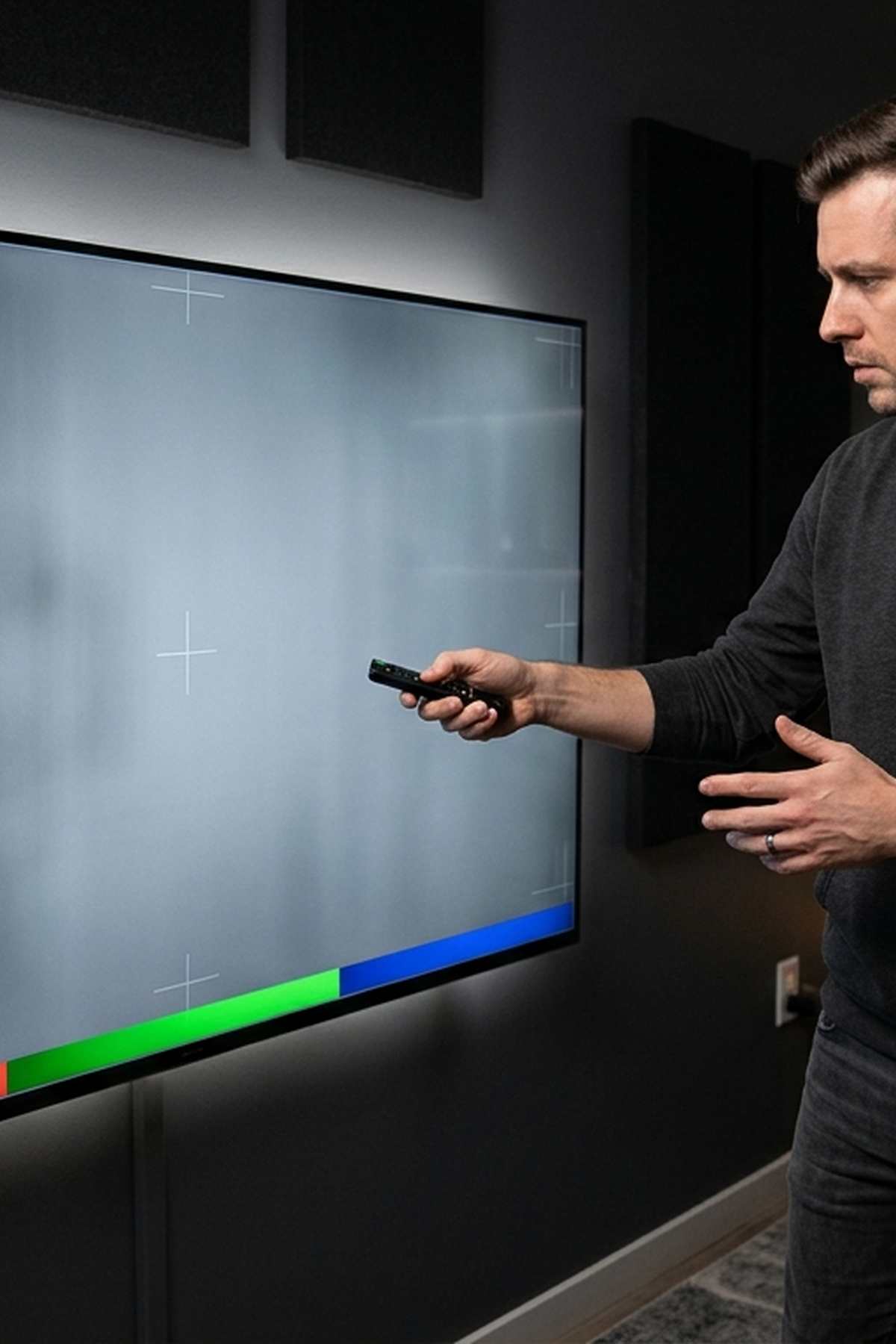
The camera follows a soccer ball across the field, but your eyes keep catching a dark smudge near midfield. Then a bright movie scene reveals a faint vertical stripe in the same spot. Before you start changing every picture setting, check whether that mark belongs to the footage, your room, or the screen itself. A few controlled comparisons can help you decide whether a simple adjustment will help or whether the TV needs attention.
Your Screen Check: Start with familiar sports footage and bright movie scenes from your usual seat. Reduce reflections, keep the picture mode consistent, and watch whether patches stay fixed as the camera moves. Use a plain white background briefly to locate uneven areas, then return to regular content. Let the distraction you see during everyday viewing guide your next step. A test pattern can reveal a flaw without telling you how much it matters.
What Dirty Screen Effect Actually Looks Like
Dirty screen effect is a useful name for uneven patches that make a clean image appear smudged. You might see a darker cloud in the center, faint vertical bands, or areas that look slightly different in brightness. The marks can resemble dirt behind the picture, even when the screen surface is clean.
These patterns tend to draw attention when a large, fairly consistent area moves across the screen. A soccer field, an ice rink, a snowy landscape, or a pale sky can make them easier to notice. Detailed scenes often hide them.
Screen uniformity describes how consistent the image looks across the panel. Dirty screen effect is one way poor uniformity can appear. Dark corners, color tinting, and bands are other possible symptoms. They do not all share the same cause, and a home check cannot identify every internal fault.
Start With Scenes You Actually Watch
Begin with the program that made you suspicious. Sit where you normally watch TV, at your usual distance. Keep the room lighting close to your everyday setup. Standing a foot from the screen can turn a faint variation into a problem you would never notice from the couch.
Choose a few short scenes with useful backgrounds:
- Field sports: Follow a slow camera pan across grass and watch for stationary dark patches.
- Ice sports: Look for bands or tinted areas across broad sections of ice.
- Bright movies: Use scenes with snow, clouds, pale walls, or open sky.
- Familiar footage: Pick a scene you can replay without hunting through a long program.
Watch the scene normally first. Then replay it while paying attention to the area that bothered you. A panel-related pattern generally stays in the same screen location while the scenery moves behind it. A shadow painted on the field or a mark in the recording travels with the image.
Try a second program from a different source. A broadcast can contain compression artifacts, camera shading, or exposure changes. If the problem appears in only one recording, you have not yet established that the TV is responsible.
Rule Out Reflections Before Changing Settings
A window reflection can look surprisingly similar to a washed-out patch. A dark reflection from furniture can resemble a smudge during bright scenes. These effects depend on the room, so check them before judging the panel.
Pause a scene where the patch is visible. Close the curtains and turn off nearby lamps. Move a little to either side while watching the suspect area. If its position or appearance changes with your viewing position or the lighting, a reflection is a likely contributor.
Check the screen while it is off, too. This can reveal fingerprints, surface streaks, or reflected objects that line up with the distraction. Clean only according to the TV manual. Do not press on the panel, massage a dark patch, or spray cleaner directly onto the screen.
Return to your central seat for the remaining checks. Brightness and color can change when viewed from an angle. If a pale edge improves when you sit directly in front of that area, viewing angle may be part of what you are seeing.
Keep Picture Settings Consistent During the Check
Let the TV run through some normal viewing before comparing scenes. Then choose a familiar picture mode, preferably one you already enjoy. There is no need to perform a full calibration for this check.
Temporarily disable automatic room-light adjustments or energy-saving brightness controls if you can identify them in the menu. These features can change the overall picture while you are trying to compare it. Record the original settings so you can restore them afterward.
Dynamic contrast and local dimming can also alter brightness as the content changes. Local dimming controls sections of an LCD TV's backlight. Its behavior can create moving brightness changes or halos around bright objects. That differs from a dark stripe that stays in one place through several unrelated scenes.
Change one setting at a time. Compare the same scene before and after. Avoid pushing brightness to its maximum just to expose flaws, since that may bear little resemblance to your normal viewing.
Use a White Background to Locate Uneven Areas
Once you have checked actual footage, open plain white screen for a plain white test background. Display it full screen if your browser allows, with menus and controls hidden. Check that the image fills the display without browser borders being mistaken for dark screen edges.
This background gives you a simple surface for locating patches. It does not provide a complete diagnosis, and it cannot reproduce every issue that appears in motion or darker scenes.
- Keep your usual seat. View the screen from the center at your normal watching distance.
- Use comfortable brightness. Avoid staring at a glaring white image in a dark room.
- Look briefly across the panel. Note broad patches, bands, darker edges, or tint differences.
- Check the room again. Change nearby lighting to see whether reflections affect the pattern.
- Return to familiar footage. Replay your sports pan and bright movie scene with the same settings.
Keep the static test brief. You do not need to leave it running while you search for tiny differences. A white screen may also trigger overall brightness limiting on some TVs. If the entire screen dims together, that alone does not demonstrate a fixed uniformity defect.
Compare the Pattern With Everyday Viewing
The useful question is whether the test explains a distraction you already see. A faint patch visible only on a blank background may have little effect on films, games, or sports. A stripe that repeatedly catches your eye during ordinary camera movement deserves more attention.
Match locations carefully. If the white background shows a darker area on the left, check that exact area during moving footage. Avoid assuming that every variation on the test image accounts for every problem in a broadcast.
Give yourself a break between checks. Repeatedly staring at one patch can make it hard to judge how noticeable it is during relaxed viewing. Come back later and watch a few minutes without deliberately scanning the panel.
What Different Patterns Suggest
A fixed patch across several sources points toward screen uniformity. A patch that changes when you close curtains points toward room reflections. Brightness that rises and falls across the whole picture calls for a closer look at automatic brightness controls or content-dependent behavior.
A halo that follows a bright object suggests local dimming behavior rather than a stationary smudge. None of these observations proves a hardware diagnosis by itself. Their value is in helping you describe the problem and choose a sensible next step.
Choose Between Settings Changes and Manufacturer Support
If adjusting room lighting solves the distraction, keep the arrangement that works. If one picture setting causes unwanted brightness shifts, compare its available levels and choose the result you prefer. Settings can change how visible a patch is, but they may not remove an underlying panel variation.
Contact the manufacturer or retailer when the issue remains distracting in normal content, especially if the TV is still within a return period. Check your purchase terms promptly rather than spending weeks testing. You do not need a technical diagnosis to report a repeatable problem.
Prepare a small set of useful details:
- Purchase information: Model number, purchase date, receipt, and applicable return deadline.
- A clear description: Where the patch appears and which scenes reveal it.
- Your comparisons: Sources tested, picture mode used, and whether lighting changes affected it.
- Representative evidence: A photo or short video that resembles what you see from your seat.
Phone cameras can exaggerate bands, tint, and brightness differences. Review any photo before sending it, and explain if it makes the issue look stronger than it does in person. Include normal footage where possible, since a test background alone provides limited context.
Follow model-specific support instructions. Avoid service menus or repeated manual panel-maintenance routines as experiments. Those are not general fixes for dirty screen effect.
Let the Next Match Be the Deciding Test
A useful screen check ends with watching something you enjoy. Restore your preferred settings and settle into your regular seat. If patches keep pulling your attention away from the action across several sources, you have a clear reason to seek support.
If the unevenness appears only during a deliberate search on a blank screen, you may decide it does not affect your experience. The goal is a picture you can enjoy comfortably. Let ordinary viewing carry the most weight in that decision.
More in this guide
How to Reduce TV Glare and Reflections in Your Home Theater RoomSetting the Speaker Crossover Frequency for Bass Management in a Home Theater.