
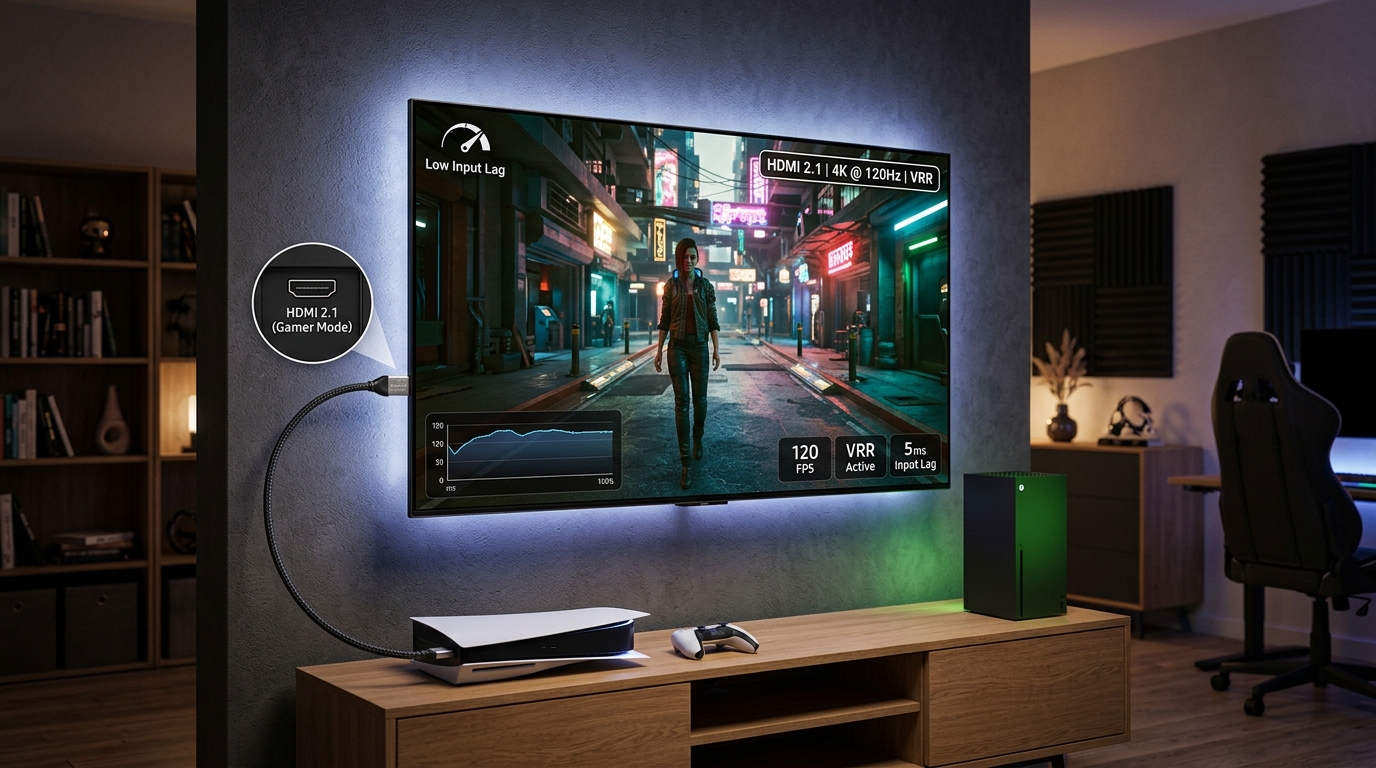
Shopping for a gaming TV feels overwhelming when every spec sheet throws acronyms at you without explaining what they actually do. HDMI 2.1, VRR, ALLM, input lag measured in milliseconds. You just want to know which TV will make your games look great and feel responsive, not decode a technical manual.
Modern gaming TVs need HDMI 2.1 for 4K at 120Hz, VRR to eliminate screen tearing, and low input lag under 20ms for responsive controls. OLED panels offer perfect blacks and fast response times, while QLED and Mini-LED provide brighter images for daytime gaming. Understanding these specs helps you match features to your console or PC capabilities and budget.
Understanding HDMI 2.1 and Why It Matters for Gaming
HDMI 2.1 changed everything for console and PC gamers in 2020.
The older HDMI 2.0 standard maxes out at 4K resolution running at 60 frames per second. That worked fine for movies and older consoles, but PlayStation 5, Xbox Series X, and modern gaming PCs can push 4K at 120fps.
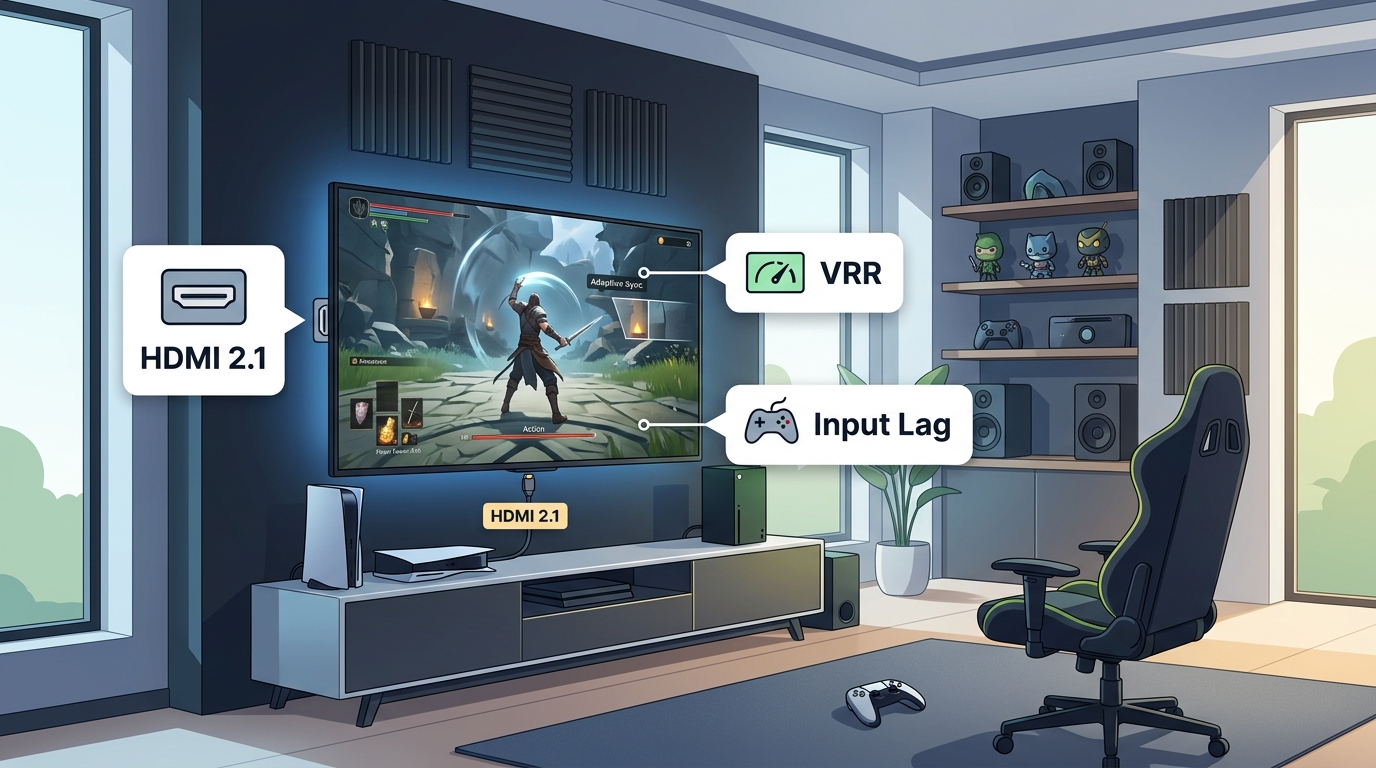
HDMI 2.1 has the bandwidth to handle that higher frame rate. It supports up to 48 Gbps compared to HDMI 2.0’s 18 Gbps.
Here’s what HDMI 2.1 actually enables:
- 4K resolution at 120Hz refresh rate
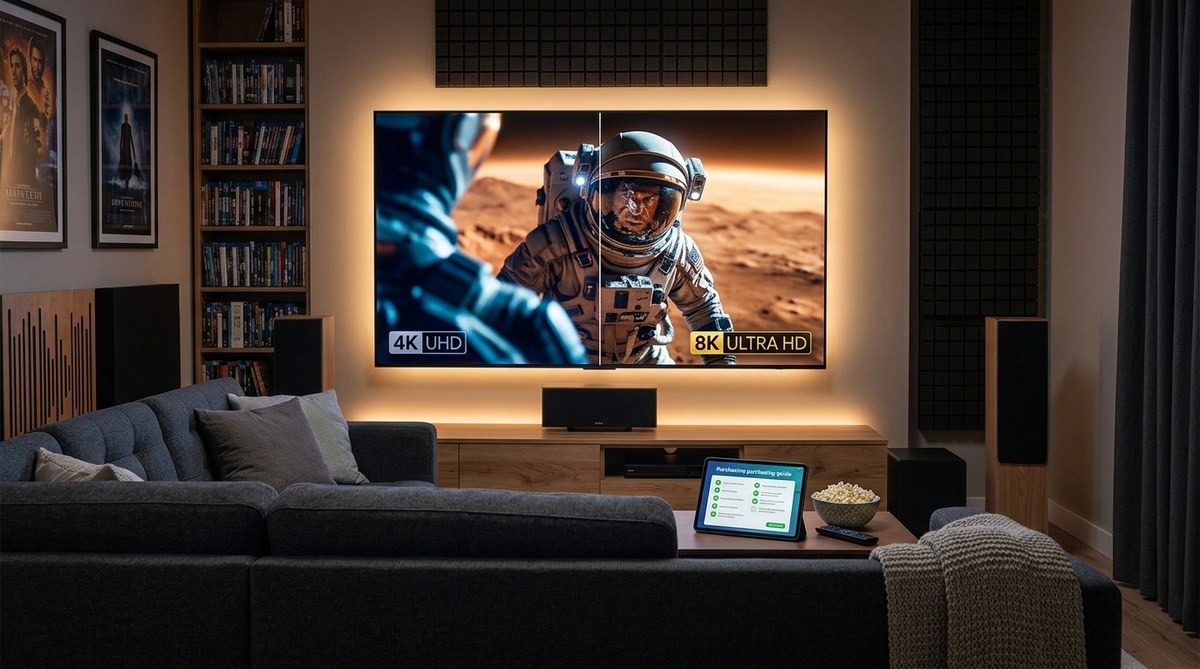
- 8K at 60Hz (though almost no games support this yet)
- Variable Refresh Rate technology
- Auto Low Latency Mode that switches to game mode automatically
- Enhanced Audio Return Channel for better sound formats
Not every HDMI 2.1 port is created equal, though. Some TV manufacturers only include the full feature set on one or two ports. Others implement partial HDMI 2.1 features and still label it as 2.1.
Check which specific ports support 4K at 120Hz. Most TVs put the full-bandwidth ports on HDMI 3 and HDMI 4. Plugging your console into HDMI 1 might limit you to 60Hz even on an HDMI 2.1 TV.
You don’t absolutely need HDMI 2.1 if you’re gaming at 1080p or only care about 60fps gameplay. But if you bought a current generation console or have a gaming PC with a modern GPU, you’re leaving performance on the table without it.
What Variable Refresh Rate Does for Your Gaming Experience
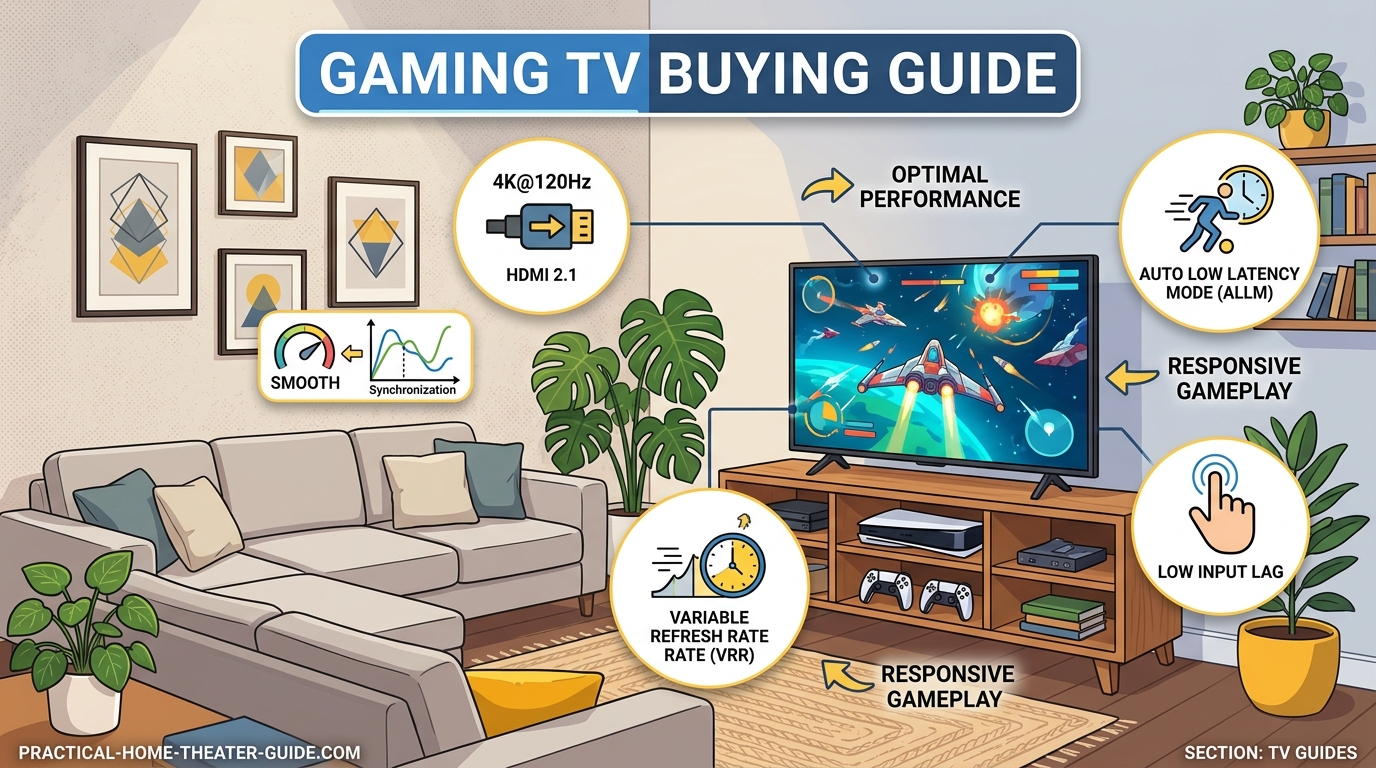
Screen tearing ruins immersion faster than anything else.
It happens when your console or PC sends frames to the TV at inconsistent intervals. The TV refreshes at a fixed rate (usually 60 times per second), but your game might render frames at 57fps one moment and 63fps the next.
The TV shows parts of two different frames at once. You see a horizontal line where the image splits. It’s distracting during fast camera movements or action sequences.
Variable Refresh Rate (VRR) solves this by letting the TV adjust its refresh timing to match whatever frame rate the game is actually producing.
Three VRR standards exist:
- HDMI Forum VRR: The official HDMI 2.1 standard that works with any compatible device
- AMD FreeSync: Originally for PC gaming, now supported by Xbox consoles
- NVIDIA G-SYNC: Requires special hardware in the TV, works with NVIDIA graphics cards
Most gaming TVs in 2026 support at least HDMI Forum VRR and FreeSync. G-SYNC Compatible certification is less common but not essential unless you’re a dedicated PC gamer with an NVIDIA card.
VRR works best when your game runs between 40fps and 120fps. Below 40fps, you’ll still notice judder. Above 120fps doesn’t matter because that’s the TV’s maximum refresh rate anyway.
The practical benefit? Smoother motion during gameplay, especially in open world games where frame rates fluctuate. No more tearing during fast pans or explosions.
Some budget gaming TVs advertise VRR but only support it at 1080p or have limited refresh rate ranges. Read the fine print about VRR range and maximum resolution support.
Input Lag Numbers That Actually Matter
Input lag measures the delay between pressing a button and seeing the result on screen.
TVs process the image before displaying it. They apply motion smoothing, noise reduction, upscaling, and color adjustments. All that processing takes time, usually measured in milliseconds.
For gaming, you want that delay as short as possible. Here’s how different input lag measurements feel:
| Input Lag Range | Gaming Experience | Acceptable For |
|---|---|---|
| Under 10ms | Imperceptible delay | Competitive fighting games, rhythm games |
| 10-20ms | Excellent responsiveness | All gaming types, competitive play |
| 20-40ms | Noticeable in fast games | Casual gaming, story-driven titles |
| Over 40ms | Frustrating lag | Not recommended for gaming |
Most modern TVs include a Game Mode that disables image processing to reduce input lag. You’ll see input lag drop from 80-100ms down to 10-20ms just by enabling this setting.
The tradeoff is slightly worse picture quality. Game Mode usually turns off motion smoothing (which you want off anyway for gaming) and reduces noise reduction. Colors might look less vibrant and motion less smooth.
For most gamers, that tradeoff is worth it. A TV with 15ms input lag in Game Mode will feel responsive even in competitive multiplayer games.
Testing methodology matters when comparing input lag specs. Some manufacturers measure at 1080p 60Hz, others at 4K 120Hz. Input lag often increases at higher resolutions or with VRR enabled.
Look for reviews that measure input lag with the settings you’ll actually use: 4K resolution, 120Hz refresh rate, VRR enabled, HDR active.
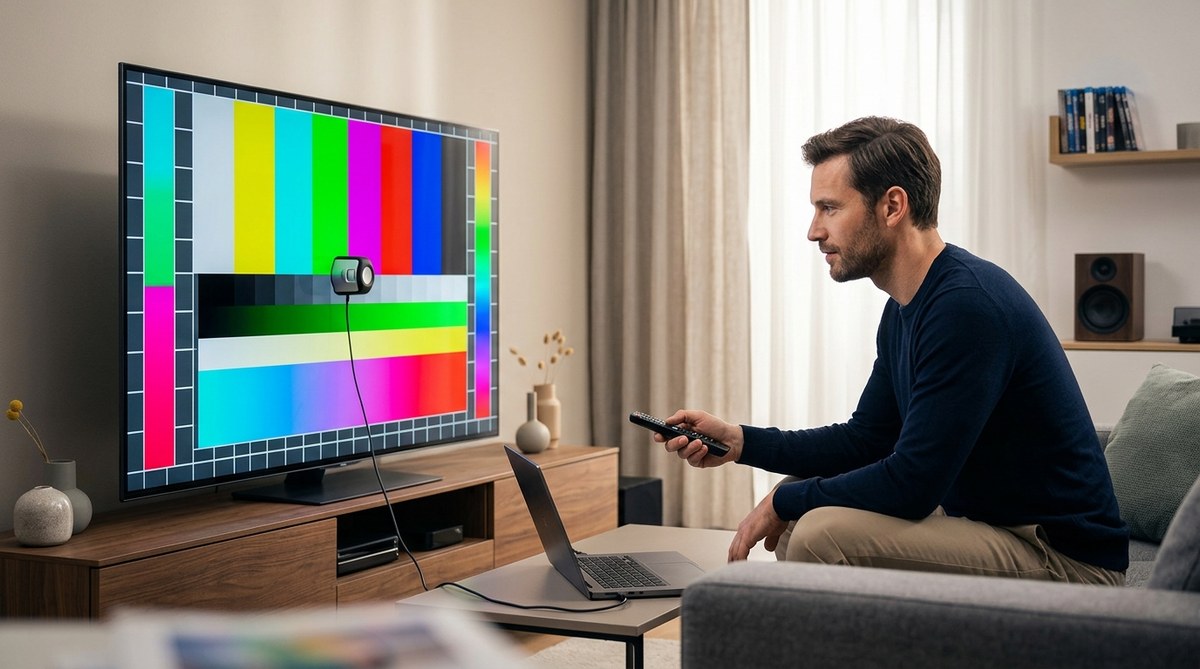
Test input lag yourself using the camera trick. Record your TV and another display showing the same content in slow motion. Count the frame difference between them. Each frame at 60fps equals about 16.7ms.
Panel Technology Comparison for Gaming
Three panel types dominate the gaming TV market: OLED, QLED, and Mini-LED.
Each has strengths and weaknesses for gaming specifically.
OLED panels use organic pixels that emit their own light. Each pixel turns completely off for perfect blacks. Response time (how fast pixels change color) is nearly instantaneous at under 1ms.
OLED advantages for gaming:
– Perfect black levels make dark game scenes actually visible
– No backlight bloom around bright objects
– Extremely fast response time eliminates motion blur
– Wide viewing angles
OLED disadvantages:
– Lower peak brightness than QLED or Mini-LED
– Risk of burn-in from static HUD elements (though much improved)
– More expensive at larger sizes
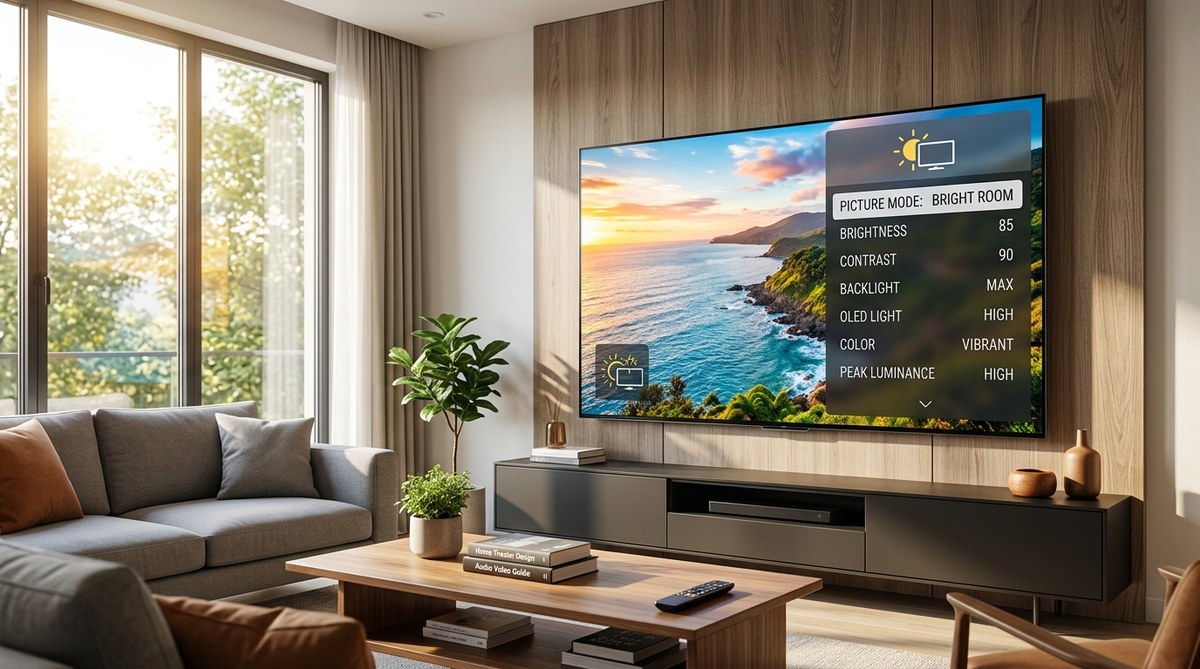
– Not ideal for bright rooms
QLED panels use quantum dot technology with LED backlighting. They get much brighter than OLED, often exceeding 1500 nits peak brightness.
QLED advantages:
– Excellent for bright rooms and HDR highlights
– No burn-in risk from static elements
– Usually less expensive than OLED at the same size
– Better color volume at high brightness
QLED disadvantages:
– Slower response time (2-8ms typically)
– Backlight blooming around bright objects on dark backgrounds
– Can’t match OLED’s perfect blacks
– Viewing angles often narrower
Mini-LED panels combine quantum dots with thousands of tiny LED zones for local dimming. They try to match OLED’s contrast while keeping QLED’s brightness.
Mini-LED advantages:
– Very bright HDR performance
– Better black levels than standard QLED
– No burn-in concerns
– Good balance of contrast and brightness
Mini-LED disadvantages:
– Still shows some blooming, though less than QLED
– More expensive than standard QLED
– Response time between OLED and QLED
– Complexity can lead to uniformity issues
For competitive gaming, OLED’s instant response time gives a small advantage. For HDR gaming in bright rooms, QLED or Mini-LED makes more sense. For balanced performance, Mini-LED splits the difference.
Consider your room lighting and what games you play. Dark atmospheric games like horror titles benefit from OLED. Bright, colorful games shine on QLED. OLED vs QLED vs Mini-LED: Which TV Technology Should You Buy in 2026? covers these differences in more detail.
Screen Size and Viewing Distance for Gaming
Bigger isn’t always better for gaming TVs.
Sitting too close to a large screen forces your eyes to scan back and forth to see HUD elements. Sitting too far from a small screen makes details hard to spot.
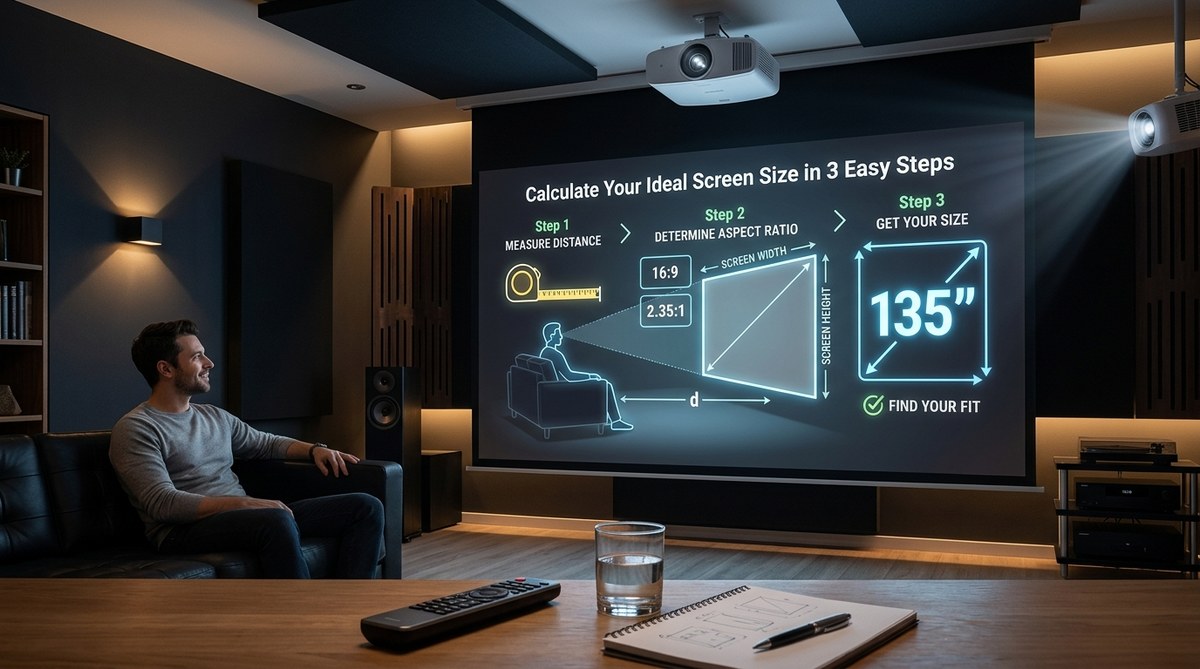
The optimal viewing distance depends on resolution and screen size. For 4K gaming, the general formula puts you between 1 and 1.5 times the screen diagonal away.
Here’s a practical sizing guide:
- 43-50 inch TV: 3.5 to 6 feet away, good for desks or small bedrooms
- 55 inch TV: 4.5 to 7 feet away, most common living room size
- 65 inch TV: 5.5 to 8 feet away, larger living rooms
- 75+ inch TV: 6.5 to 10 feet away, dedicated gaming spaces
Competitive gamers often prefer smaller screens at closer distances. Fighting game players frequently use 24-27 inch monitors because they can see the entire screen without eye movement.
For couch gaming, 55 to 65 inches works best in most living rooms. You get the immersive experience without neck strain.
Field of view in games matters too. Racing games and flight simulators benefit from larger screens that fill your peripheral vision. Strategy games and MOBAs work fine on smaller displays where you need to see the entire battlefield at once.
Measure your actual seating distance before shopping. Sit where you’ll game and have someone hold a measuring tape from your eyes to where the TV will mount. That number guides your size choice more accurately than room dimensions alone.
How to choose the right TV size for your room distance walks through the complete calculation method.
Refresh Rate Reality Check
TV manufacturers love advertising refresh rates, but the numbers get confusing fast.
True refresh rate means how many times per second the panel actually updates. Gaming TVs offer either 60Hz or 120Hz native refresh rates.
60Hz displays the image 60 times per second. That’s fine for movies (24fps) and most console games (30 or 60fps). You can’t display more frames than your refresh rate, so a 60Hz TV caps games at 60fps maximum.
120Hz displays 120 times per second. This matters for PS5 and Xbox Series X games that support 120fps modes, and for PC gaming with high-end graphics cards.
Marketing terms like “240Hz effective refresh rate” or “480Hz motion rate” are misleading. These numbers describe motion processing features, not the actual panel refresh rate. A TV advertised as “240Hz Motion Rate” probably has a native 60Hz panel with motion smoothing enabled.
Look for these terms to identify true 120Hz panels:
– Native 120Hz
– 120Hz panel
– 4K at 120Hz (requires HDMI 2.1)
Motion smoothing features (called different names by each brand) interpolate extra frames between real frames. This creates soap opera effect that makes movies look weird and adds input lag. Turn it off for gaming.
Some games offer performance modes that target 120fps at lower resolution (often 1440p upscaled to 4K). Others offer quality modes at 4K 60fps. A 120Hz TV gives you the choice. A 60Hz TV locks you to 60fps maximum regardless of what the game supports.
The difference between 60fps and 120fps is noticeable but not game-changing for most players. Competitive multiplayer gamers appreciate the smoother motion and slight reduction in input lag. Single-player gamers often prefer higher resolution and graphics quality at 60fps.
The complete guide to TV refresh rates: 60Hz vs 120Hz for movies and sports explains how refresh rates work across different content types.
HDR Gaming and Why It Needs Proper Implementation
High Dynamic Range makes games look dramatically better when implemented correctly.
HDR expands the range between the darkest blacks and brightest whites your TV can display. It also shows more colors than standard dynamic range.
Two HDR formats matter for gaming:
HDR10 is the baseline standard. It’s free to implement, so every HDR TV and game console supports it. HDR10 uses static metadata, meaning it sets brightness levels once for the entire game.
Dolby Vision uses dynamic metadata that adjusts brightness scene by scene. Xbox Series X and some PC games support it, but PlayStation 5 doesn’t. Dolby Vision requires licensing fees, so not all TVs include it.
For gaming, HDR10 is sufficient. Dolby Vision offers minimal improvement for interactive content compared to movies.
HDR needs three things to look good:
- High peak brightness: At least 600 nits for noticeable HDR effect, 1000+ nits for impressive highlights
- Good local dimming: Ability to dim or turn off parts of the screen for contrast
- Wide color gamut: Coverage of DCI-P3 color space at 90% or better
Budget TVs often claim HDR support but can’t get bright enough to show the effect. They accept HDR signals but display them poorly, sometimes looking worse than SDR.
Check reviews for real-world HDR brightness measurements. Marketing specs often list peak brightness for a tiny portion of the screen. Sustained full-screen brightness matters more for gaming where large areas might be bright.
Some games implement HDR poorly with blown-out highlights or crushed shadows. Most games now include HDR calibration tools. Spend five minutes adjusting these settings when you first launch an HDR game.
How to fix HDR content that looks washed out or too dark on your TV troubleshoots common HDR display problems.
Essential Gaming TV Features Beyond Specs
Several features make daily gaming more convenient but don’t show up in spec sheets.
Auto Low Latency Mode (ALLM) automatically switches the TV to Game Mode when it detects a gaming signal. You don’t need to manually change picture modes. When you switch to streaming apps, it switches back to normal mode with better processing.
ALLM comes with HDMI 2.1 but some TVs disable it by default. Check your TV settings to enable it.
Multiple HDMI 2.1 ports matter if you have multiple gaming devices. One port forces you to swap cables between PS5 and Xbox or PC. Two ports let you connect both. Four HDMI 2.1 ports is ideal but rare.
Game Mode customization varies by brand. Some TVs lock all picture settings in Game Mode. Others let you adjust color, contrast, and local dimming while maintaining low input lag.
Samsung’s Game Mode offers the most adjustability. LG locks more settings but provides separate game picture presets. Sony sits in the middle.
Black frame insertion reduces motion blur by inserting black frames between real frames. It makes motion clearer but cuts brightness in half and can cause flicker. Some gamers love it, others hate it.
Gaming-specific menus on newer TVs show real-time frame rate, VRR status, and input lag information. These overlays help you verify your settings are working correctly.
Sound quality matters less if you use headphones or external speakers, but built-in TV speakers have improved. Look for TVs with down-firing or rear-firing speakers rather than bottom-firing. Do you really need a subwoofer for your home theater setup? discusses audio upgrade options.
Common Gaming TV Mistakes to Avoid
These mistakes waste money or hurt gaming performance:
Buying based on price alone: The cheapest 65-inch TV probably has terrible input lag, no VRR, and fake HDR. Spending $200 more often gets you dramatically better gaming performance.
Ignoring input lag in non-Game Mode: Some TVs have great input lag in Game Mode but terrible lag in other modes. If you share the TV with family who watch movies, they’ll be annoyed by Game Mode’s worse picture quality.
Assuming all HDMI ports are equal: Plugging your console into the wrong HDMI port can limit you to 60Hz even on a 120Hz TV. Read your TV manual to identify which ports support full HDMI 2.1 bandwidth.
Not updating TV firmware: Manufacturers improve gaming features through software updates. TVs from 2020-2021 gained better VRR support and lower input lag through updates. Check for updates when you first set up your TV.
Forgetting about viewing angles: QLED TVs often have narrow viewing angles. Colors shift and contrast drops when you sit off to the side. This matters for local multiplayer gaming where people sit at different positions.
Overlooking screen finish: Glossy screens reflect more light but can show better contrast. Matte screens reduce reflections but can look hazier. Consider your room’s window placement.
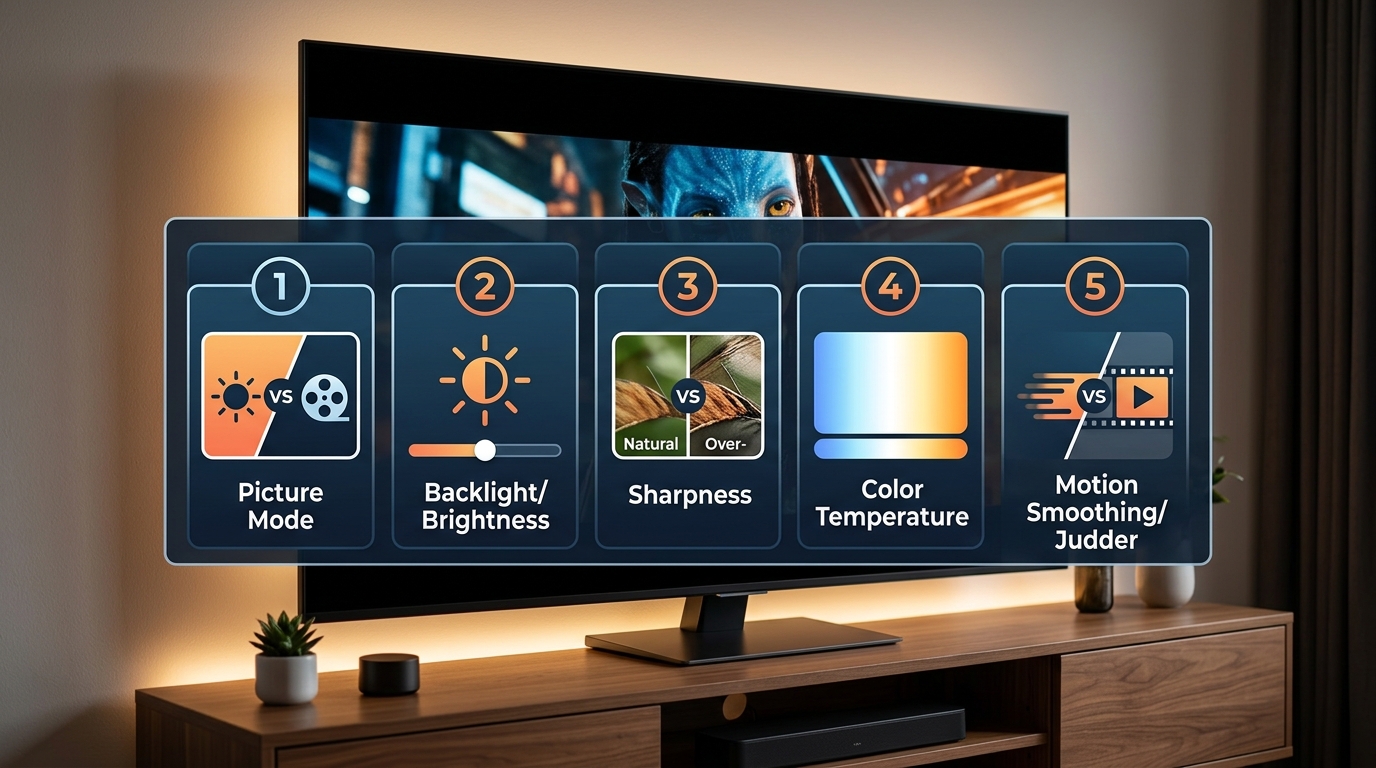
Skipping calibration: TVs ship with terrible default settings optimized for showroom brightness. 5 essential picture settings to adjust on your TV out of the box covers the most important changes.
Budget Considerations and Where to Spend More
Gaming TV prices range from $300 for basic 55-inch models to $3000+ for flagship 77-inch OLEDs.
Here’s where your money goes at different price points:
Budget tier ($300-600):
– 55-60 inch size
– 60Hz refresh rate
– Basic HDR support (often not bright enough)
– Higher input lag (20-30ms)
– No VRR or limited VRR
– Edge-lit backlighting
Good for casual gaming and older consoles. Not ideal for PS5, Xbox Series X, or PC gaming.
Mid-range tier ($600-1200):
– 55-65 inch size
– 120Hz refresh rate
– HDMI 2.1 on at least two ports
– Full VRR support
– Input lag under 15ms
– Decent HDR (600-800 nits)
– Full array local dimming
This tier offers the best value for current-generation gaming. You get all essential features without paying for premium panel technology.
Premium tier ($1200-2000):
– 55-77 inch size
– OLED or high-end Mini-LED
– Excellent HDR (1000+ nits)
– Input lag under 10ms
– Four HDMI 2.1 ports
– Advanced gaming features
– Better build quality
Worth it for dedicated gaming spaces or if you want the best possible image quality.
Flagship tier ($2000+):
– 65-83 inch size
– Top-tier OLED or Mini-LED
– Cutting-edge processing
– Premium design
– Every gaming feature
Diminishing returns unless you have a large dedicated gaming room and high-end equipment.
For most gamers, the mid-range tier delivers everything you need. Spending more gets you better picture quality and larger sizes, but not necessarily better gaming performance.
Consider buying last year’s model when new TVs release. Gaming features rarely change year to year, but prices drop 30-40% when replaced. Should you buy last year’s flagship or this year’s mid-range receiver? uses similar logic for other home theater gear.
Setting Up Your Gaming TV for Best Performance
Proper setup makes a bigger difference than most people realize.
Follow these steps when you first connect your gaming TV:
-
Update firmware immediately: Connect to WiFi and check for software updates before changing any settings. Updates often improve gaming features and fix bugs.
-
Enable HDMI 2.1 features: Many TVs ship with HDMI 2.1 features disabled. Look in settings for options like “HDMI Ultra HD Deep Color” (Samsung), “Enhanced Format” (Sony), or “Ultra HD Deep Colour” (LG). Enable this for the HDMI ports you’ll use for gaming.
-
Turn on Game Mode: Find the picture mode setting and select Game Mode. Some TVs call it PC Mode or Gaming Picture Mode. This reduces input lag dramatically.
-
Enable VRR: Variable Refresh Rate often requires separate activation. Look for VRR, FreeSync, or G-SYNC settings in your TV’s gaming menu.
-
Disable motion smoothing: Turn off any feature called Motion Smoothing, TruMotion, MotionFlow, or similar. These add input lag and create soap opera effect.
-
Adjust game-specific HDR: When you launch an HDR game, use its calibration tool to set brightness properly. Most games show test patterns for this.
-
Test input lag: Play a fast-paced game you know well. If controls feel sluggish, double-check that Game Mode is active and motion processing is off.
Settings to adjust in Game Mode for better picture quality:
- Increase sharpness slightly (to 5-10 out of 100)
- Adjust color temperature to warm or warm2
- Set local dimming to medium or high
- Enable black frame insertion only if motion blur bothers you
5 essential picture settings to adjust on your TV out of the box provides detailed adjustment instructions.
Matching Your TV to Your Gaming Platform
Different gaming platforms benefit from different TV features.
PlayStation 5 supports:
– 4K at 120Hz
– HDMI Forum VRR
– HDR10 (no Dolby Vision for games)
– ALLM
PS5 works best with TVs that have strong HDMI 2.1 support and good HDR. Sony TVs pair particularly well with PlayStation 5, offering exclusive features like Auto HDR Tone Mapping.
Xbox Series X supports:
– 4K at 120Hz
– FreeSync Premium and HDMI Forum VRR
– Dolby Vision for gaming
– ALLM
– Variable Refresh Rate up to 120Hz
Xbox Series X has the most comprehensive gaming feature support. It benefits from TVs with Dolby Vision gaming capability, though this remains rare.
PC gaming needs:
– HDMI 2.1 or DisplayPort 1.4
– VRR support (G-SYNC or FreeSync depending on GPU)
– Low input lag
– High refresh rate
PC gamers often prefer monitors over TVs for smaller sizes and higher refresh rates (144Hz, 240Hz). TVs make sense for couch gaming with a controller.
Nintendo Switch needs:
– Good upscaling from 1080p to 4K
– Low input lag
– 60Hz is sufficient
Switch doesn’t support 4K output or high frame rates, so premium gaming TV features are wasted. Any TV with decent input lag in Game Mode works fine.
Older consoles (PS4, Xbox One):
– Maximum 1080p or 4K at 60Hz
– No VRR support
– HDR on Pro/One X models
Older consoles don’t benefit from HDMI 2.1 or 120Hz. A mid-range TV with good input lag is sufficient.
Buy for the most demanding platform you own. If you have a PS5 or gaming PC, get a TV with full HDMI 2.1 support. If you only play Switch, save money on a simpler TV.
Making Your Final Decision
You’ve learned what specs actually matter and which are marketing fluff.
Here’s your decision framework:
Start with your budget and room size. That narrows options to specific screen sizes and price tiers.
Identify must-have features based on your gaming platform. HDMI 2.1 and VRR are essential for current-gen consoles. Input lag under 20ms matters for everyone.
Choose panel technology based on your room. Bright room with lots of windows? QLED or Mini-LED. Dark room or controlled lighting? OLED gives you the best picture quality.
Read professional reviews that measure actual gaming performance. Don’t trust manufacturer specs alone. Sites like RTings test input lag, VRR performance, and real-world HDR brightness.
Check return policies before buying. Most retailers give you 14-30 days to test the TV at home. This matters because showroom conditions differ from your living room.
Create a shortlist of three models that fit your criteria. Compare their real-world performance in reviews, not just spec sheets.
The right gaming TV balances performance, features, and budget without overpaying for specs you won’t use. Now you can shop with confidence, knowing exactly what each specification means for your gaming experience.

Leave a Reply