
You’re standing in the electronics store, staring at two TVs with nearly identical specs. One costs $300 more and lists “HDMI 2.1” as a key feature. The salesperson can’t explain what that actually means for your gaming console or movie nights. You’re not alone. HDMI 2.1 has become a marketing buzzword that confuses more people than it helps.
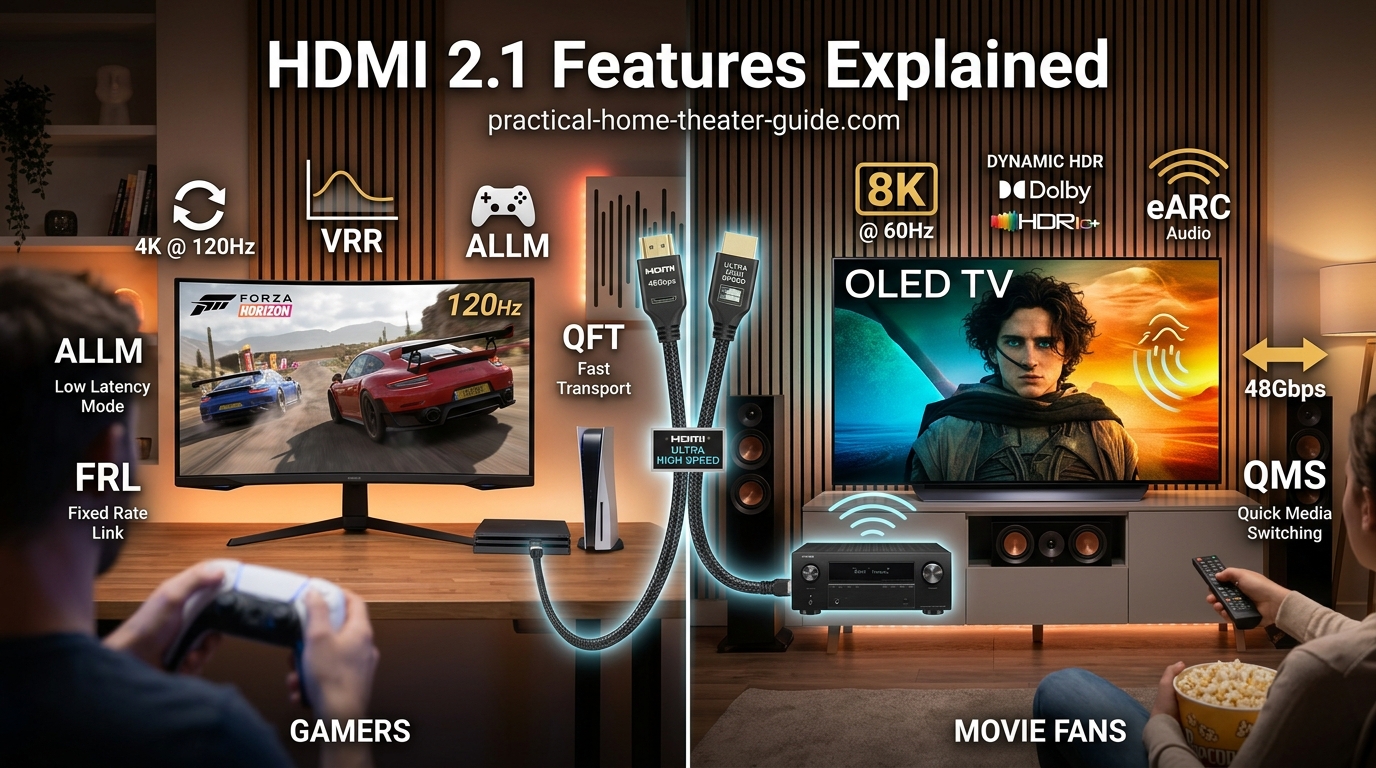
HDMI 2.1 delivers higher bandwidth (up to 48 Gbps) that enables 4K at 120Hz, 8K support, Variable Refresh Rate (VRR), Auto Low Latency Mode (ALLM), and enhanced Audio Return Channel (eARC). Not all HDMI 2.1 ports support every feature, so check specific capabilities before buying. Gamers benefit most from 120Hz and VRR, while home theater enthusiasts gain the most from eARC and higher resolutions.
What Makes HDMI 2.1 Different From Previous Versions
HDMI 2.1 isn’t just an incremental update. It represents a fundamental shift in what your cables and ports can handle.
The biggest change is bandwidth. HDMI 2.0 maxed out at 18 Gbps. HDMI 2.1 pushes that to 48 Gbps. That’s nearly triple the data highway width.
This extra bandwidth solves real problems. With HDMI 2.0, you could send 4K video at 60 frames per second. Push it to 120 frames, and the pipe got too narrow. HDMI 2.1 removes that bottleneck completely.
Here’s what changed between the two standards:
| Feature | HDMI 2.0 | HDMI 2.1 |
|---|---|---|
| Maximum bandwidth | 18 Gbps | 48 Gbps |
| 4K maximum refresh rate | 60Hz | 120Hz |
| 8K support | No | Yes (60Hz) |
| VRR (Variable Refresh Rate) | No | Yes |
| ALLM (Auto Low Latency Mode) | No | Yes |
| eARC (enhanced Audio Return Channel) | ARC only | Yes |
| Dynamic HDR | Limited | Full support |
The specification also introduced new cable requirements. Your old HDMI cables might work for some features, but not all. We’ll cover that shortly.
The Gaming Features That Actually Matter
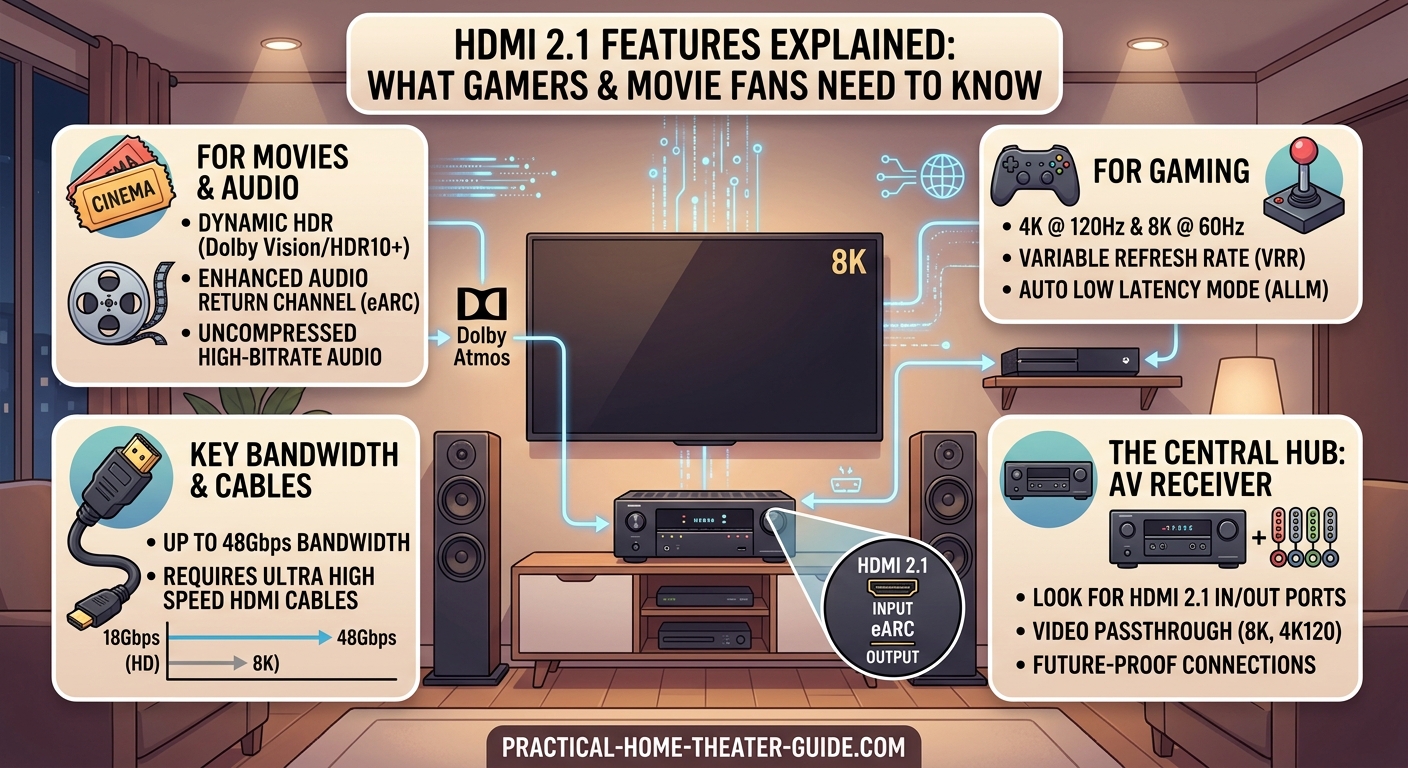
If you own a PlayStation 5, Xbox Series X, or a modern gaming PC, HDMI 2.1 changes your experience in three specific ways.
120Hz refresh rate at 4K resolution
Most games run at 60 frames per second. That’s smooth enough for most people. But competitive shooters, racing games, and fast-paced action titles benefit enormously from 120fps.
The difference is immediate. Camera pans look smoother. Fast motion stays sharp instead of blurring. Your reaction time improves because you’re seeing updated frames twice as fast.
HDMI 2.0 couldn’t push 4K at 120Hz. You had to choose between high resolution or high frame rate. HDMI 2.1 delivers both simultaneously.
Variable Refresh Rate eliminates screen tearing
Game frame rates fluctuate. One moment you’re getting 120fps in a quiet hallway. The next moment, an explosion drops you to 80fps.
When your display refreshes at a fixed rate but your game outputs variable frames, you get screen tearing. The image splits horizontally where two different frames meet.
VRR synchronizes your display’s refresh rate with your console or PC’s output. The screen waits for each complete frame before refreshing. Tearing disappears completely.
Three VRR formats exist: AMD FreeSync, NVIDIA G-Sync, and the HDMI Forum’s VRR. HDMI 2.1 supports all three, though some TVs implement only one or two.
Auto Low Latency Mode switches picture modes automatically
TVs process images to make them look better. They smooth motion, enhance colors, and reduce noise. All that processing adds delay between when your controller sends a signal and when you see the result on screen.
Gaming modes disable most processing to reduce input lag. But you have to manually switch modes every time you start or stop gaming.
ALLM detects when you’re playing a game and switches to game mode automatically. Stop playing, and it switches back to your normal picture settings.
This sounds minor until you forget to switch modes and spend 20 minutes wondering why your aim feels off.
If you’re serious about competitive gaming, prioritize HDMI 2.1 ports on your display. The combination of 120Hz and VRR makes a bigger difference than upgrading from 1080p to 4K.
Audio Improvements Through eARC
Enhanced Audio Return Channel fixes a problem that’s frustrated home theater owners for years.
Standard ARC (Audio Return Channel) lets your TV send audio back to your soundbar or receiver through the same HDMI cable that delivers video. You don’t need a separate optical audio cable.
The limitation? ARC maxed out at basic 5.1 surround sound. It couldn’t handle lossless audio formats like Dolby TrueHD or DTS-HD Master Audio. It definitely couldn’t handle Dolby Atmos or DTS:X.
eARC increases the audio bandwidth from 1 Mbps to 37 Mbps. That’s enough for every modern audio format, including object-based surround sound.
Here’s the practical benefit: you can use your TV’s built-in streaming apps and still get full-quality audio to your receiver. Before eARC, you had to connect your streaming devices directly to your receiver to preserve audio quality.
One important note about eARC compatibility. Both your TV and your receiver need eARC support. Having it on just one device doesn’t help. Check both specs before assuming it’ll work.
You’ll also want to verify your gaming TV buying guide: HDMI 2.1, VRR, and input lag explained covers these audio features if you’re shopping for new equipment.
Resolution and Refresh Rate Capabilities
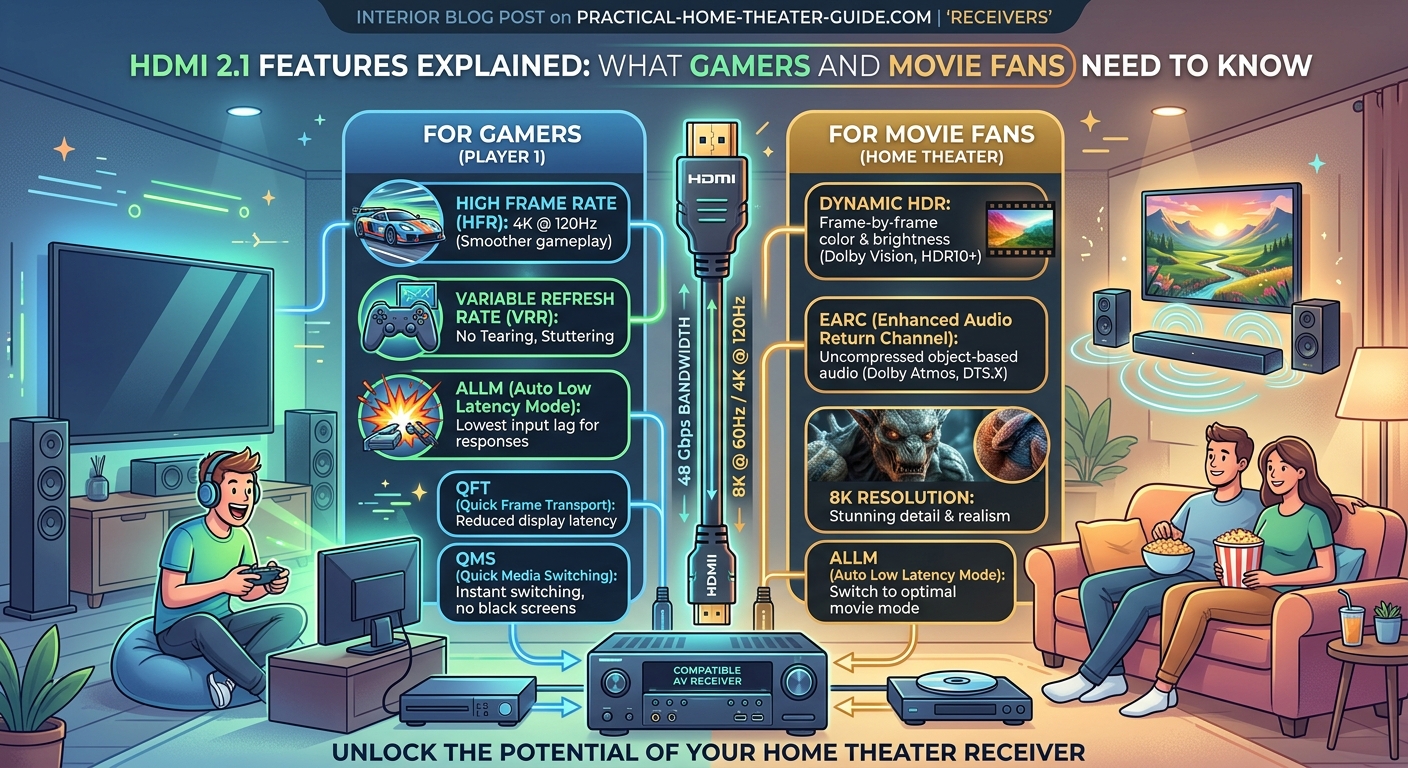
HDMI 2.1 supports combinations that were impossible before:
- 4K at 120Hz
- 5K at 60Hz
- 8K at 60Hz
- 10K at 30Hz
Most people care about the first one. Gaming consoles target 4K 120Hz as their premium mode. Some games let you choose between 4K 60Hz with ray tracing or 4K 120Hz with simplified graphics.
8K support exists, but 8K content remains scarce. You’re not missing much if your setup tops out at 4K. The pixel density difference between 4K and 8K is imperceptible unless you sit very close to a very large screen.
The specification also supports Display Stream Compression (DSC). This is a visually lossless compression that reduces bandwidth requirements. It’s not widely implemented yet, but it could enable even higher resolutions and refresh rates in future devices.
Dynamic HDR and Better Picture Quality
HDR (High Dynamic Range) makes bright areas brighter and dark areas darker. It expands the range of colors your TV can display.
Earlier HDR implementations used static metadata. The content creator set one brightness level for the entire movie. A dark cave scene and a sunny beach scene got the same HDR instructions.
Dynamic HDR adjusts brightness and color on a scene-by-scene or even frame-by-frame basis. The TV optimizes its picture for whatever’s currently on screen.
HDMI 2.1 supports two dynamic HDR formats:
- HDR10+ (royalty-free, supported by Samsung and others)
- Dolby Vision (requires licensing, supported by LG, Sony, and others)
Not every HDMI 2.1 device supports both formats. Some support one, some support both, some support neither. The HDMI 2.1 specification makes dynamic HDR possible, but manufacturers choose whether to implement it.
Check which streaming services and physical media you use most. If you watch a lot of Netflix and Disney+, Dolby Vision matters because those services use it extensively. If you primarily watch Amazon Prime Video, HDR10+ gets more use.
Cable Requirements and Compatibility Issues
Here’s where things get frustrating. Not all HDMI cables work with all HDMI 2.1 features.
The HDMI Forum created a new cable certification called Ultra High Speed HDMI. These cables guarantee support for the full 48 Gbps bandwidth.
Your existing cables might work fine. Many HDMI 2.0 cables (labeled “Premium High Speed”) can handle 4K 120Hz over short distances. But there’s no guarantee.
Cable length matters significantly. A 3-foot cable is much more likely to work than a 15-foot cable. Longer cables suffer more signal degradation.
How to verify your cables work:
- Connect your source device to your display using your existing cable
- Enable 4K 120Hz mode in your console or PC settings
- Check if the image remains stable without flickering or dropouts
- Test VRR by playing a game with variable frame rates
- Look for artifacts, black screens, or “no signal” messages
If you see problems, replace the cable. Ultra High Speed HDMI cables cost $10 to $30 for most lengths. Don’t overspend on premium cables with gold-plated connectors and fancy braiding. Signal quality is binary: it either works or it doesn’t.
The cable certification logo looks like this: a holographic label that says “Ultra High Speed HDMI Cable.” Counterfeit cables exist, so buy from reputable retailers.
The Port Labeling Problem You Need to Know About
Here’s the part that trips up most buyers. A TV can have HDMI 2.1 ports without supporting all HDMI 2.1 features.
The HDMI Forum allows manufacturers to label a port as “HDMI 2.1” if it supports any subset of HDMI 2.1 features. A TV might have four HDMI 2.1 ports, but only two support 4K 120Hz. The other two might only add eARC.
Some manufacturers list features by port number in their specifications. Others don’t. You have to check the manual or contact support to know which ports support which features.
Common port configurations:
- Budget TVs: One HDMI 2.1 port with 4K 120Hz, three HDMI 2.0 ports
- Mid-range TVs: Two HDMI 2.1 ports with full features, two HDMI 2.0 ports
- Premium TVs: Four HDMI 2.1 ports with all features
Plan your connections before you buy. If you have a PlayStation 5, Xbox Series X, and a PC, you need at least three full-spec HDMI 2.1 ports to use all their features simultaneously.
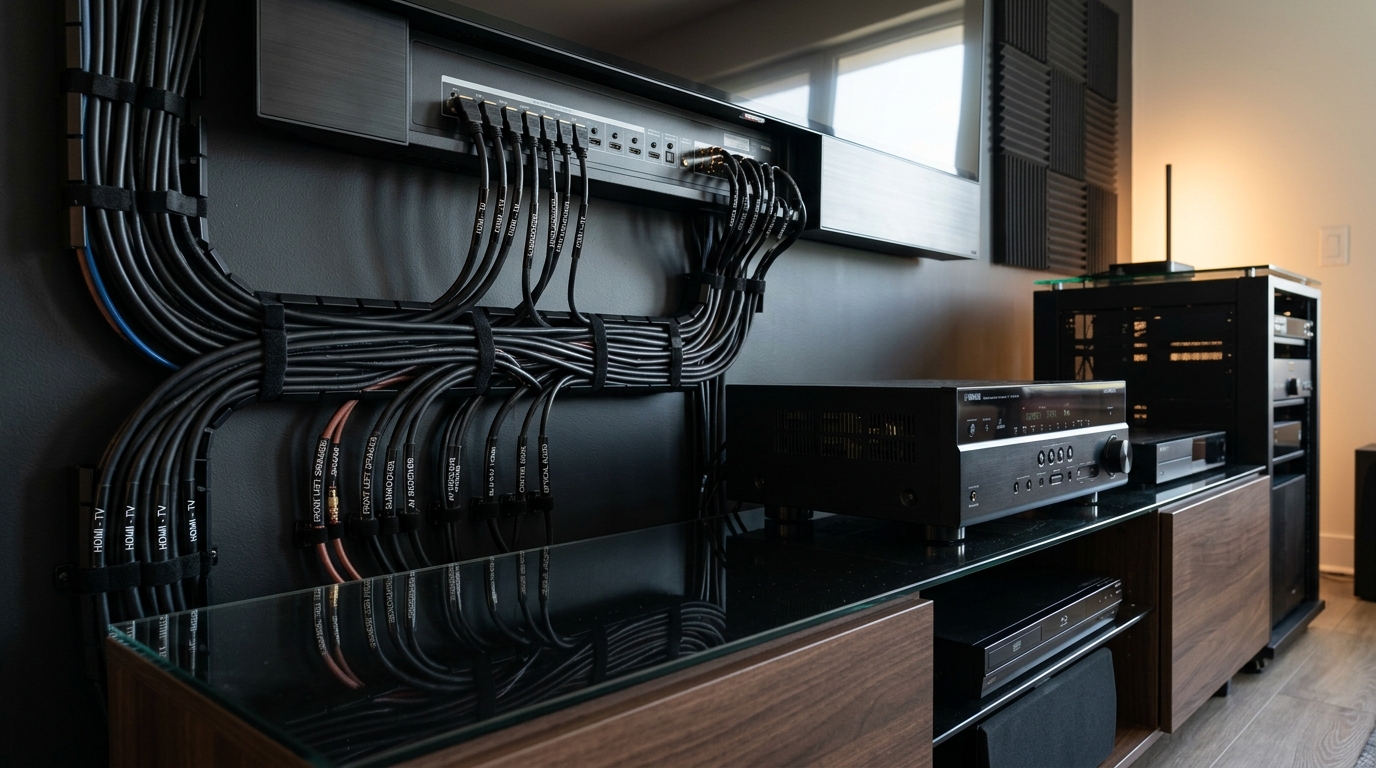
Label your ports once you figure out which ones support what. A small piece of tape with “PS5 120Hz” saves you from rewiring your entire setup later.
Setting Up HDMI 2.1 Features Correctly
Most HDMI 2.1 features require manual activation. TVs and receivers ship with conservative default settings for compatibility.
Steps to enable HDMI 2.1 features:
- Update your TV’s firmware to the latest version
- Navigate to HDMI settings in your TV menu
- Enable “Enhanced” or “Ultra HD Deep Color” mode for each port
- Enable eARC if you’re using a soundbar or receiver
- Restart your TV and source devices
- Configure your console or PC to output 4K 120Hz
- Enable VRR in both the TV settings and your console settings
- Test each feature individually to confirm it works
Settings names vary by manufacturer. Samsung calls it “Input Signal Plus.” LG uses “HDMI Ultra HD Deep Color.” Sony labels it “Enhanced Format.”
Some TVs disable certain picture features when you enable 4K 120Hz mode. Local dimming might turn off, or motion smoothing might become unavailable. This is normal. The TV can’t process that much data while also handling 120 frames per second.
If you run into how to fix HDMI ARC audio dropouts and cutting out, check whether both devices support eARC and whether you’ve enabled it in both menus.
Which Devices Actually Support HDMI 2.1
Gaming consoles were the first mass-market devices to adopt HDMI 2.1:
- PlayStation 5 (supports 4K 120Hz, VRR, ALLM)
- Xbox Series X (supports 4K 120Hz, VRR, ALLM)
- Xbox Series S (supports 1440p 120Hz, VRR, ALLM)
Graphics cards followed:
- NVIDIA RTX 30-series and newer
- AMD Radeon RX 6000-series and newer
AV receivers added HDMI 2.1 starting in 2020. Budget models often include only one or two HDMI 2.1 ports. Mid-range and premium receivers now include four to seven HDMI 2.1 ports.
Soundbars with HDMI 2.1 remain less common. Many soundbars include eARC but not 4K 120Hz passthrough. If you want to connect your console to your soundbar and then to your TV, verify the soundbar supports full HDMI 2.1 passthrough.
Streaming devices mostly don’t need HDMI 2.1. The Apple TV 4K, Roku Ultra, and Fire TV Stick all output at 4K 60Hz maximum. They don’t generate 120fps content, so they don’t need the bandwidth.
Common Mistakes When Shopping for HDMI 2.1 Equipment
Assuming all HDMI 2.1 ports are equal
We covered this earlier, but it bears repeating. Read the specifications carefully. Look for phrases like “4K 120Hz on ports 3 and 4 only.”
Buying the wrong cables
Premium High Speed cables work for some HDMI 2.1 features but not all. Ultra High Speed certification guarantees compatibility.
Ignoring receiver limitations
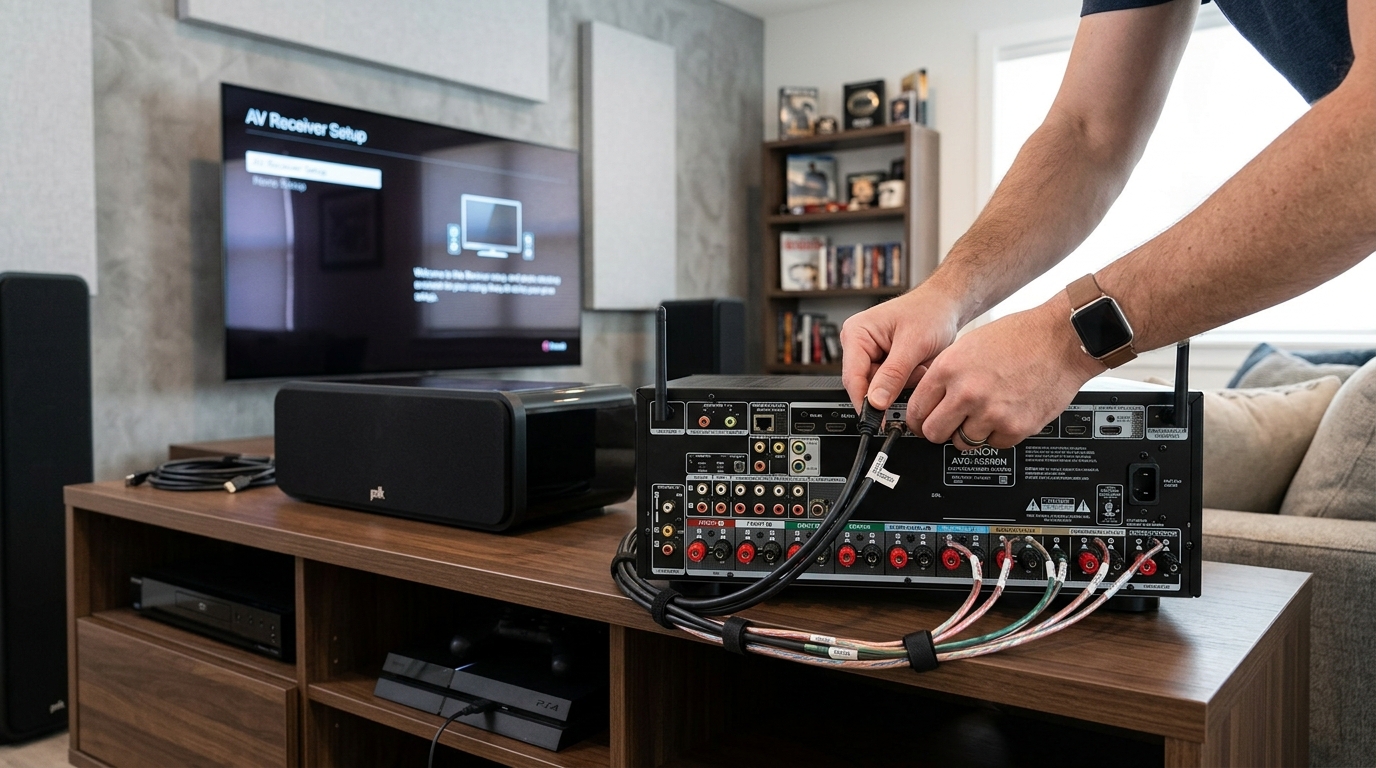
Your receiver acts as a middleman between your sources and your display. If your receiver doesn’t support HDMI 2.1, you can’t pass 4K 120Hz signals through it. You’d have to connect your console directly to your TV and use eARC to send audio back to the receiver.
This creates a new problem: you lose the receiver’s video processing and switching capabilities. Check receiver specs before you buy, especially if you’re building a complete system.
Expecting HDMI 2.1 to fix all picture problems
HDMI 2.1 increases bandwidth and adds features. It doesn’t improve your TV’s panel quality, peak brightness, or color accuracy. A mediocre TV with HDMI 2.1 still produces a mediocre picture.
Prioritize panel technology first, then worry about HDMI features. An OLED vs QLED vs mini-LED: which TV technology should you buy in 2026? comparison helps you understand which display technology matches your viewing habits.
Forgetting about HDMI port placement
Some TVs mount HDMI ports perpendicular to the back panel. If you wall-mount your TV flush against the wall, you can’t plug in cables. Other TVs recess their ports or angle them sideways.
Check port orientation before you buy, especially if you’re planning a wall mount installation. You might need low-profile HDMI adapters or cables with right-angle connectors.
Do You Actually Need HDMI 2.1 Right Now?
Your answer depends on what you own and how you use it.
You need HDMI 2.1 if:
- You own a PlayStation 5 or Xbox Series X and play competitive games
- You have a gaming PC with an RTX 30-series or newer GPU
- You’re building a new home theater system with modern equipment
- You watch content through your TV’s apps and want lossless audio to your receiver
You can skip HDMI 2.1 if:
- You only watch movies and TV shows (60Hz is plenty)
- Your gaming console is a PlayStation 4, Xbox One, or Nintendo Switch
- You’re happy with standard ARC for audio
- Your budget is tight and you’d rather spend money on a better panel
HDMI 2.1 is becoming standard on new equipment. If you’re buying a TV or receiver in 2026, you’ll probably get HDMI 2.1 whether you specifically need it or not.
The real question is whether you should pay extra for it. On a $500 TV, probably not. On a $1,500 TV where you plan to keep it for five years, absolutely.
Future-Proofing Considerations
HDMI standards typically last 5 to 7 years before a major update. HDMI 2.0 launched in 2013. HDMI 2.1 arrived in 2017 but didn’t see widespread adoption until 2020.
We’re likely several years away from HDMI 2.2 or HDMI 3.0. Buying HDMI 2.1 equipment now should keep you current through the next generation of consoles and GPUs.
That said, don’t overbuy. If you’re shopping for a bedroom TV where you watch Netflix before bed, you don’t need four HDMI 2.1 ports with full 8K support.
Match your purchase to your actual usage. A living room gaming setup benefits from premium features. A guest room TV doesn’t.
Making Sense of the Specifications Sheet
When you’re comparing TVs or receivers, here’s your checklist:
- How many HDMI 2.1 ports does it have?
- Which specific ports support 4K 120Hz?
- Does it support VRR? Which formats (FreeSync, G-Sync, HDMI Forum VRR)?
- Does it include ALLM?
- Does it support eARC?
- Which dynamic HDR formats work (HDR10+, Dolby Vision, both, neither)?
- What’s the maximum supported resolution and refresh rate?
Print this list and bring it to the store. Sales staff often don’t know the detailed specs. You’ll need to check the manufacturer’s website or the manual yourself.
Some manufacturers bury important details. You might need to download the full specification PDF or contact customer support to get clear answers.
Getting the Most From Your HDMI 2.1 Setup
Once you’ve got everything connected and configured, a few final optimizations help:
Test your setup with demanding content. Play a fast-paced game at 120fps. Watch a Dolby Atmos movie. Push your system to its limits and watch for problems.
Keep your firmware updated. Manufacturers release updates that fix HDMI handshake issues, improve VRR performance, and add new features. Check for updates every few months.
Document your settings. Take photos of your TV menus showing which features you enabled. If you need to factory reset your TV, you’ll know exactly how to reconfigure it.
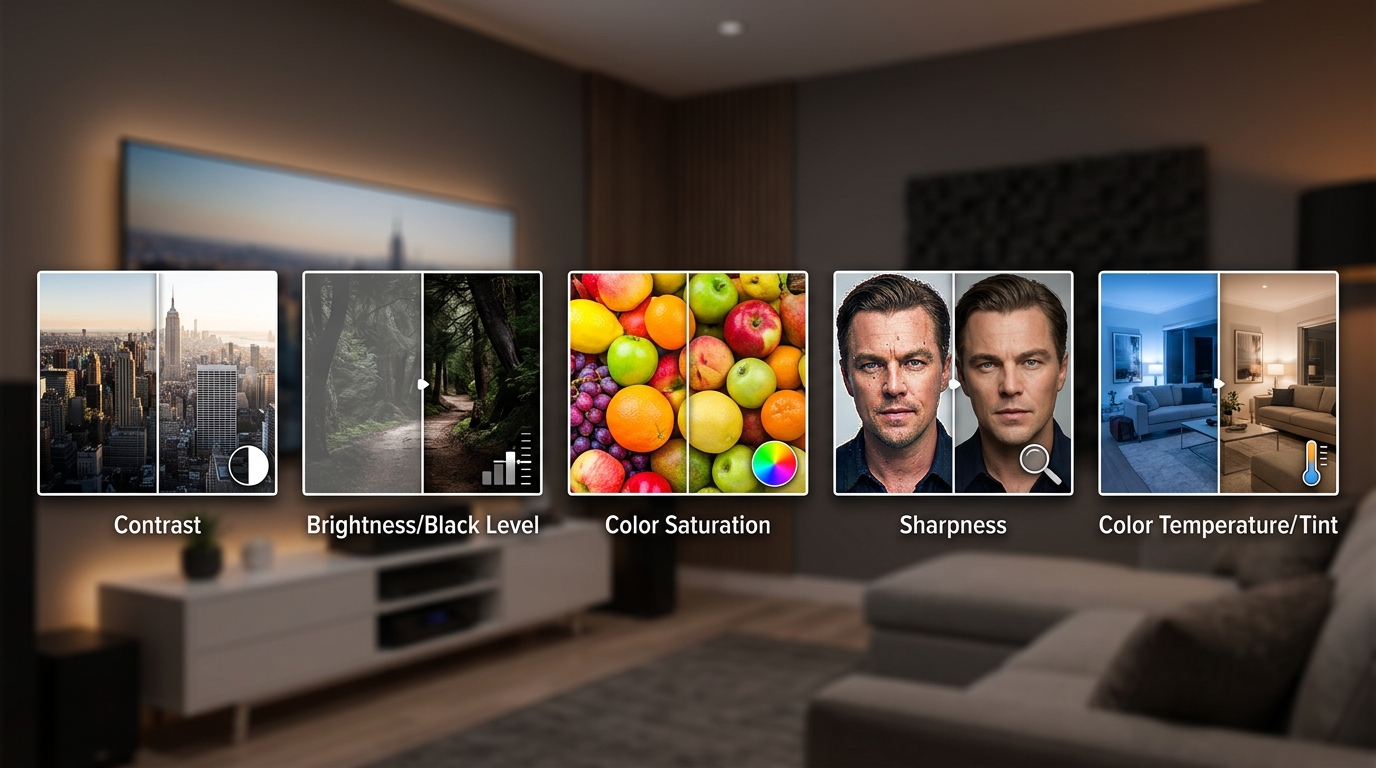
Consider whether 5 essential picture settings to adjust on your TV out of the box need tweaking after enabling HDMI 2.1 features. Some picture modes behave differently at 120Hz.
When HDMI 2.1 Solves Real Problems
HDMI 2.1 isn’t marketing hype. It solves genuine limitations that frustrated users for years.
Gamers get smoother motion and eliminated tearing. Home theater enthusiasts get lossless audio without complicated cable routing. Everyone gets headroom for future content formats.
The confusion comes from inconsistent implementation and misleading labeling. Not every HDMI 2.1 port delivers every HDMI 2.1 feature.
Do your homework before you buy. Check which ports support which features. Verify your cables meet the spec. Enable the features in your device settings.
Get those details right, and HDMI 2.1 delivers exactly what it promises. Your games look smoother, your movies sound better, and your setup stays relevant for years to come.


Leave a Reply