
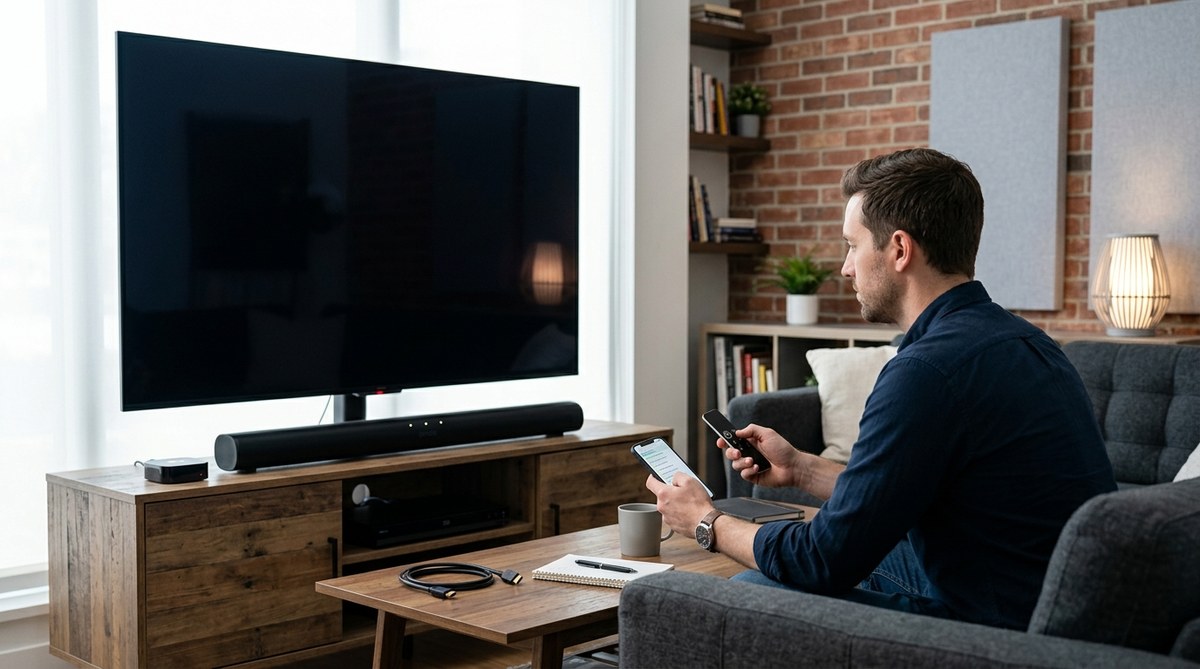
If your TV turns on and you can hear audio but the screen remains black, it can be frustrating. You want to enjoy your favorite shows and movies, not spend hours troubleshooting. The good news is that many causes for this problem are fixable without calling in a technician. With some patience and a step-by-step approach, you can often restore picture quality yourself. Let’s walk through the most effective methods to diagnose and fix a TV with sound but no picture.
A TV with sound but no picture often results from loose connections, incorrect settings, or hardware issues like [backlight failure](https://www.cdc.gov/nceh/hsb/chemicals/backlight.htm). Troubleshooting involves checking connections, adjusting settings, and testing hardware components before considering repairs or replacements.
Understanding Why Your TV Shows Sound but No Picture
When your TV produces audio but no picture, it indicates that some parts of the display system are not functioning correctly. This could be due to simple issues like loose cables or settings, or more complex hardware problems such as backlight failure or defective internal components. Knowing the common causes helps you target your troubleshooting efforts efficiently.
Step-by-Step Troubleshooting for TV with sound but no picture
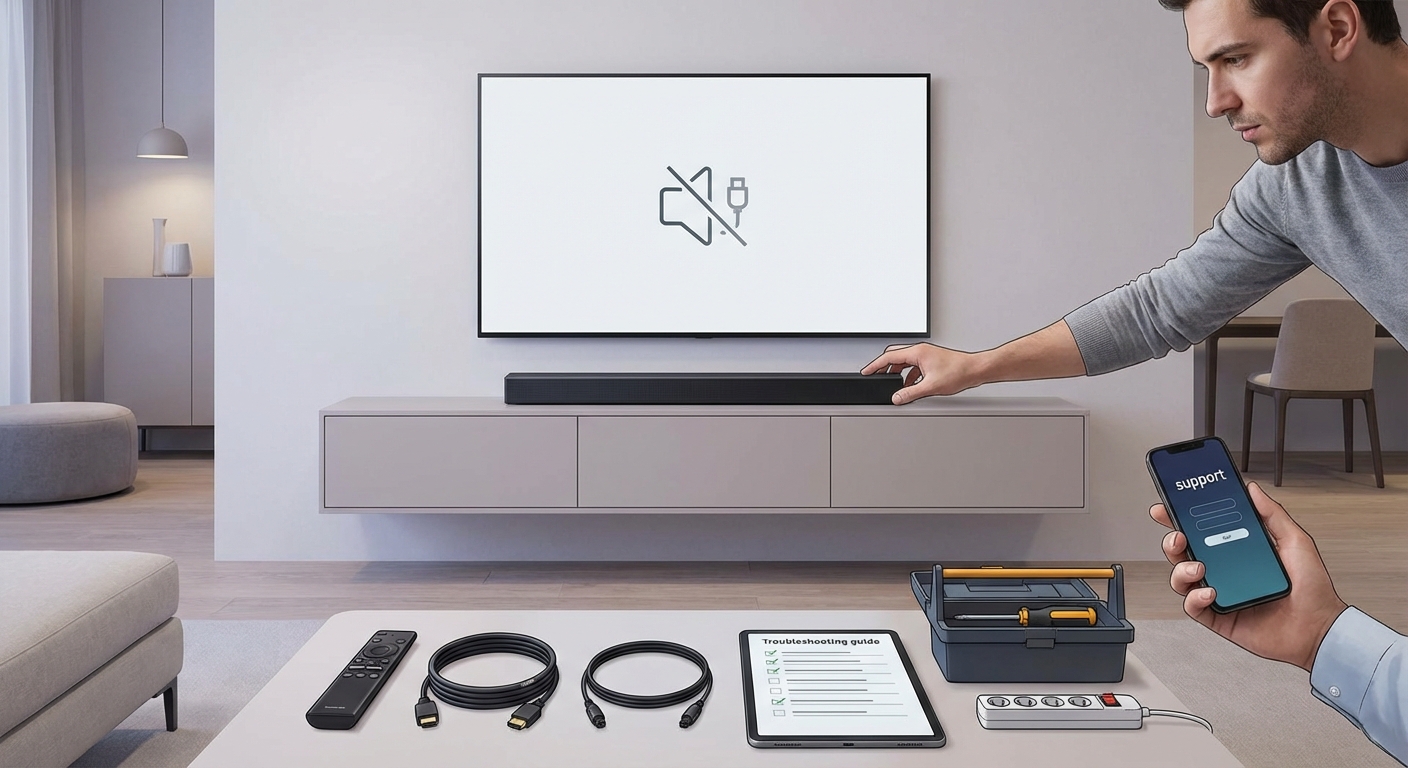
Follow these steps in order. Most problems can be solved by systematically checking each potential cause.
1. Check all your connections and cables
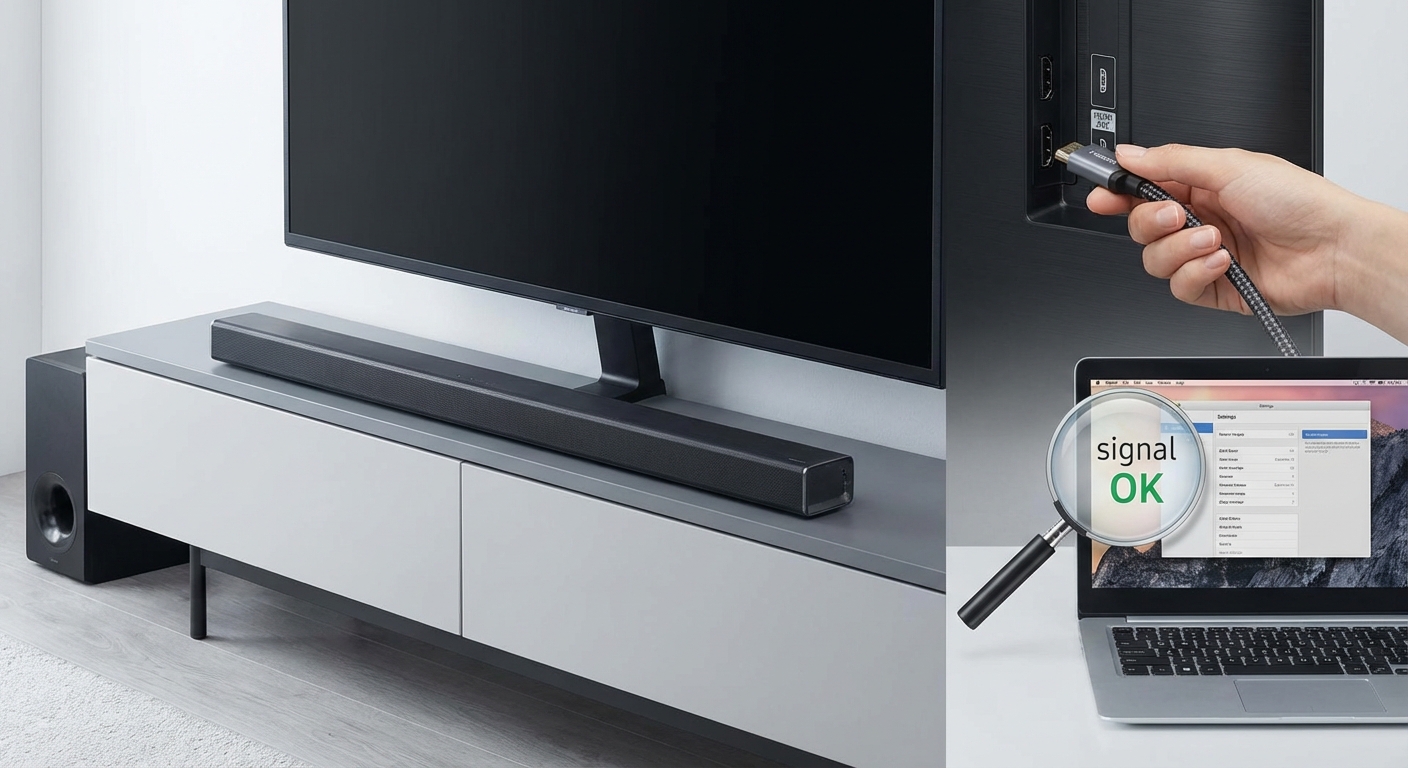
- Ensure your HDMI, AV, or component cables are properly plugged into the correct ports.
- Replace or test cables with known working ones.
- Confirm that your input source (cable box, streaming device, DVD player) is working properly by testing on another device or port.
- If you’re using an external device, disconnect it and see if the picture appears when switching to the TV’s built-in tuner.
2. Reset your TV and input devices
- Turn off your TV and unplug it from the power outlet.
- Disconnect all external devices and cables.
- Wait for at least one minute.
- Plug everything back in and turn on your TV.
- Sometimes a soft reset can clear temporary glitches causing display issues.
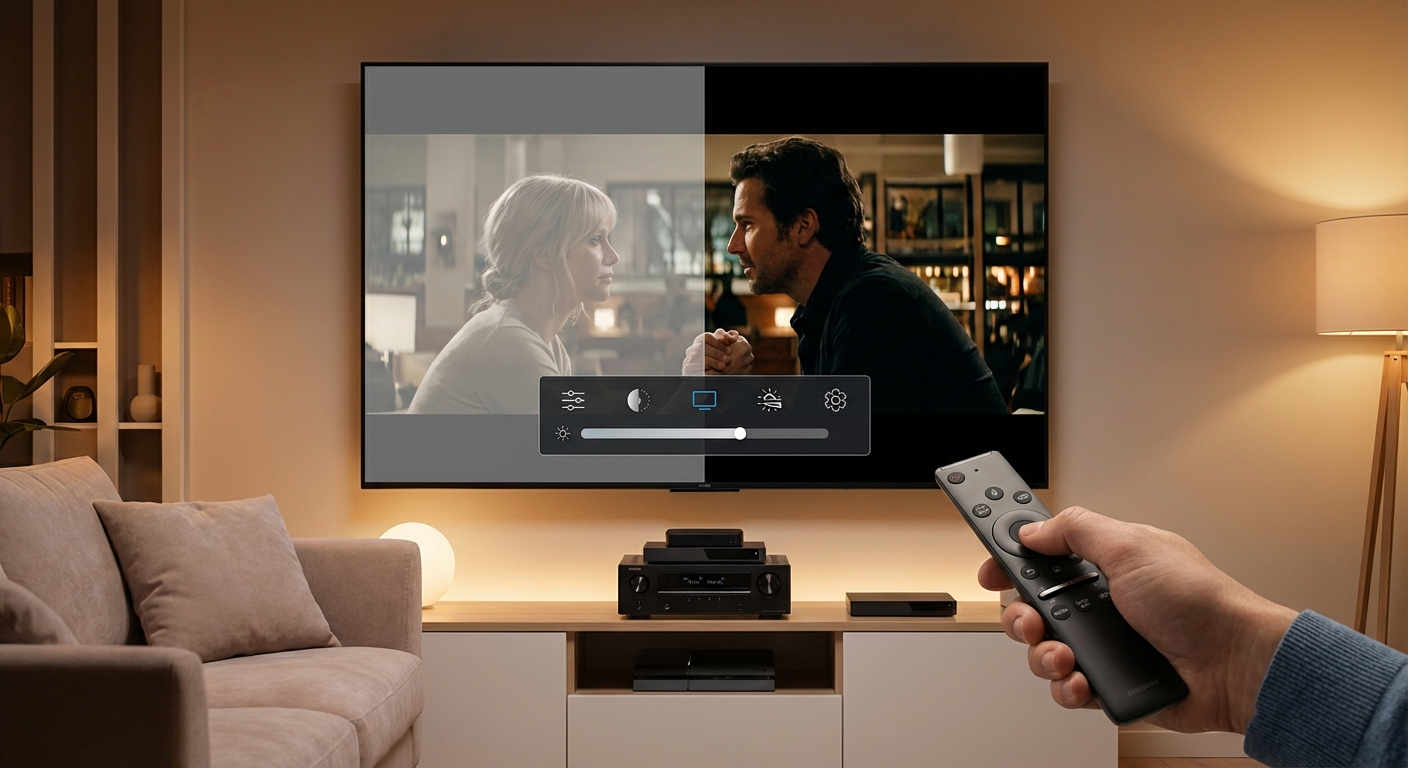
3. Check your TV settings
- Use your remote to access the picture or display menu.
- Ensure brightness, contrast, and picture mode are set correctly.
- Reset picture settings to factory defaults if necessary.
- Look for any specific picture disabling features like a “blackout” mode or energy-saving mode.
Expert tip: Always consult your TV’s user manual for instructions on resetting settings or performing a soft reset.
4. Test different input sources
- Change to a different HDMI port.
- Connect a different device like a DVD player or game console.
- Use a different cable if available.
- If the picture appears on another input, the original source or cable may be faulty.
5. Inspect hardware components
If no image appears after basic checks, hardware issues might be to blame. Here are common culprits:
- Backlight failure: The backlight illuminates the LCD panel. If it’s broken, the screen stays dark even though the image is still being processed.
- Faulty T-Con board: This internal board controls the LCD pixels. A malfunction can cause no picture display.
- Main board issues: Problems with the main circuit board can prevent signals from reaching the display.
6. Perform a flashlight test
- Turn off the TV.
- Shine a flashlight directly onto the screen.
- Look closely and see if you can see faint images or shadows.
- If you see dim images, the backlight may be dead, and a repair or replacement is needed.
- If no images are visible, it could be a T-Con or main board problem.
7. Check for software or firmware issues
- Update your TV’s firmware via USB or internet if possible.
- Perform a factory reset to restore default settings.
- Sometimes software glitches can cause display problems.
8. Consider professional repairs
If you have tried all the above and still see no picture, it’s time to consider hardware repairs:
| Technique | Common Mistake | Explanation |
|---|---|---|
| Backlight replacement | Ignoring faint images during flashlight test | Backlight failure causes a black screen; replacing it can restore brightness. |
| T-Con board repair | Replacing main board without diagnosing | T-Con boards control the LCD pixels; faulty ones need replacement. |
| Internal component check | Attempting repairs without proper tools | Many internal repairs require specific tools and knowledge. |
Remember, attempting complex repairs without experience can cause further damage. When in doubt, consult a professional technician.
How to prevent similar issues in the future
- Keep your firmware updated.
- Use good quality cables and avoid tangled or damaged wires.
- Turn off your TV properly and avoid power surges.
- Schedule routine inspections if your TV is under warranty.
When hardware repairs are needed
If your troubleshooting indicates hardware failure like backlight or T-Con board issues, replacing parts can often be cost-effective. Check your TV’s model number and consult a reputable repair shop or authorized service center. Sometimes replacing the entire panel might be necessary, which can be expensive. Weigh repair costs against the value of your TV.
Practical tips to set up your home theater for optimal picture quality
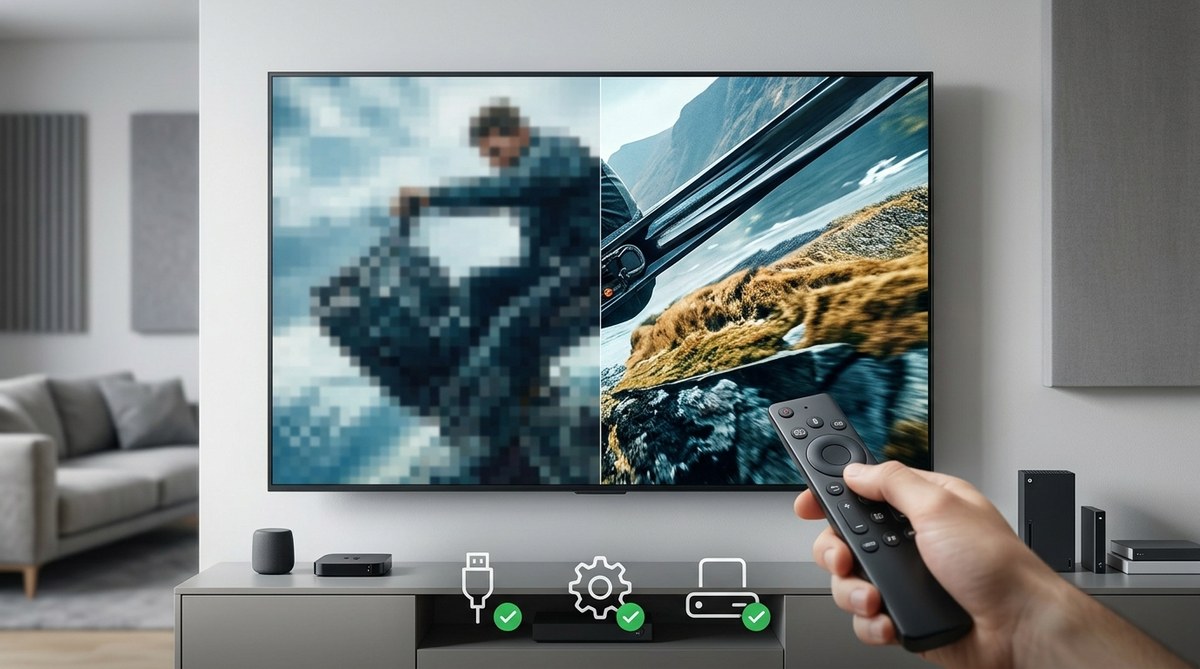
- Use high-quality HDMI cables for reliable signal transmission.
- Adjust picture settings for your viewing environment.
- Keep your device firmware current.
- Mount your TV at eye level for the best viewing angle.
- Use a surge protector to safeguard internal components.
Final thoughts on fixing a TV with sound but no picture
Troubleshooting your TV can seem daunting but taking it step-by-step makes it manageable. Many issues are caused by simple problems like loose cables or incorrect settings. Hardware problems like backlight failure can be more complex but are often repairable with the right parts. Remember that patience and careful testing are key. If you reach a point where internal repairs are needed, professional help ensures safety and proper fixes. With a little effort, you might restore your TV’s picture and save money too.
Keeping your home theater setup reliable and enjoyable
Regular maintenance and cautious handling of your TV and related devices can extend their lifespan. Keep cables organized, update firmware, and avoid power surges. Most importantly, when issues arise, follow a logical diagnosis process like the one above. Troubleshooting a black screen with sound is often a straightforward process that you can tackle confidently. Your home theater experience will be that much better when you know how to fix common problems yourself.
Remember, troubleshooting your TV is about isolating the problem carefully. With these clear steps, you can often solve the issue of no picture and keep enjoying your favorite content.


Leave a Reply