
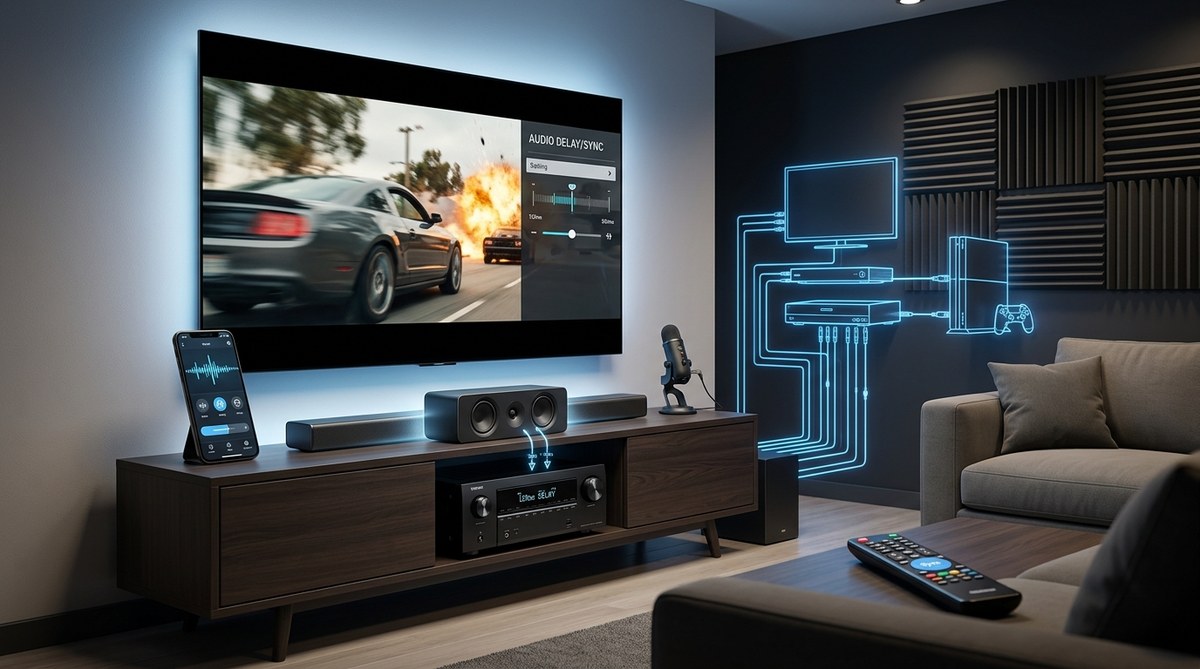
When your home theater experience feels off because the sound doesn’t match the picture, it can be frustrating. Audio delay in home theaters is a common issue that disrupts immersion and enjoyment. Luckily, there are straightforward ways to identify and fix audio sync problems. Whether you’re watching movies, gaming, or streaming shows, syncing audio properly makes a huge difference. This guide walks you through practical steps to troubleshoot and correct audio delay in your home theater setup.
Audio delay can ruin your home theater experience but fixing it is often simple. By understanding the causes and following step-by-step procedures, you can sync your sound with your visuals and enjoy movies as intended.
Understanding what causes audio delay in home theaters
Audio delay happens when sound reaches your ears later than the corresponding visual. Several factors contribute to this mismatch, including hardware settings, signal processing, and cable connections. Modern home theater systems involve multiple devices like receivers, TVs, soundbars, and gaming consoles. Each can introduce a lag if not configured correctly.
Common causes include:
– Internal processing delays in TVs or receivers
– Audio signal conversion from digital to analog
– Wireless transmission latency
– Incorrect audio or video settings
– Faulty or incompatible cables
Knowing the root cause helps in choosing the right fix. Usually, it’s a combination of hardware setup and software adjustments.
How to troubleshoot and fix audio delay in your home theater
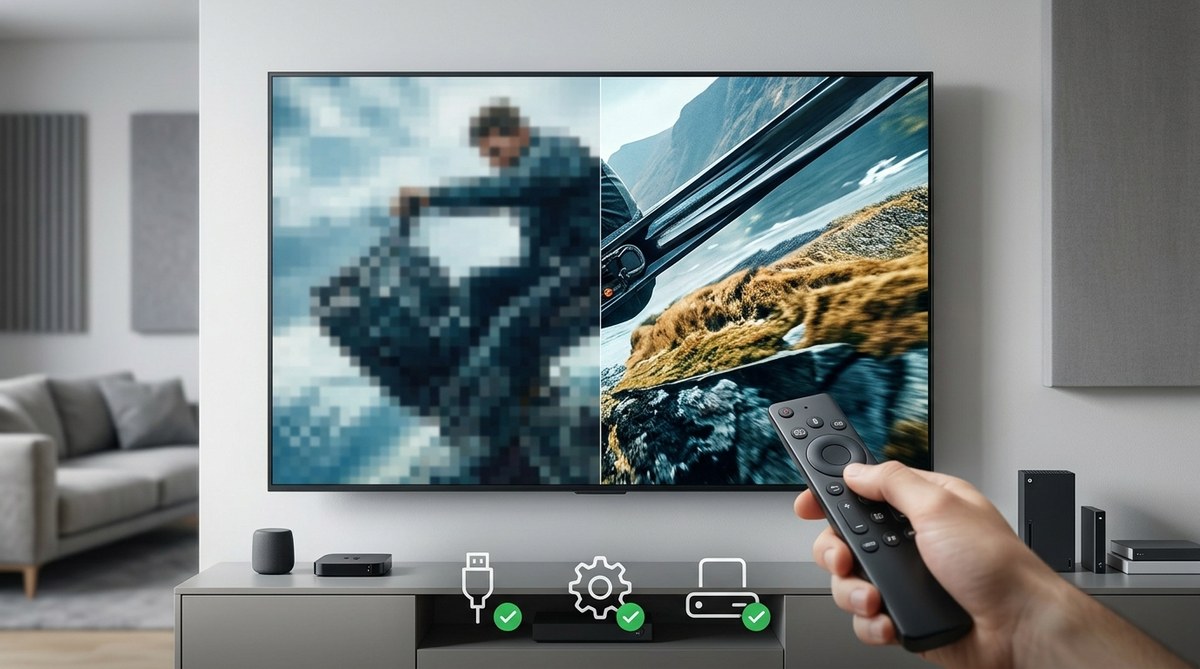
Fixing audio delay involves a sequence of steps to identify the problem and apply the right solution. Follow this practical process:
1. Check your device settings
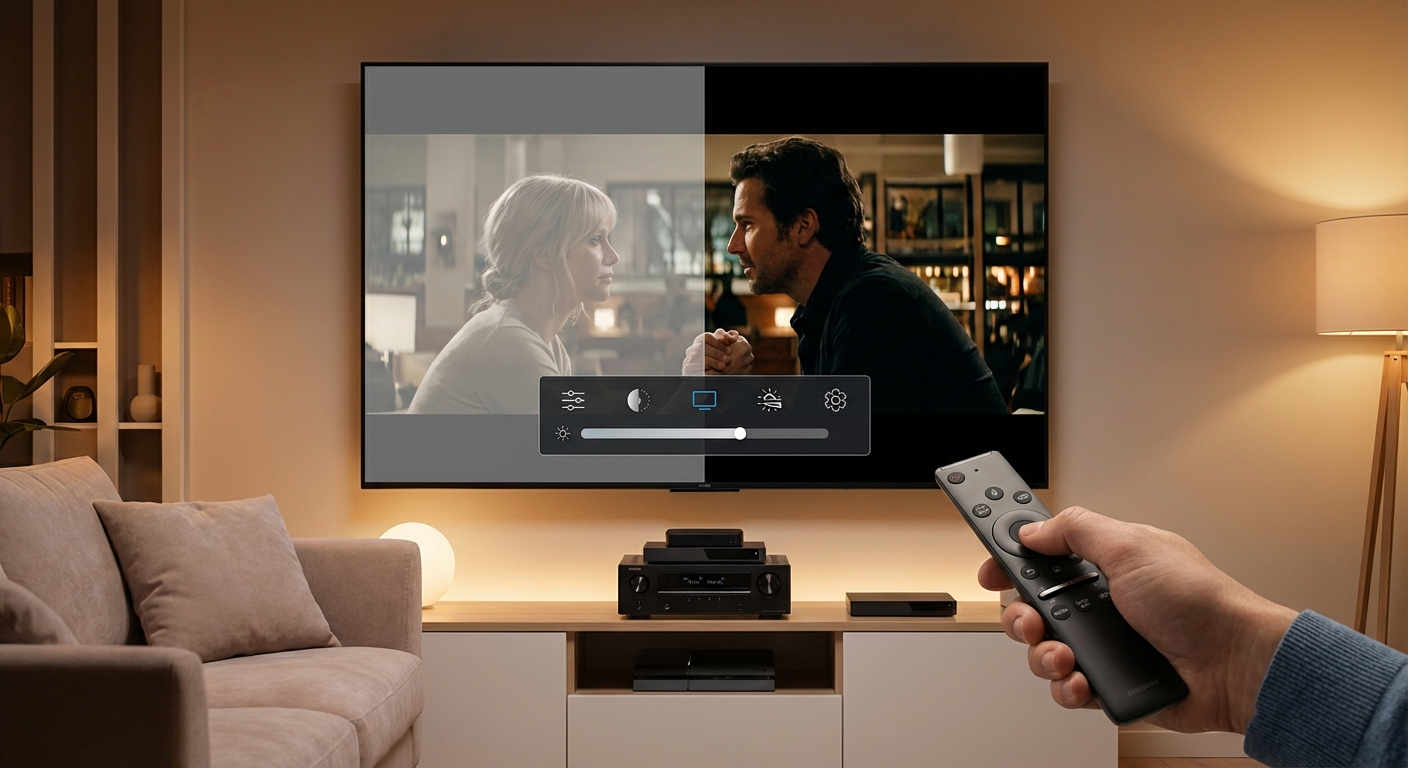
Start by inspecting the audio and video settings on your TV and receiver. Many modern devices have built-in audio delay adjustments. For example, your TV might have a “lip sync” or “audio delay” setting. Similarly, your AV receiver might offer a dedicated delay or lip sync calibration.
Steps:
– Access your TV’s audio menu and look for audio delay or lip sync options.
– Navigate your AV receiver’s setup menu and locate audio delay or similar parameters.
– Adjust the delay in small increments while testing the sync with real content.
2. Use built-in calibration tools
Many home theater devices include automatic or manual calibration features that help synchronize audio and video.
For example:
– Some TVs have an auto-lip sync function.
– AV receivers often come with setup microphones and calibration microphones (like Audyssey or YPAO) that can optimize delay settings.
Running a calibration process can automatically detect and correct sync issues.
3. Adjust audio delay manually
If automatic calibration doesn’t fix the problem, manual adjustments are the way to go.
How:
– Use the device’s menu to add or reduce milliseconds of delay.
– Test with scenes that have prominent dialogue or sound effects.
– Fine-tune until the lips match the speech and the sound feels natural.
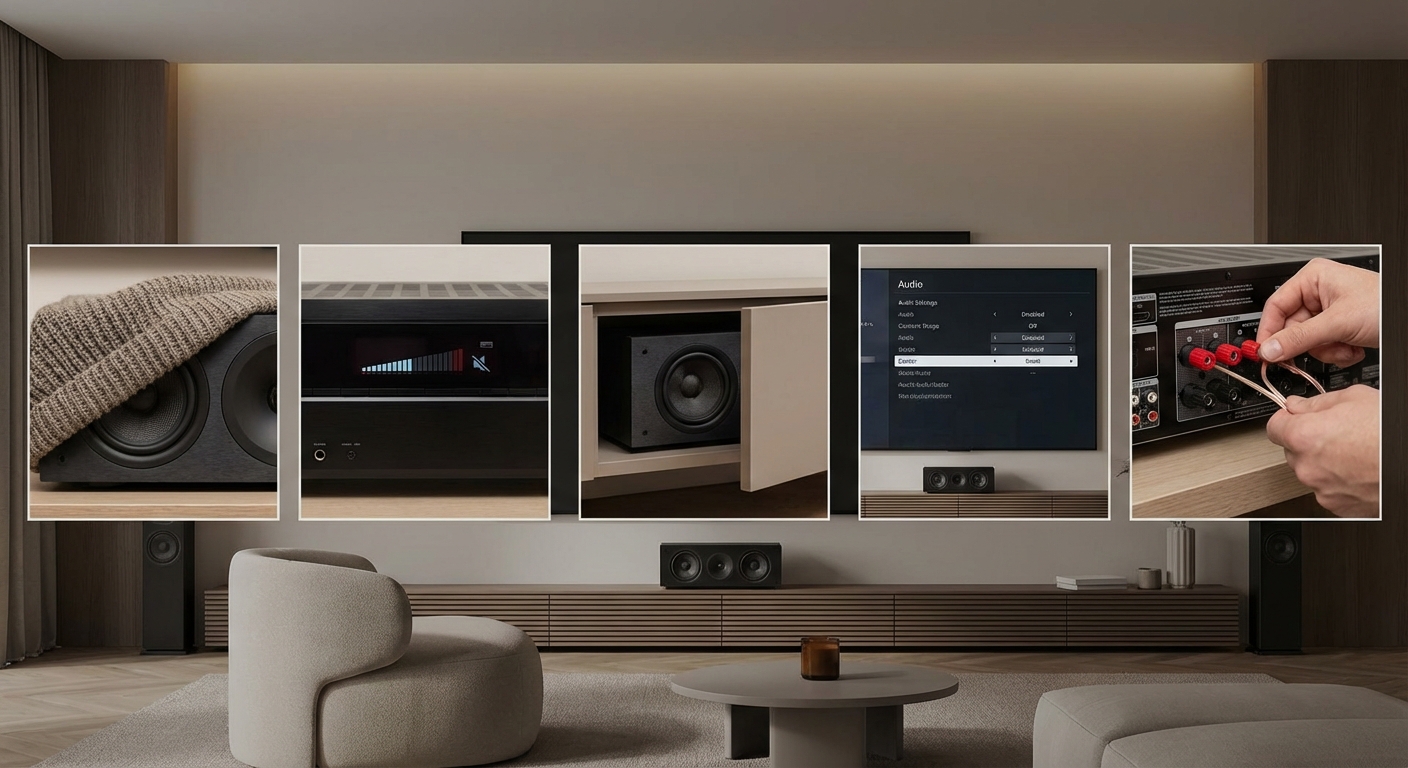
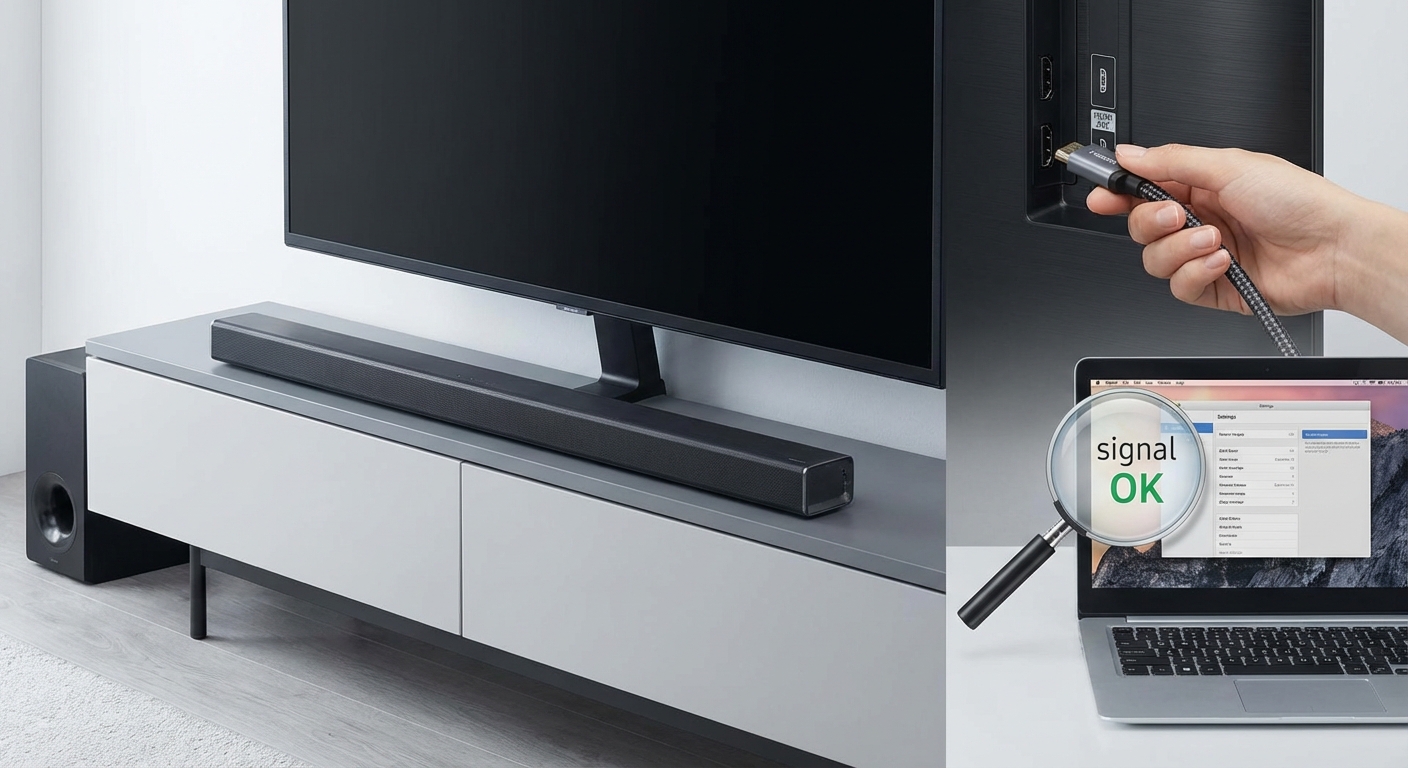
4. Verify and replace cables if needed
Faulty or incompatible cables can introduce latency.
Checklist:
– Use high-quality HDMI cables with good shielding.
– Avoid overly long cables that aren’t designed for high-speed signals.
– Check for loose connections or damaged cables.
– For wireless setups, ensure a strong, stable connection.
5. Disable processing features that cause delay
Some TVs and soundbars add processing effects that create lag.
Example:
– Disable digital noise reduction, motion smoothing, or other video processing features.
– Turn off any audio effects like virtual surround sound that may add delay.
6. Confirm device compatibility and firmware updates
Outdated firmware can cause sync issues.
Action:
– Check for firmware updates on your TV, soundbar, or receiver.
– Ensure all devices are running the latest software versions.
– Confirm that all devices support the same audio formats to avoid conversion issues.
7. Use external hardware or apps for precise calibration
For advanced users, external audio processors or calibration apps can help.
Options:
– External audio delay processors can add precise milliseconds delay.
– Calibration tools like AVS HD 709 or SpectraCal can measure and correct sync issues.
“A good rule of thumb is to start with the device’s default settings and then make incremental adjustments to find the perfect sync. Patience is key.” — Home theater expert
Techniques and common mistakes in fixing audio delay
| Technique | Mistake to Avoid |
|---|---|
| Using automatic calibration features | Relying solely on auto-setup without manual verification |
| Adjusting delay in large steps | Making tiny, incremental changes for fine-tuning |
| Using high-quality cables | Using cheap, low-speed cables that cause latency |
| Disabling all processing features | Turning off features that improve picture quality but cause delay |
| Updating firmware regularly | Ignoring firmware updates that fix bugs and improve performance |
Scenarios and solutions table
| Scenario | How to fix | Common mistake |
|---|---|---|
| Audio is out of sync after a firmware update | Re-run calibration and check delay settings | Assuming updates fix all issues automatically |
| Using a soundbar with built-in processing | Disable audio effects or switch to raw audio mode | Ignoring processing lag caused by features like virtual surround |
| Wireless audio lag | Reduce wireless interference, use wired connections | Relying only on wireless setups for critical viewing |
| Long HDMI cables causing delay | Replace with shorter, high-quality HDMI cables | Using cables not rated for high-speed signals |
Final tips for seamless audio-visual sync
- Always start with the device’s default settings and adjust gradually.
- Test with different types of content to ensure consistency.
- Keep firmware up-to-date for best performance.
- Use test patterns or scenes with clear lip movements to judge sync.
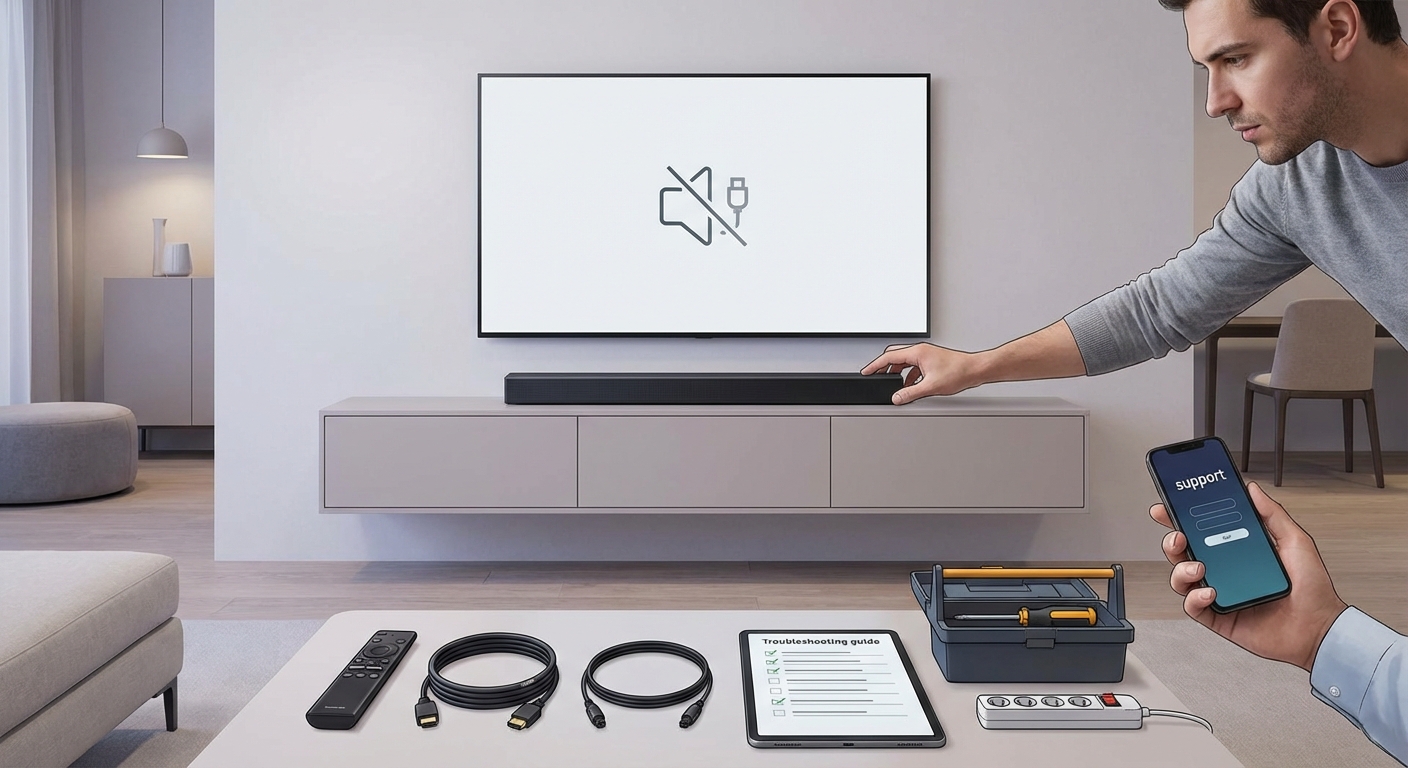
- Consider professional calibration if persistent issues remain.
“Syncing your audio and video can be straightforward once you understand where the delays originate. Small tweaks make a noticeable difference.” — AV technician
Keep your home theater experience flawless
Correcting audio delay in your home theater setup is often a matter of patience and methodical adjustments. By understanding the causes and systematically applying calibration techniques, you can enjoy movies and shows without distracting mismatches. Remember to verify your connections, update your devices, and use the built-in tools available. Creating a well-synchronized system transforms your viewing from good to truly immersive.
With these tips, you’re ready to troubleshoot and perfect your home theater audio. Take your time, make small adjustments, and enjoy the seamless experience you deserve.


Leave a Reply