
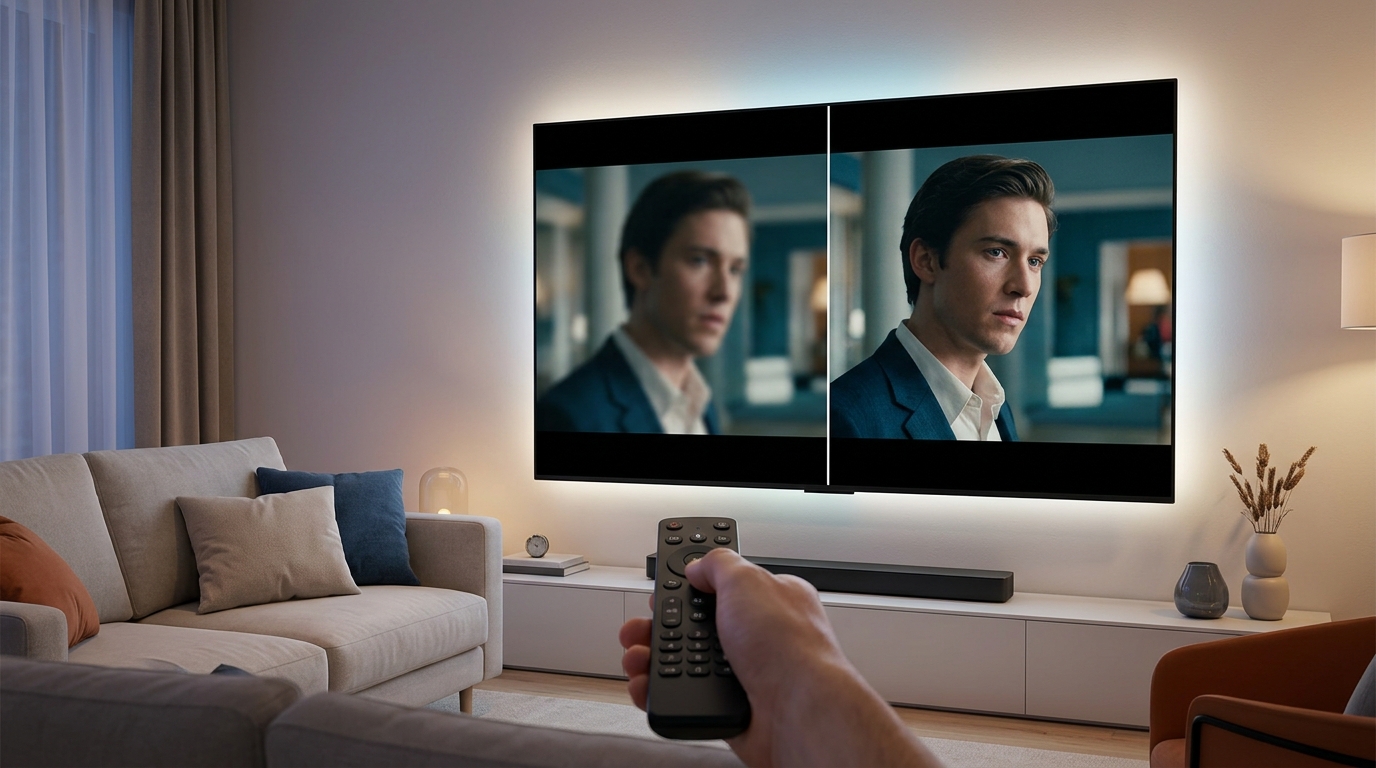
You just unboxed your brand new 4K TV, plugged it in, and started watching your favorite movie. But something feels off. The picture looks too smooth, almost like a home video or a daytime soap opera instead of a Hollywood film. You’re not imagining things, and your TV isn’t broken.
Modern TVs ship with motion smoothing features enabled by default, creating an unnaturally smooth “soap opera effect” that makes movies look like cheap video. This happens because the TV artificially generates extra frames between the original 24 frames per second that films use. You can fix this in your TV settings by disabling motion interpolation, motion smoothing, or similar features, which typically takes less than three minutes.
What Actually Causes That Weird Smooth Look
Your new TV is doing something that older TVs couldn’t do. It’s creating fake frames between the real ones.
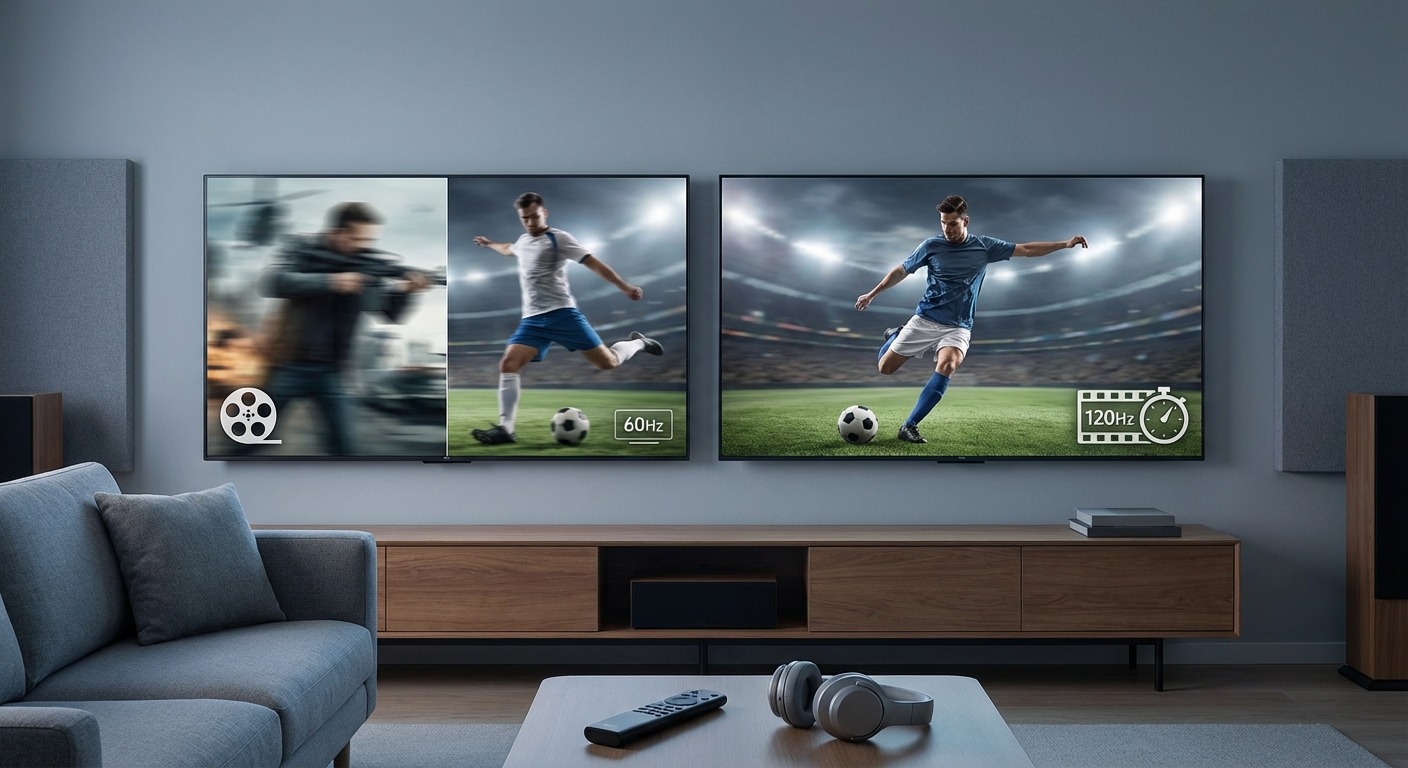
Movies and most TV shows are filmed at 24 frames per second. That’s been the standard for nearly a century. Your new TV, however, refreshes at 60Hz or 120Hz, meaning it can display 60 or 120 frames per second.
To fill in those extra frames, the TV uses motion interpolation. It analyzes two consecutive frames and creates artificial frames to place between them. The result is smoother motion, but it also removes the natural motion blur that gives film its cinematic quality.
This process goes by many names depending on the manufacturer:
- Samsung calls it Auto Motion Plus or Picture Clarity
- LG calls it TruMotion
- Sony calls it MotionFlow or Cinemotion
- Vizio calls it Smooth Motion Effect
- TCL calls it Action Smoothing
All of these do essentially the same thing. They manufacture frames that were never part of the original content.
Why Manufacturers Turn This Feature On
TV makers enable motion smoothing by default because it makes sports and live action content look sharper in showroom displays. When you’re watching a football game or a nature documentary, the extra smoothness can actually help you track fast motion.
But for narrative content like movies and scripted TV shows, it destroys the artistic intent. Directors and cinematographers carefully control motion blur as part of their visual language.
The feature also makes TVs look more impressive on store shelves. A TV displaying ultra-smooth motion stands out compared to one showing natural film cadence. Retailers want TVs that grab attention, not necessarily TVs that display content correctly.
Many people don’t notice the effect at first, especially if they’re not familiar with how films should look. But once you see it, you can’t unsee it.
How to Find and Disable Motion Smoothing
The exact steps vary by brand, but the general process is similar across all TVs.
For Samsung TVs:
- Press the Settings button on your remote
- Navigate to Picture settings
- Find Picture Clarity Settings or Auto Motion Plus
- Turn it off or set it to Custom and disable both Blur Reduction and Judder Reduction
For LG TVs:
- Open Settings
- Go to Picture settings
- Select Picture Options or Advanced Settings
- Find TruMotion and set it to Off or User and set both sliders to zero
For Sony TVs:
- Press Settings or Home
- Navigate to Display & Sound or Picture
- Find MotionFlow or Cinemotion
- Set to Off or True Cinema
For Vizio TVs:
- Press Menu
- Go to Picture settings
- Find Smooth Motion Effect
- Turn it off completely
For TCL TVs:
- Press the asterisk (*) button while watching content
- Find Advanced Picture Settings
- Locate Action Smoothing
- Disable it
Some TVs hide these settings deep in menus or use confusing labels. If you can’t find the option, search for your TV model number plus “disable motion smoothing” online.
“Motion interpolation was designed for sports and video games, not cinema. Turning it off is the single most important picture setting change you can make on a modern TV.” — Professional calibrator recommendation
Understanding the Technical Side
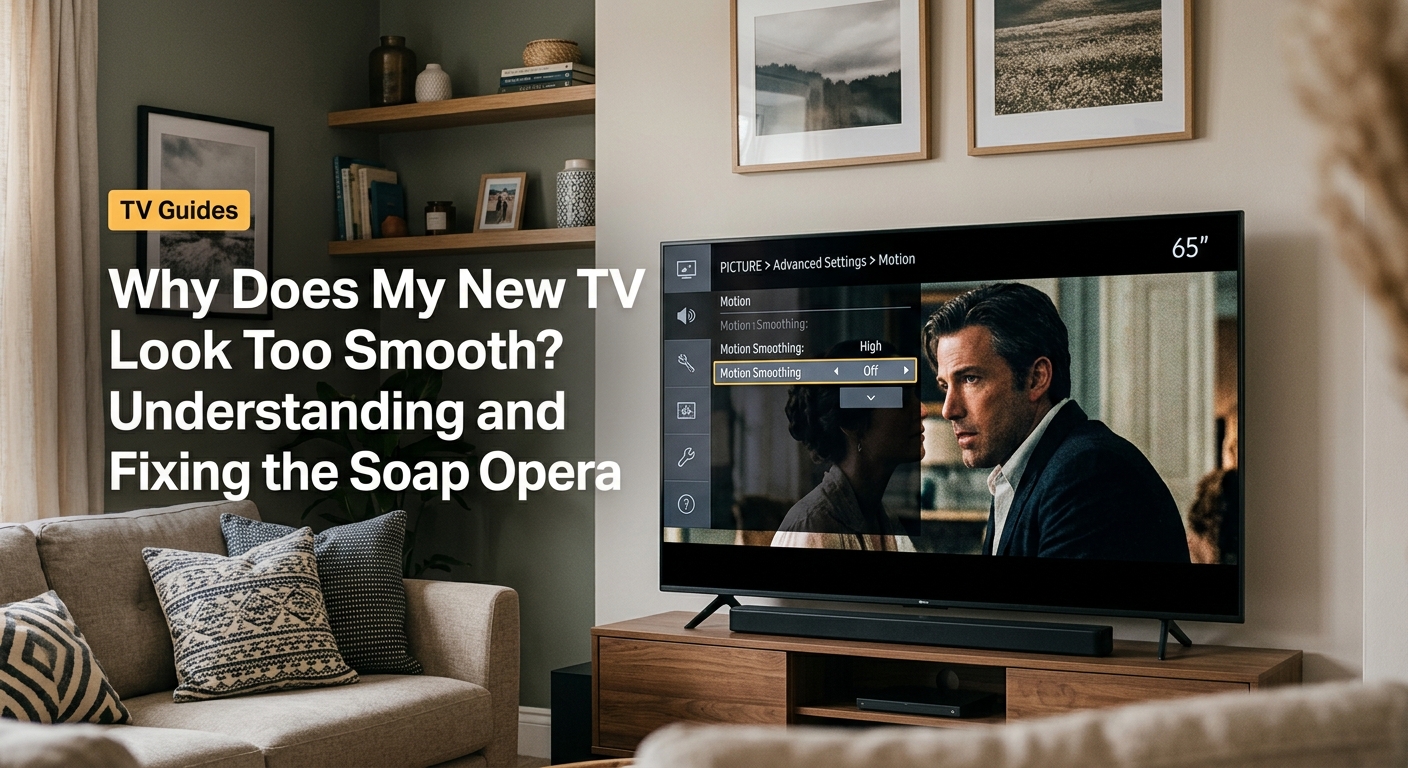
Motion interpolation works through frame analysis. The TV processor examines frame A and frame B, identifies objects that moved between them, and calculates where those objects should appear in between.
For simple motion like a car driving across the screen, this works reasonably well. For complex scenes with multiple moving elements, camera movement, and depth changes, the processor makes mistakes.
You’ll see artifacts like:
- Halos around moving objects
- Stuttering when the processor can’t keep up
- Weird warping effects on faces or hands
- Objects that seem to float or separate from their backgrounds
These artifacts happen because the TV is guessing. It doesn’t have access to the actual scene or camera data. It’s reverse engineering motion from the final image.
The processing also adds input lag, which matters if you use your TV for gaming. Even a few milliseconds of delay between your controller input and screen response affects gameplay.
When You Might Actually Want Motion Smoothing
There are legitimate uses for this feature, just not for movies.
Sports broadcasts benefit from motion smoothing. A soccer ball flying across the field or a basketball player driving to the hoop becomes easier to track. The artificial smoothness doesn’t clash with your expectations because sports are shot on video, not film.
Live news and talk shows also work fine with motion smoothing enabled. These programs are already shot at 30 or 60 frames per second on video cameras, so adding interpolation doesn’t create the soap opera effect.
Some video games, particularly fast-paced racing or fighting games, can benefit from motion smoothing if your console can’t maintain a steady frame rate. But most gamers prefer to disable all processing for the lowest possible input lag.
You can create different picture modes for different content types. Most TVs let you save settings per input or per content type. Set up one mode for sports with motion smoothing enabled and another for movies with it disabled.
Common Mistakes People Make
Many people adjust the wrong settings trying to fix the soap opera effect. Here are the settings that won’t help:
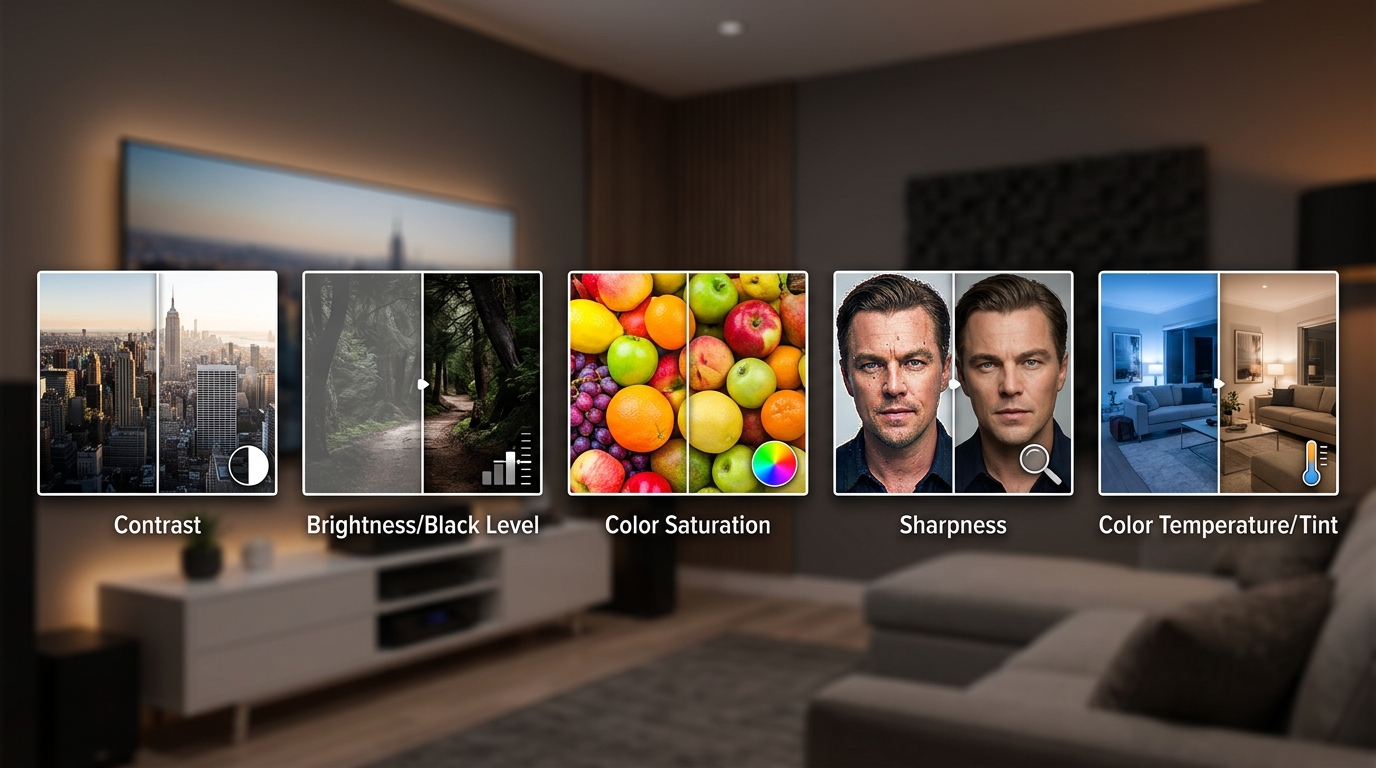
| Setting | What It Does | Why It Won’t Fix the Problem |
|---|---|---|
| Brightness | Controls black level | Doesn’t affect motion processing |
| Contrast | Controls white level | Independent of frame interpolation |
| Sharpness | Adds edge enhancement | Makes the problem look worse |
| Color | Adjusts saturation | Unrelated to motion smoothing |
| Backlight | Controls LED intensity | Doesn’t change frame generation |
The only settings that matter for this issue are the ones specifically related to motion, smoothing, interpolation, or frame generation.
Another mistake is assuming the problem is with your streaming service or cable box. The motion smoothing happens inside the TV after it receives the signal. Changing streaming quality or cable settings won’t help.
Some people try to fix it by adjusting the TV’s refresh rate. Your TV’s panel refresh rate (60Hz or 120Hz) is hardware. You can’t change it. What you can change is whether the TV generates fake frames to fill that refresh rate.
Picture Modes and Motion Settings
Most TVs ship in a mode called Vivid, Dynamic, or Store Demo. These modes crank every enhancement to maximum, including motion smoothing.
Switching to Movie, Cinema, or Filmmaker Mode often disables motion smoothing automatically. These modes are calibrated closer to industry standards for film reproduction.
The only TV calibration settings that actually matter for movie watching include proper picture mode selection as the foundation.
Even in Movie mode, some TVs still apply subtle motion processing. Check the motion settings manually to be sure.
Game Mode typically disables all processing to reduce input lag, including motion smoothing. If you can’t find the motion settings, switching to Game Mode while watching movies will usually solve the problem, though you might lose some other picture enhancements.
Why This Matters for HDR Content
High Dynamic Range (HDR) content compounds the soap opera effect problem. HDR already looks more realistic than standard dynamic range because it displays a wider range of brightness and color.
When you add motion smoothing to HDR content, the hyper-realistic look becomes even more pronounced. It can make expensive Hollywood productions look like they were shot on a smartphone.
How to fix HDR content that looks washed out or too dark on your TV covers proper HDR setup, but disabling motion smoothing should be your first step.
Some TVs apply different motion settings to HDR and SDR content. You might need to disable motion smoothing separately for each type of content.
Different Content Types Need Different Settings
Not all content is created equal. Understanding the original frame rate helps you decide whether motion smoothing makes sense.
Film content (24fps):
– Movies
– Most streaming shows
– Premium cable dramas
– Documentaries shot on film
Video content (30/60fps):
– Live sports
– News broadcasts
– Talk shows
– Reality TV
– Most YouTube videos
High frame rate content (48/60/120fps):
– Some modern action films
– Video games
– VR content
For film content, always disable motion smoothing. For video content, it’s optional based on personal preference. For high frame rate content, it’s unnecessary because the content already has smooth motion.
Checking If You Fixed It
After disabling motion smoothing, watch something you’re familiar with. A movie you’ve seen before works best.
Look for these signs that motion smoothing is truly off:
- Natural motion blur when the camera pans
- Slight judder during slow pans (this is normal for 24fps content)
- Film grain that stays consistent
- A more “cinematic” overall feel
If you still see unnaturally smooth motion, check for additional settings. Some TVs have multiple motion features that need to be disabled separately.
Black frame insertion is a different feature that reduces motion blur by flashing the backlight. It doesn’t create fake frames, so it won’t cause the soap opera effect. You can leave this enabled if you want.
TV Shopping Considerations
If you’re shopping for a new TV and hate the soap opera effect, you can’t avoid it by choosing a specific brand. All major manufacturers include motion smoothing features.
What you can do is choose a TV that makes it easy to disable. Some brands bury the setting five menus deep. Others provide a dedicated button on the remote.
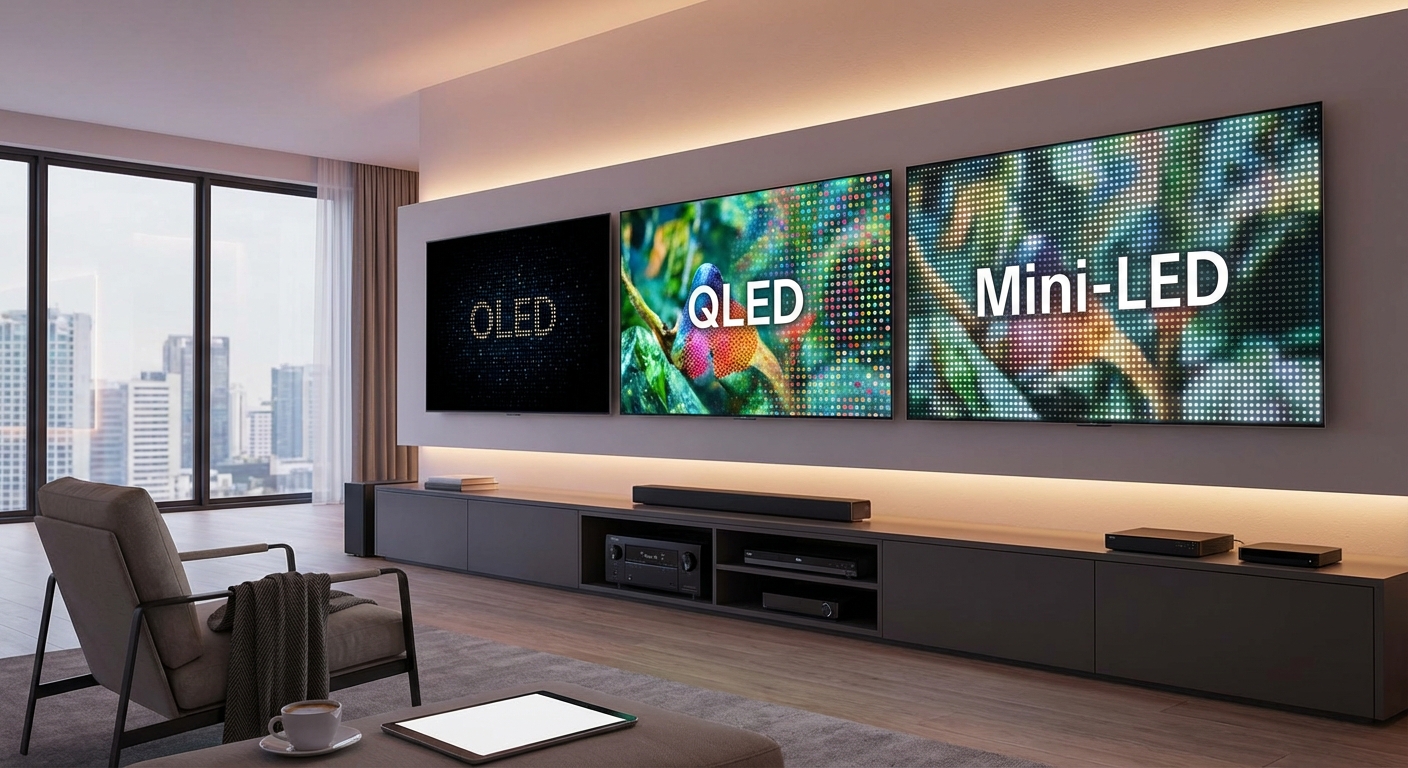
OLED vs QLED vs Mini-LED: which TV technology should you buy in 2026? explains display technology differences, but motion processing is separate from panel type.
Higher-end TVs often have better motion processing with fewer artifacts. If you do use motion smoothing for sports, premium models handle it more cleanly.
Look for TVs that support Filmmaker Mode. This industry-standard picture mode automatically disables motion smoothing and other enhancements to display content as the director intended.
The Filmmaker Mode Solution
In 2020, the UHD Alliance introduced Filmmaker Mode as a standardized picture preset. When enabled, it:
- Disables motion smoothing
- Sets color temperature to D65 (industry standard)
- Preserves original aspect ratio
- Disables sharpening and noise reduction
Not all TVs have this mode yet, but most models from 2021 onward include it. Look for a dedicated button on the remote or in the picture mode list.
Filmmaker Mode isn’t perfect. It doesn’t calibrate brightness, contrast, or color accuracy. But it’s a reliable way to disable motion smoothing with one setting change.
Some streaming devices now send metadata that automatically switches compatible TVs to Filmmaker Mode for movie content. This happens without any action on your part.
Getting Your Picture Settings Right
Disabling motion smoothing is just one step toward proper picture quality. Other settings matter too.
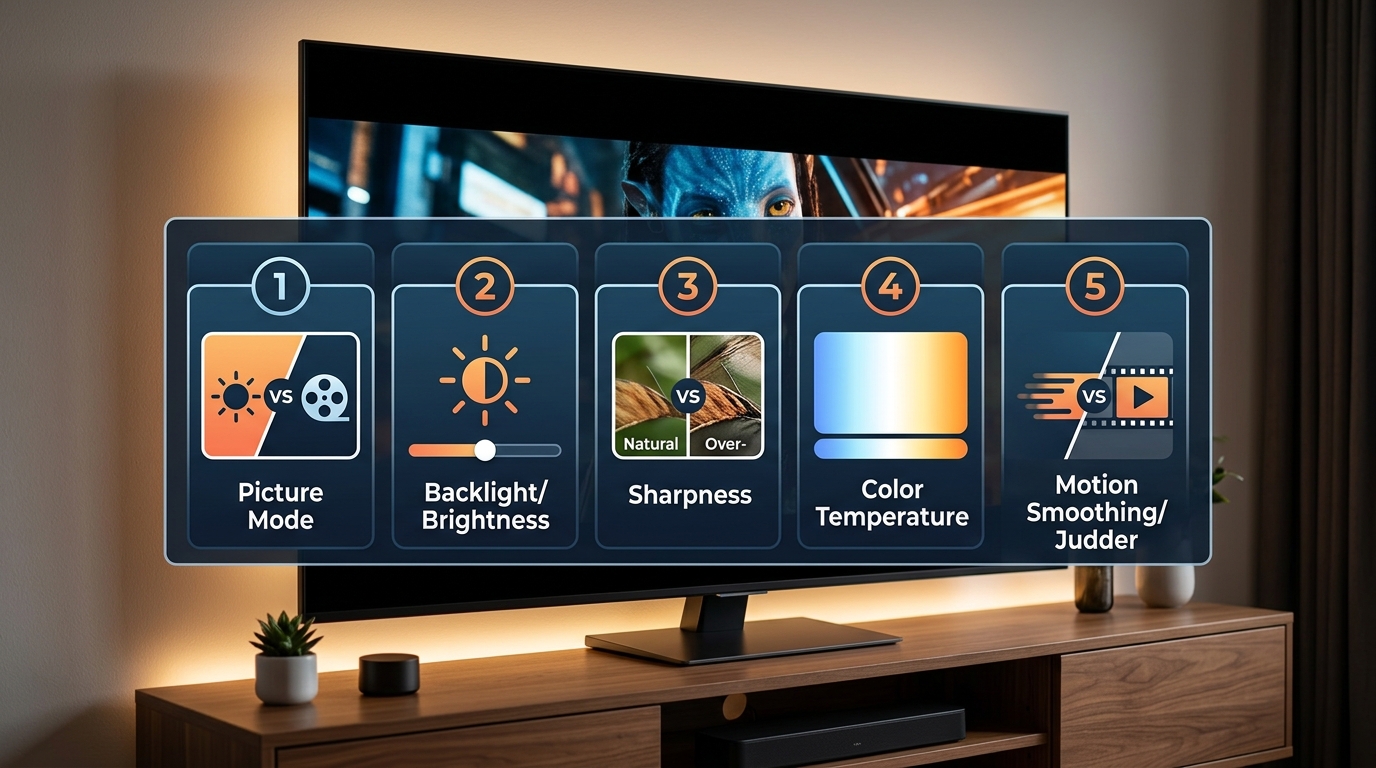
How to calibrate your TV in 30 minutes without hiring a professional walks through the complete process, but here’s the priority order:
- Disable motion smoothing (highest priority)
- Select the correct picture mode
- Adjust brightness and contrast
- Set color temperature to Warm
- Reduce or disable sharpness
- Disable noise reduction
Each of these changes improves picture quality, but motion smoothing has the biggest impact on how content feels.
Room lighting affects perceived picture quality too. A TV that looks great in a dark room might need different settings in a bright living room.
Why Some People Prefer Motion Smoothing
Not everyone hates the soap opera effect. Some viewers prefer the smooth, clear motion, especially if they’ve never watched much film content.
If you genuinely prefer motion smoothing for movies, that’s fine. Your TV, your choice.
But try watching with it disabled for a week. Your eyes need time to adjust back to natural film motion if you’ve been watching with smoothing enabled.
Many people who initially prefer motion smoothing change their minds after seeing properly displayed film content. The cinematic look grows on you.
Others find that they like smoothing for some content but not others. That’s why TV manufacturers include the feature. They’re giving you options.
Explaining It to Others
If you’re the tech person in your family, you’ll probably need to fix this on other people’s TVs.
The easiest explanation is: “Your TV is adding extra frames that weren’t in the original movie. It makes everything look like a soap opera instead of a film.”
Most people understand immediately once you point it out. Show them a scene with motion smoothing on, then turn it off and show the same scene again.
The difference is obvious once you know what to look for. Panning shots work particularly well for demonstrations. The unnatural smoothness of motion smoothing versus the natural blur of film becomes clear.
Some people will insist they don’t see a difference. That’s fine. If they’re happy with how their TV looks, leave it alone.
Bringing Film Back to Your Living Room
Your new TV can display beautiful, accurate pictures once you turn off the processing that makes everything look weird.
Motion smoothing represents good technology applied in the wrong place. The processors that enable it are impressive. The algorithms work reasonably well for what they’re trying to do. But what they’re trying to do runs counter to how films are made and meant to be seen.
Take three minutes to find and disable motion smoothing in your TV settings. Your movies will immediately look more natural, more cinematic, and more like what the filmmakers intended. You bought a premium TV to get great picture quality. Now you’ll actually see it.


Leave a Reply