
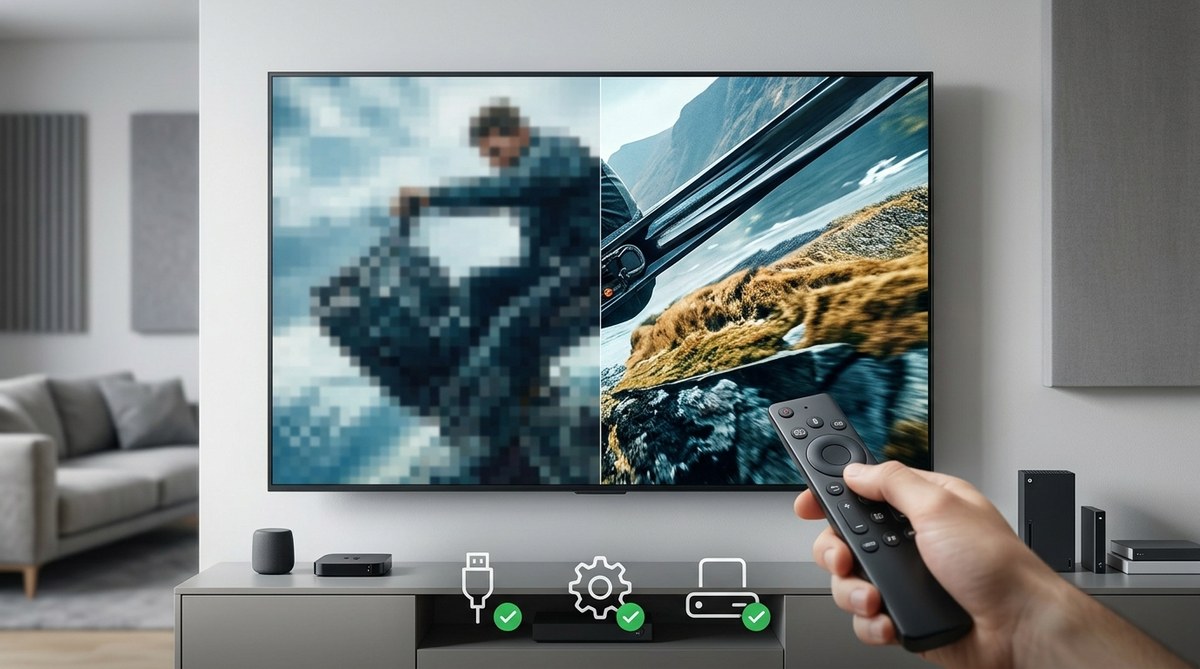
You just sat down to watch the big game or your favorite streaming series. The popcorn is ready. The lights are dimmed. And then you see it. The picture looks soft, hazy, maybe even a little pixelated. For a TV that cost a decent chunk of change, it should look sharper than this. Before you call a repair shop or start shopping for a new set, take a deep breath. A blurry picture on a 4K TV is almost always fixable at home with a few simple checks. You do not need a technician. You just need to know where to look.
A blurry 4K TV is rarely a hardware failure. Most fixes involve checking your source content resolution, swapping out a faulty HDMI cable, or turning off motion smoothing and other processing effects. Start with the cheapest and easiest fixes: check your source, then your cables, then your picture settings. Nine times out of ten, one of these steps will restore that crisp 4K image you paid for.
Start with the Source: Is It Really 4K Content?
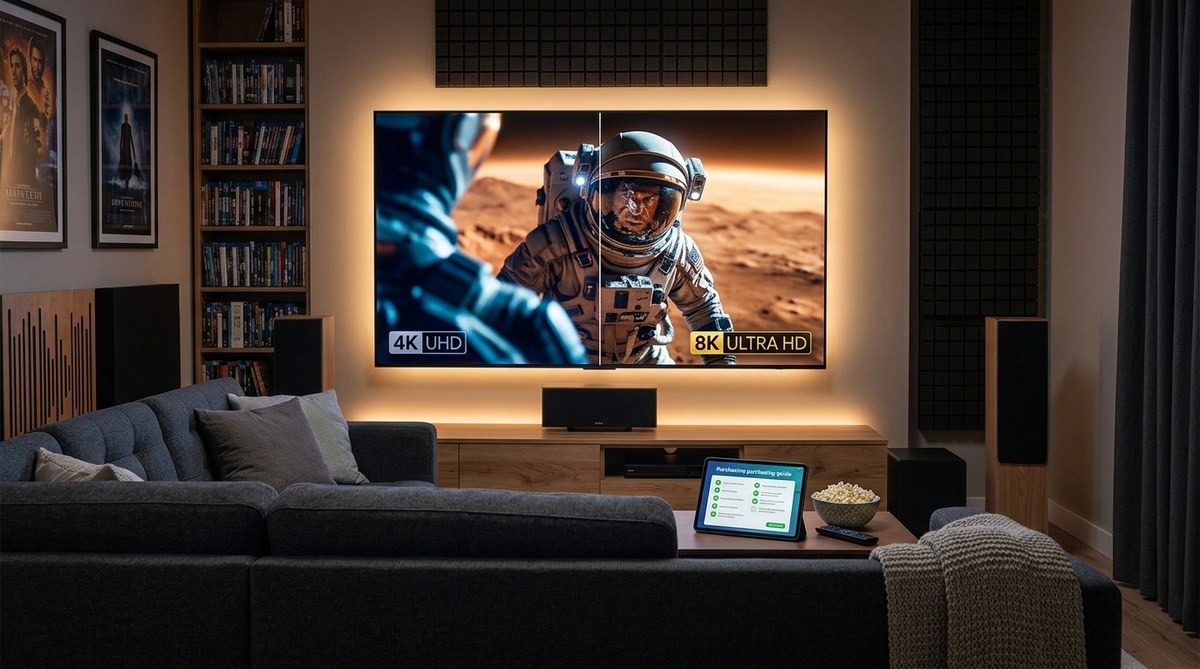
The most common reason a 4K TV looks blurry is simple. You are not actually watching 4K content. Your TV is a high-resolution display, but it can only show what you feed it. If you are watching a standard definition channel, an old DVD, or a low-bitrate YouTube stream, the picture will look soft. No amount of tweaking will turn a 480p signal into true 4K sharpness.
Check what your TV is receiving. Most TVs have an “Info” or “Display” button on the remote. Press it while watching something. Look for the resolution number. If it says 480p, 720p, or 1080p, that is your culprit. Your TV is doing its best to upscale that lower resolution, but upscaling cannot create detail that was never there.
Here is a quick breakdown of what to expect from common sources:
| Source Type | Native Resolution | Typical Picture Quality |
|---|---|---|
| Streaming (Netflix, Disney+, etc.) | 4K (2160p) if you pay for the premium plan | Sharp, detailed, but varies by internet speed |
| Cable or Satellite TV | 720p or 1080i for most channels | Soft compared to 4K, often compressed |
| Over-the-air Antenna | 1080i or 720p for major networks | Can be surprisingly good, but not 4K |
| Blu-ray Disc | 1080p (standard) or 2160p (4K Blu-ray) | Excellent, the best consumer quality |
| DVD | 480p | Very soft, looks blurry on a large 4K screen |
| YouTube or Social Media | Varies wildly, often 1080p or lower | Heavily compressed, can look pixelated |
Bottom line on sources: If you want a sharp picture, feed your TV sharp content. A 4K Blu-ray or a 4K stream from a service you pay extra for will look significantly better than a cable news channel.
Check Your HDMI Cables and Connections
If you are feeding your TV a true 4K signal and it still looks blurry, the next suspect is the cable. A bad or outdated HDMI cable can cause all sorts of picture problems. You might see flickering, sparkles, or a general softness as the signal degrades.
This is especially true for 4K content with HDR. High dynamic range requires a lot of data to pass through the cable. Older HDMI cables (standard speed or high speed without Ethernet) may not have enough bandwidth. When the cable cannot handle the data, the TV will drop the resolution or the color depth to compensate. The result is a picture that looks less sharp than it should.
What to look for in an HDMI cable for 4K:
- Look for the “High Speed” or “Premium High Speed” label on the cable.
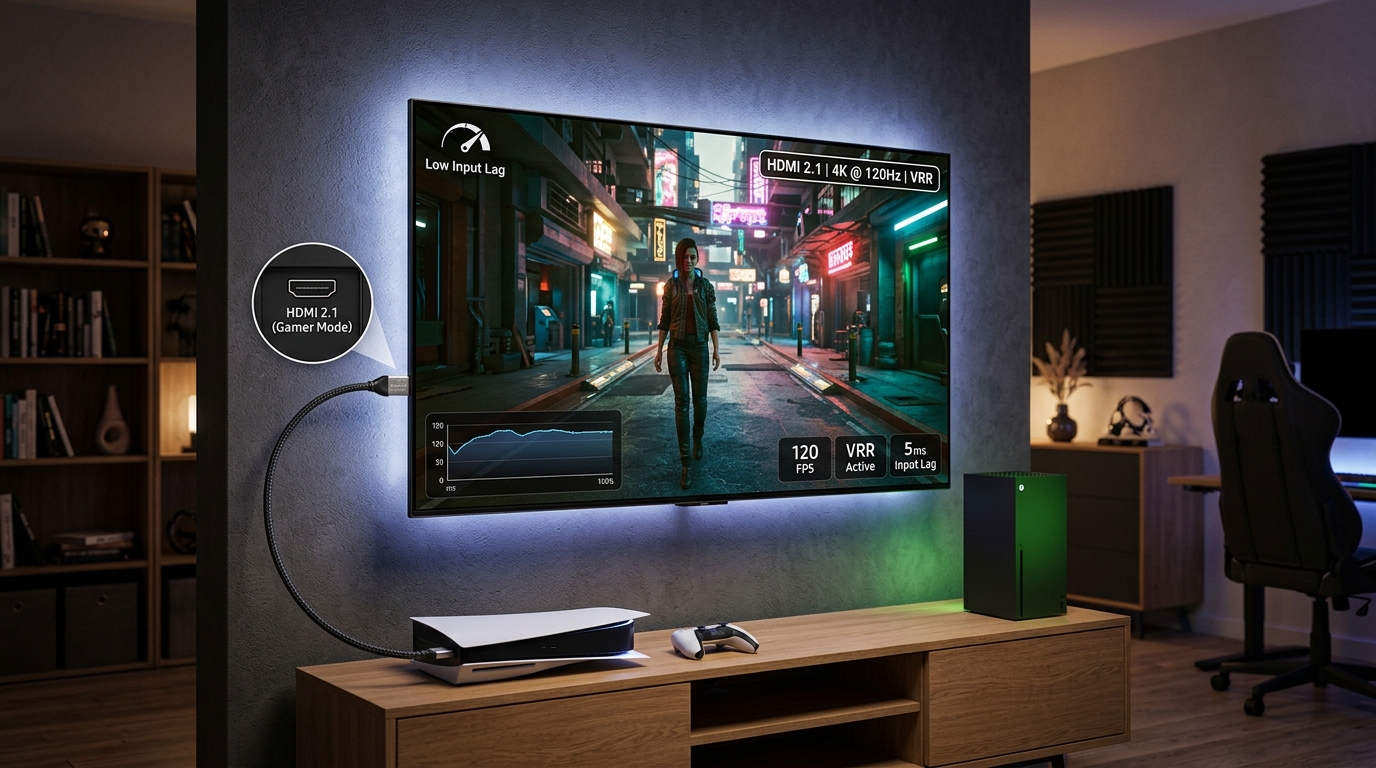
- If you want to future-proof or you game at 4K 120Hz, get an “Ultra High Speed” HDMI cable.
- Make sure the cable is securely plugged in at both ends. A loose connection can cause signal loss.
- Try a different HDMI port on your TV. Some ports are HDMI 2.0 or 2.1, while others might be older.
Expert tip: Do not spend a fortune on “premium” HDMI cables. A certified Ultra High Speed cable from a reputable brand costs less than $15 for a 6-foot length. Expensive cables do not improve picture quality. They either work or they do not.
A bad cable is a cheap and easy fix. Swap it out with another one you have lying around and see if the blurriness goes away.
Turn Off the Picture Processing
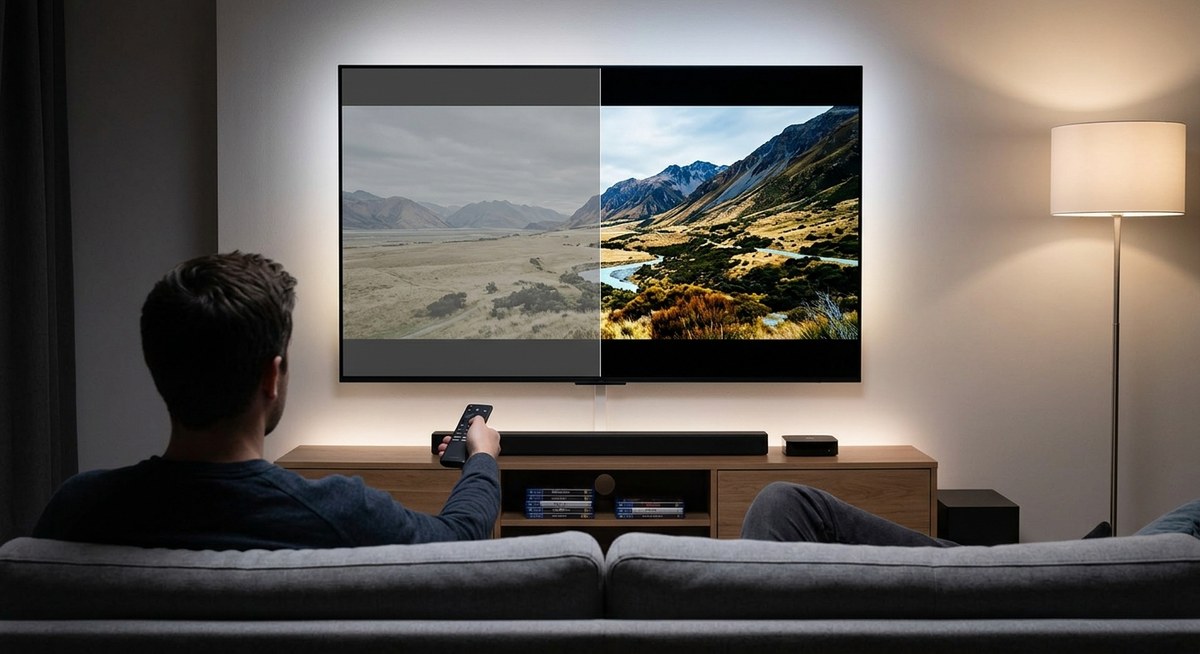
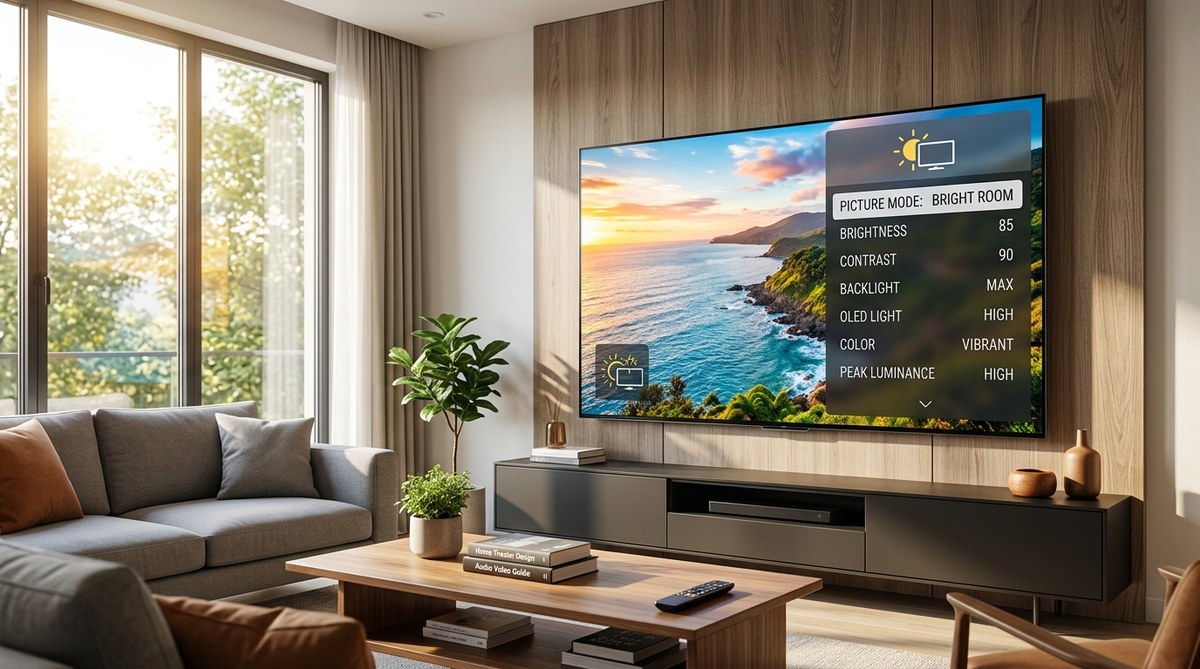
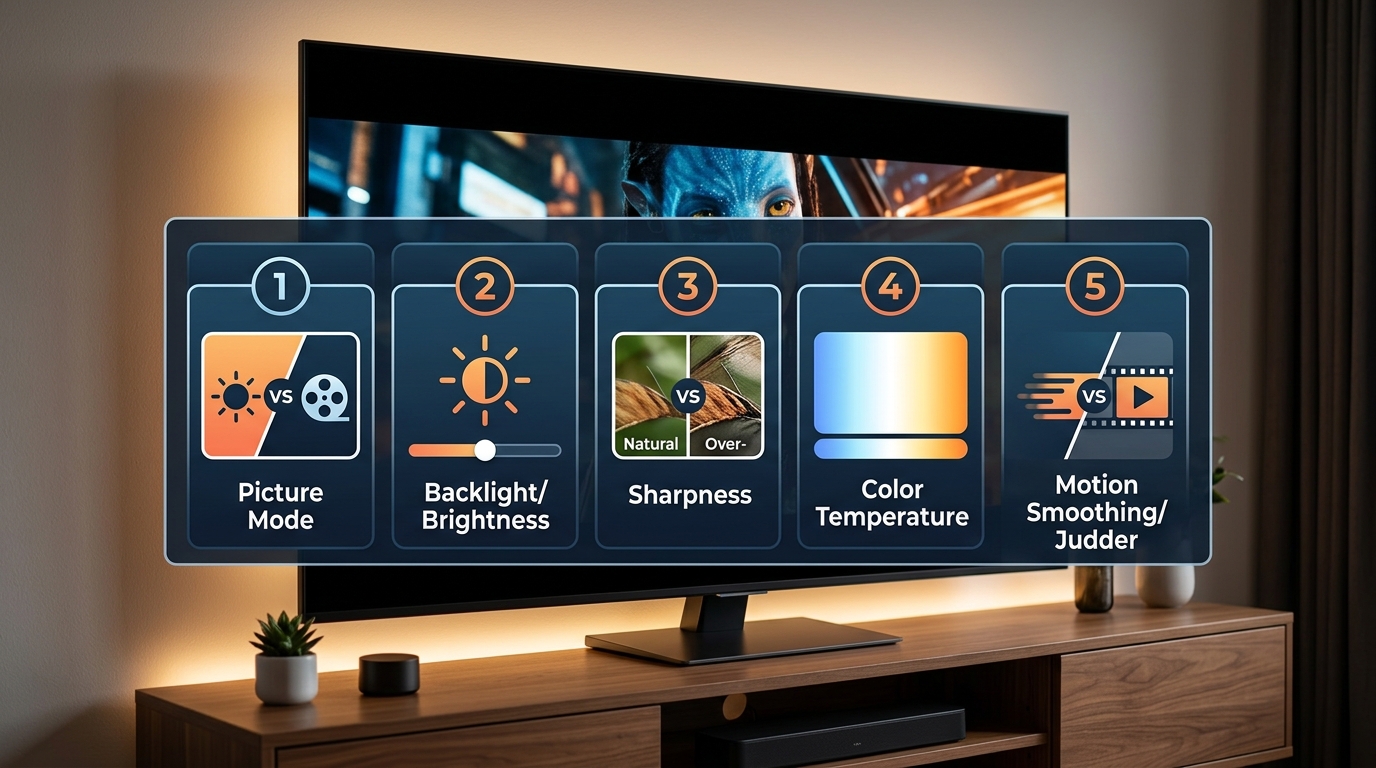
Modern TVs come with a ton of processing features turned on by default. Manufacturers do this to make the TV look bright and vibrant on the showroom floor. In your living room, these same features can ruin the picture. They can make movies look like soap operas, and they can make fast-moving sports look blurry or artifact-filled.
The biggest culprit is motion smoothing, often called Auto Motion Plus, TruMotion, MotionFlow, or something similar. This feature creates extra frames to make motion look smoother. But it often introduces a weird, unnatural clarity that makes everything look like a cheap video. It can also cause blurring and ghosting around moving objects.
The fix: Turn off all extra processing.
- Press the Settings or Menu button on your remote.
- Navigate to Picture Settings or Display Settings.
- Look for a section called Clarity, Sharpness, or Advanced Settings.
- Turn off any setting that mentions motion smoothing, noise reduction, or MPEG noise reduction.
- Set the Sharpness control to 0 or a very low number. Sharpness does not add detail. It adds edge artifacts that look like blurriness.
These processing features are trying to “improve” the image, but they often make it look worse. Turning them off is the single best way to fix a blurry 4K TV.
Check Your TV’s Resolution and Input Settings
Sometimes the issue is that your TV or your source device is not set to output 4K. This can happen if you recently unplugged something, or if a device reset itself.
Here is a numbered checklist to confirm your settings:
- On your TV: Go to Settings > General or External Devices. Look for HDMI Input Format or UHD Color. Make sure it is set to “Enhanced” or “4K” for each HDMI port you use. If it is set to “Standard,” your TV will only accept a 1080p signal from that port.
- On your streaming device (Roku, Apple TV, Fire Stick): Go to Settings > Display & Sound > Display Type. Set it to 4K HDR or 4K 60Hz. Do not leave it on “Auto” if you are having problems. Force the resolution.
- On your cable or satellite box: Look in the settings menu for Video Output or Resolution. Set it to 1080p or 4K if available. Many cable boxes default to 720p or 1080i.
- On your game console (PS5, Xbox Series X): Go to Settings > Screen and Video. Set the resolution to 4K UHD. Turn on HDMI 2.1 features like VRR if your TV supports them.
If any of these settings are wrong, your TV will not receive a full 4K signal. The picture will be upscaled by the TV, which can look blurry compared to native 4K.
Is Your TV Too Big for the Room?
This is a less common issue, but it is worth mentioning. If you sit very close to a very large 4K TV, you might notice the picture looks soft. This is because you are sitting too close to see the full benefit of the resolution. The pixels become more visible, and the image can look less coherent.
On the flip side, if you sit too far away, your eyes cannot resolve the detail of 4K anyway. You might as well be watching 1080p.
General guidelines for seating distance:
- For a 55-inch 4K TV: sit between 4 and 7 feet away.
- For a 65-inch 4K TV: sit between 5 and 8 feet away.
- For a 75-inch 4K TV: sit between 6 and 10 feet away.
If you are sitting further than these distances, the blurriness you see might just be your eyes not being able to see the fine detail. If you are closer, you might be seeing the pixel structure. Adjust your seating position and see if that helps.
What About Wi-Fi and Internet Speed?
A blurry picture can also be caused by a poor internet connection. Streaming services will automatically lower the resolution if your internet speed drops. The picture will go from sharp 4K to soft 1080p or even lower 720p. This can happen suddenly and then go back to normal, making it seem like the TV is broken.
What to check:
- Run a speed test on a device connected to the same Wi-Fi network. You need at least 25 Mbps for a stable 4K stream. 50 Mbps is better.
- If your speed is lower, try moving your router closer to your TV, or use a wired Ethernet connection.
- Other devices on your network (phones, tablets, laptops) can eat up bandwidth. Pause big downloads or video calls while you stream.
If your internet speed is fine but the picture still looks soft, try restarting your streaming device and your router. A simple power cycle can clear up connection issues.
The One Setting That Makes Everything Worse
There is one setting that causes more blurry 4K TV complaints than almost anything else. It is the “Noise Reduction” setting. This includes Digital Noise Reduction, MPEG Noise Reduction, and similar features. These settings are designed to smooth out grain and compression artifacts. The problem is they also smooth out fine detail. The result is a picture that looks soft, waxy, and blurry.
The fix: Turn all noise reduction settings to “Off” or “Low.” Do the same for any “Auto” settings in the picture menu. These processing features are rarely helpful for modern content. They were more useful for old, low-quality analog signals. On a 4K TV with a clean digital source, they do more harm than good.
Your Simple Action Plan to Fix Blurry 4K TV
Here is a bulleted summary of the steps to take, in order of easiest to most involved:
- Check that you are watching actual 4K content (press the Info button on your remote).
- Swap your HDMI cable with a known good one.
- Turn off motion smoothing and all noise reduction settings.
- Set your sharpness control to zero.
- Confirm your TV’s HDMI port is set to “Enhanced” or “4K” mode.
- Force your streaming device or console to output 4K resolution.
- Check your internet speed and restart your router if needed.
- Adjust your seating distance.
One Final Thought on Getting the Best Picture
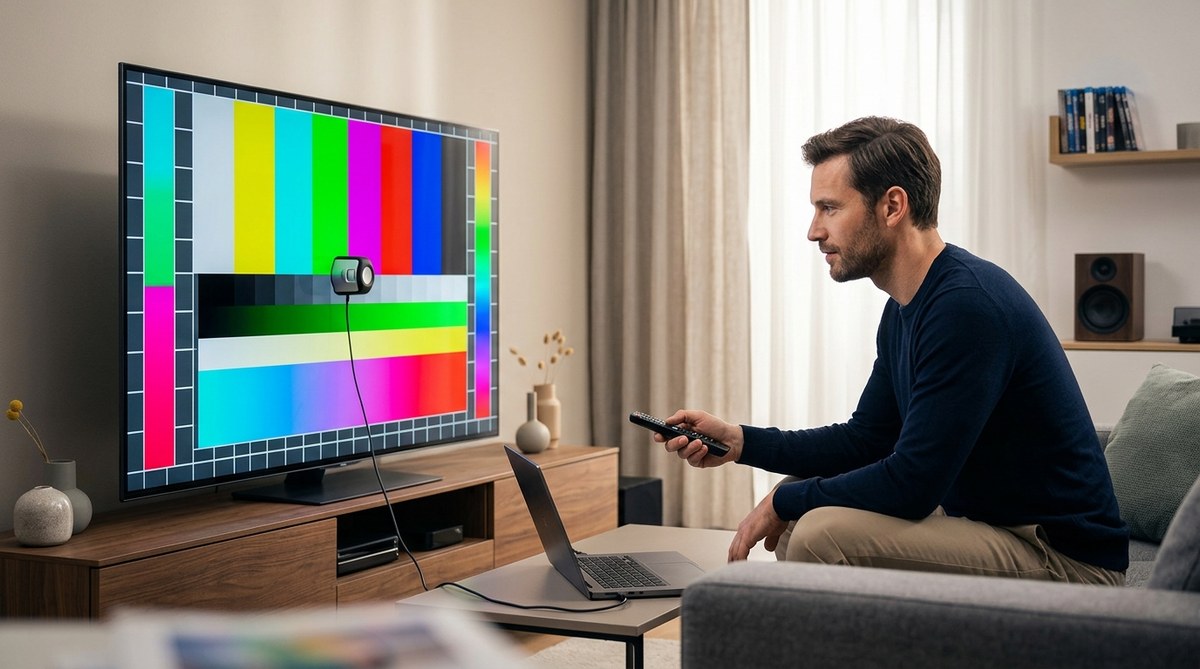
You spent good money on that 4K TV. It is capable of producing a stunning picture. The problem is almost never the hardware itself. It is always a setting, a cable, or the source content. By working through this list, you will fix blurry 4K TV issues in almost every case. If you want to take your picture quality even further, you can look into a full calibration. But for now, start with these simple fixes. Your TV will look better, and you will not have spent a dime.
Enjoy the show.

Leave a Reply